
How to Require Approval When Learners Self-Assign a Pathway
How to Require Approval When Learners Self-Assign a Pathway
In this article:
- Overview
- Require approval for self-assignment
- Choose who approves
- Things to keep in mind
- FAQs
- Who can do this
Overview
When a Pathway is available in the Library, learners can assign it to themselves. If you'd rather review those requests first, turn on Requires approval on self assign for the Pathway. Learners then have to be approved before they can start, and you choose who does the approving — their manager, specific people, or both.
Require approval for self-assignment
- Go to Pathways and open the Pathway.
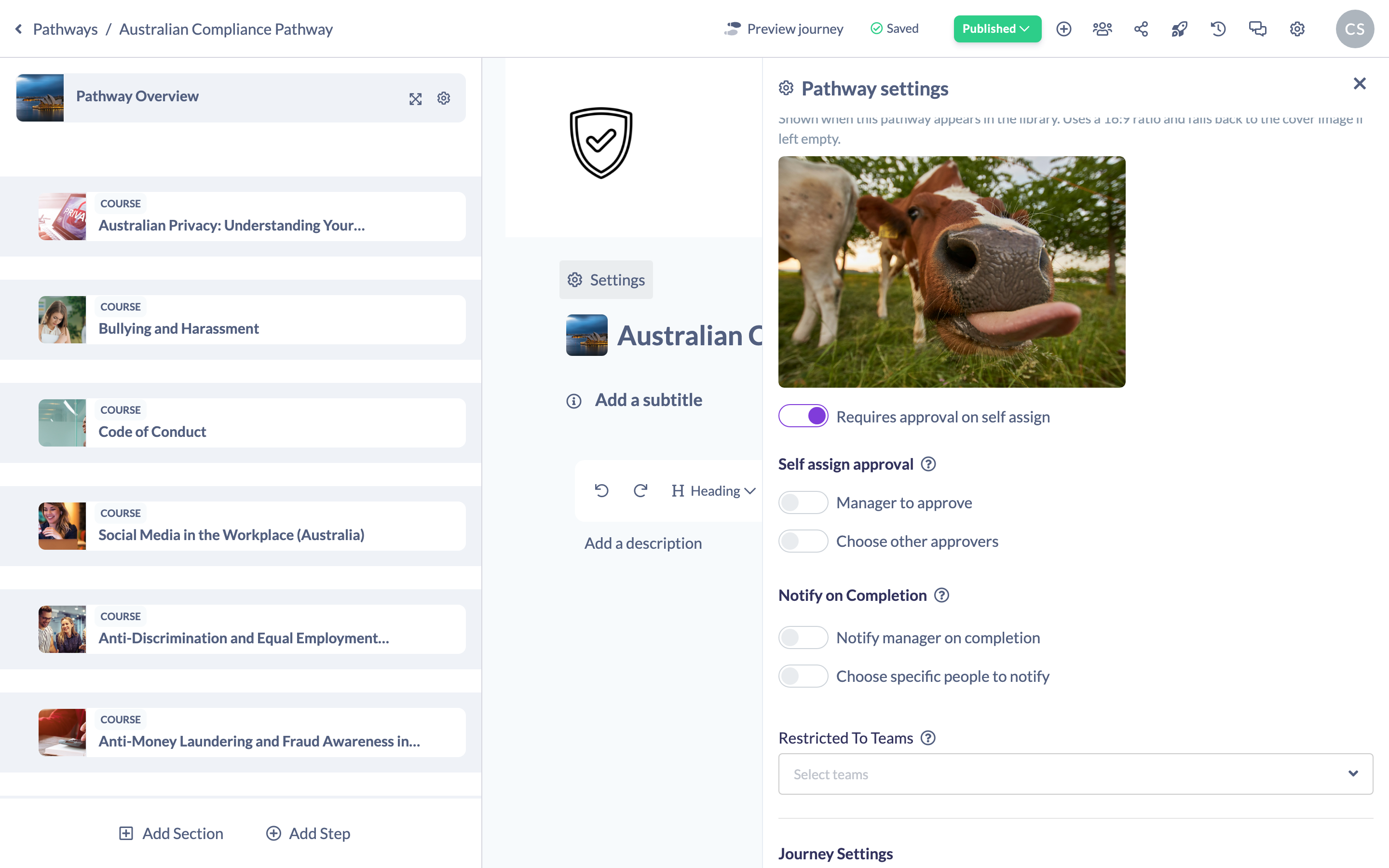
- In the pathway header, click the Settings (cog) icon to open the Pathway settings panel.
- Make sure Available in Library is on — the approval option only appears for Library Pathways.
- Turn on Requires approval on self assign.
Choose who approves
Once approval is required, a Self assign approval block appears with two options — you can use either or both:
- Manager to approve — the learner's manager approves the request.
- Choose other approvers — turn this on to search for and add specific people or Teams as approvers.
Your selections save automatically.
Note: Self-assign approval can be configured in three different places in SuperPath — at the Pathway level (this article), on an individual step, and at the point of assignment. This article covers only the Pathway-level setting. Use the step and assign-time options when you need finer control over a particular step or a one-off assignment.
Things to keep in mind
- The approval option only appears when the Pathway is Available in Library and learning requests are enabled for your account.
- Turning Available in Library or Requires approval on self assign off resets the approver choices for that Pathway.
- Approval applies to self-assignment — it governs learners assigning the Pathway to themselves from the Library.
FAQs
Where does the approval option come from?
It appears in the Pathway settings once the Pathway is available in the Library and your account has learning requests enabled.
Can both a manager and specific people approve?
Yes. You can enable Manager to approve and Choose other approvers together.
Is this the same as step-level approval?
No. This is the Pathway-level self-assign setting. Approval can also be set on individual steps and at assign time — see those flows for step-specific or one-off control.
Who can do this
Owners, Admins, Managers, Content Managers and Instructors can set self-assign approval on a Pathway. People Managers, Employees and Restricted users have read-only access to Pathways and cannot change this setting.
Updated on: 18/07/2026
Thank you!