
How to Restrict a Library Pathway to Specific Teams
How to Restrict a Library Pathway to Specific Teams
In this article:
- Overview
- Restrict a Pathway to specific Teams
- Things to keep in mind
- FAQs
- Who can do this
Overview
By default, a Pathway that's available in the Library can be discovered by everyone in your organisation. If a Pathway is only relevant to certain groups, you can limit who sees it: "Only people in these teams will be able to access this content in the Library." Use Restricted To Teams to scope a Library Pathway to one or more Teams.
Restrict a Pathway to specific Teams
- Go to Pathways and open the Pathway.
- In the pathway header, click the Settings (cog) icon to open the Pathway settings panel.
- Make sure Available in Library is on — the restriction option only appears for Library Pathways.
- Find Restricted To Teams and use Select teams to add the Teams that should have access.
- Your selection saves automatically.
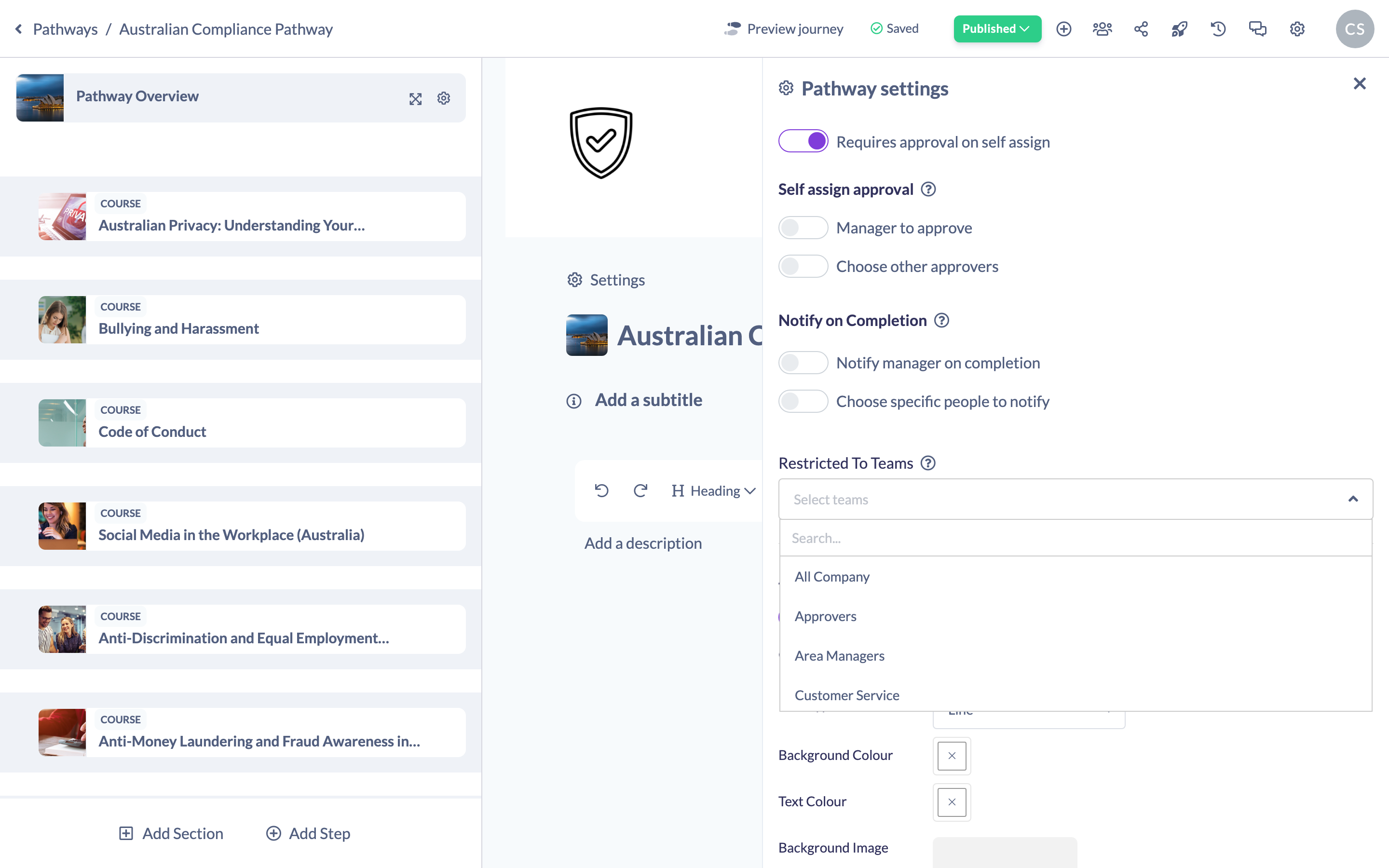
Good to know: Leave Restricted To Teams empty to keep the Pathway visible to everyone in the Library. Add Teams only when you want to narrow access.
Things to keep in mind
- Restriction applies to discovery in the Library — only people in the selected Teams can find and access the Pathway there.
- The option only appears when the Pathway is Available in Library and learning requests are enabled for your account.
- Only standard Teams appear in the picker; Dynamic Teams are not listed here.
- Removing all Teams from the list makes the Pathway available to everyone in the Library again.
FAQs
What happens if I don't select any Teams?
The Pathway stays visible to everyone in the Library — restriction only kicks in once you add Teams.
Can I restrict a Pathway that isn't in the Library?
No. The Restricted To Teams option only appears once the Pathway is available in the Library.
Why can't I find a Dynamic Team in the list?
The picker lists standard Teams only. Dynamic Teams are not available as restriction options here.
Who can do this
Owners, Admins, Managers, Content Managers and Instructors can restrict a Library Pathway to specific Teams. People Managers, Employees and Restricted users have read-only access to Pathways and cannot change this setting.
Updated on: 18/07/2026
Thank you!