
How to Schedule or Drip-Release Content and Set a Due Date
How to Schedule or Drip-Release Content and Set a Due Date
In this article:
- Overview
- Assign now, with a start and due date
- Schedule an assignment for later
- Set up a recurring assignment
- Drip-release a Pathway with step start dates
- Things to keep in mind
- FAQs
- Who can do this
Overview
You don't have to hand learning over the moment you assign it. From the Assign to people and teams dialog you can assign straightaway, hold an assignment until a future date, repeat it on a schedule, and set a due date. And within a Pathway you can stagger when each step unlocks — the "drip release" that keeps a programme rolling out over time. SuperPath doesn't use the word "drip" itself; what people mean by drip-release is a combination of scheduled assignments and start dates on Pathway sections and steps.

Assign now, with a start and due date
- Open the learning (a course, Form, Event or Pathway) from its library and start an assignment to your chosen people or Teams.
- Leave the toggle on Assign now.
- Optionally set a Start date — the learner is assigned immediately but can't begin until that date. As the tooltip explains, "They will be assigned the learning, but unable to start until the date specified."
- Optionally set a Due date to tell learners when it should be finished by.
- Finish the assignment (turn on Notify people if you'd like assignees emailed, with an optional message).

Schedule an assignment for later
- In the assign dialog, switch to Schedule for later.
- Set the Scheduled date — the day the learning is actually assigned — and choose a timezone.
- Optionally set a Due date for a one-off scheduled assignment.
- Finish the assignment.
Scheduled assignments are released automatically: SuperPath checks each hour and hands out the learning when the scheduled date arrives in the chosen timezone, so you can set it and forget it.

Set up a recurring assignment
Use recurrence for learning that must be repeated — annual compliance, monthly refreshers, and the like.
- In Schedule for later, turn on Recurring schedule?.
- Under Repeat, choose Monthly, Monthly on day, or Yearly, and set the day/month it repeats on.
- Set Repeat for the number of occurrences you want.
- For recurring assignments the due date is relative — set Due days after to give learners that many days from each release to complete it.
- Finish the assignment.
Each occurrence is released on schedule, and SuperPath queues up the next one automatically until the number of occurrences you set is reached.

Drip-release a Pathway with step start dates
To release a Pathway's content gradually rather than all at once, set start dates inside the Pathway itself. This is what achieves a true drip effect: earlier steps are available now, later steps unlock on their dates.
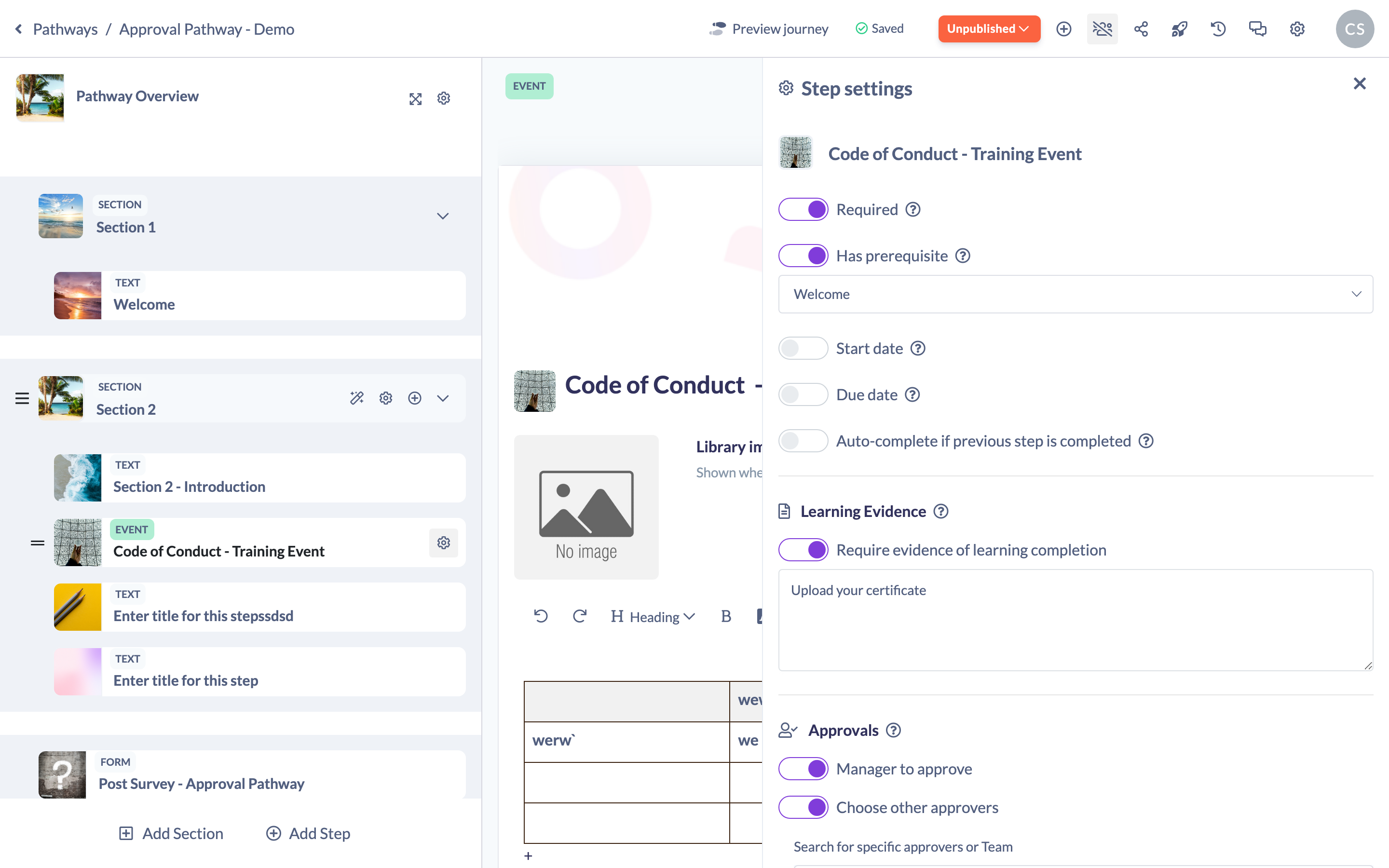
- Open the Pathway editor and select a section or step, then open its settings.
- Turn on Start date and choose either a specific date or a number of days after the learner is assigned (the tooltip reads "Setting a start date determines when the [step] becomes available, on a specific date or a set number of days after the date of assignment").
- Repeat for the sections or steps you want to stagger, then publish the Pathway.
Learners see a STARTS [date] badge on locked steps and sections, and each unlocks automatically when its date arrives. A start date on a section locks every step inside it until the date; a start date on a step unlocks just that step.
Things to keep in mind
- Start date vs due date: a start date controls when a learner can begin; a due date is the target for finishing. They're independent — you can set either, both, or neither.
- Due dates don't lock anyone out. Passing a due date doesn't automatically flip a learning to a blocked or overdue state; instead SuperPath sends due-date reminder notifications as the date approaches and passes.
- Assign-now due dates are fixed dates. Only recurring scheduled assignments use a relative Due days after value; everywhere else the due date is an absolute date.
- Timezone matters for scheduling. A scheduled assignment fires based on the timezone you pick, so choose the one that matches your audience.
- For people who already have this learning controls what happens on a repeat assignment: Assign only if completed (default), Always assign or Never assign. Anyone who has never had the learning is always assigned it. If you pick Never assign on a recurring schedule, SuperPath warns you that people who have completed the learning will never be assigned it again.
FAQs
Does SuperPath have a "drip" feature?
Not by that name. Drip-release is achieved by combining scheduled assignments with start dates on Pathway sections and steps, so content unlocks progressively over time.
What's the difference between a start date and scheduling for later?
Scheduling for later delays when the learning is assigned at all. A start date assigns it now (so it appears in My Learning) but stops the learner starting until the date.
Can I make a due date a number of days rather than a fixed date?
Yes, for recurring scheduled assignments — use Due days after. One-off assignments use an absolute due date.
What happens when a due date passes?
Learners receive due-date reminder notifications. The learning isn't automatically closed or hidden.
Who can do this
Owners and Admins can assign and schedule learning for anyone in your organisation. Managers and Instructors can also assign and schedule learning for other people (they're recorded as the assigner). People Managers, Content Managers, Employees and Restricted users are generally limited to their own learning through this flow. The scheduling, start-date and due-date options are part of the assign flow, so the same roles that can assign a given learning can schedule it.
Updated on: 14/09/2026
Thank you!