
How to Set a Content's Author and Publish Date
How to Set a Content's Author and Publish Date
In this article:
- Overview
- How to set the author
- How to set the publish date
- Things to keep in mind
- FAQs
- Who can do this
Overview
You can record who created a piece of content and when it was published using the Author and Date published fields. These give your people useful context — who is behind a resource and how current it is — and both can be set when you add content or changed later from the content's edit panel.
How to set the author
- Open the content item from your Library and open the Edit content panel (the pencil icon on the right-hand toolbar).
- In the Author field, enter the author's name or company.
- Click Save changes to save.

How to set the publish date
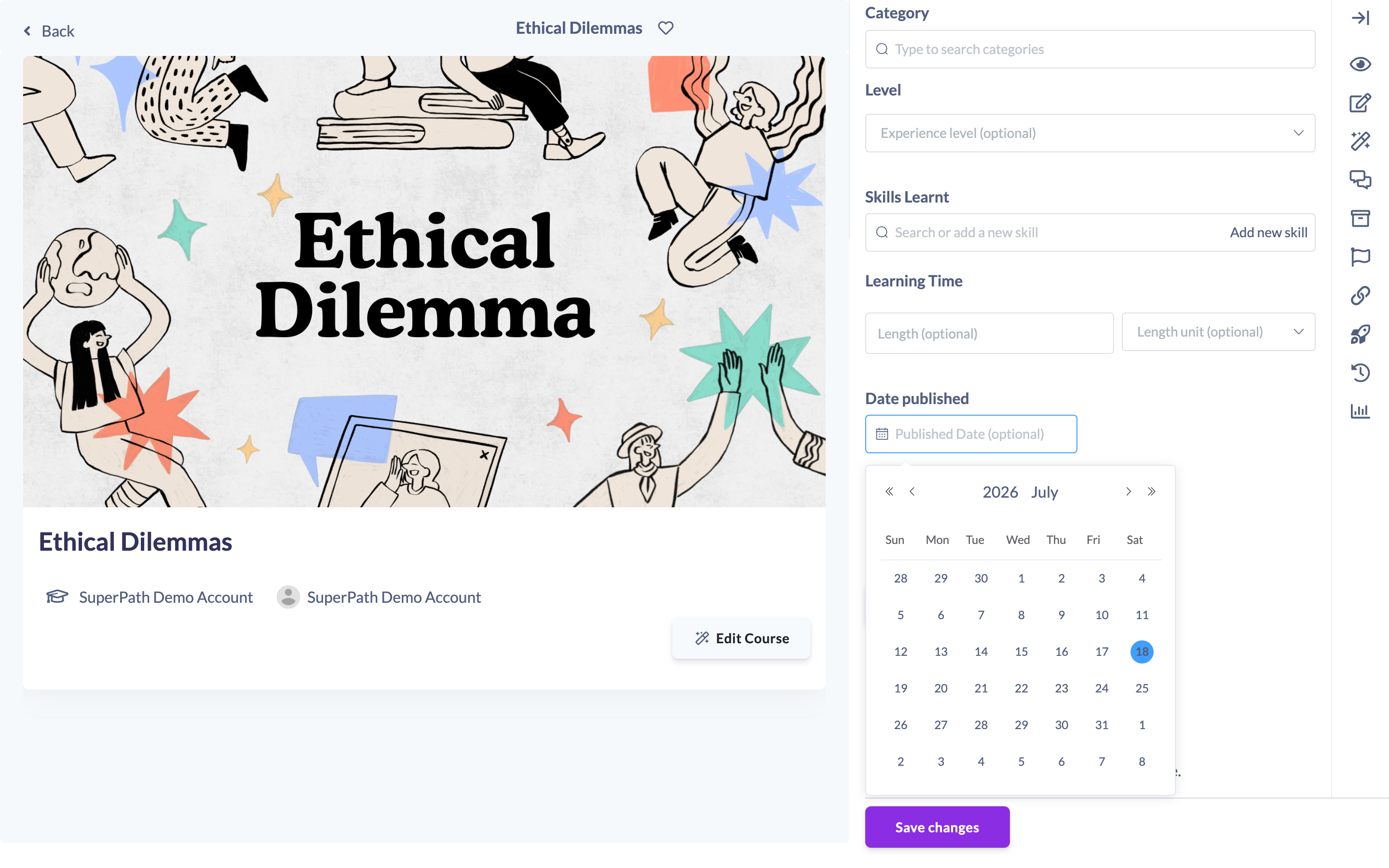
- In the same Edit content panel, find the Date published field.
- Click the field and choose a date from the date picker.
- Click Save changes to save.
Things to keep in mind
- Both Author and Date published are optional — leave them blank if they do not apply.
- The author and publish date are shown on the content's details page when set.
FAQs
Can the author be a company rather than a person?
Yes. The Author field accepts a person's name or a company name.
Does the publish date affect when the content is available?
No. The Date published field is informational — it records when the content was published and does not control its availability in the Library.
Who can do this
Owners, Admins, Managers, Content Managers and Instructors can edit Library content and set its author and publish date. People Managers, Employees and Restricted users cannot — they have read-only access to content.
Updated on: 18/07/2026
Thank you!