
How to Set a Due Date for a Pathway Step
How to Set a Due Date for a Pathway Step
In this article:
- Overview
- Set a due date
- Set a start date
- Remove a due date
- Things to keep in mind
- FAQs
- Who can do this
Overview
A due date sets a deadline for a step. You can pin it to a fixed calendar date, or make it relative — a set number of days after each learner is assigned the Pathway — so the deadline adjusts to when someone starts.
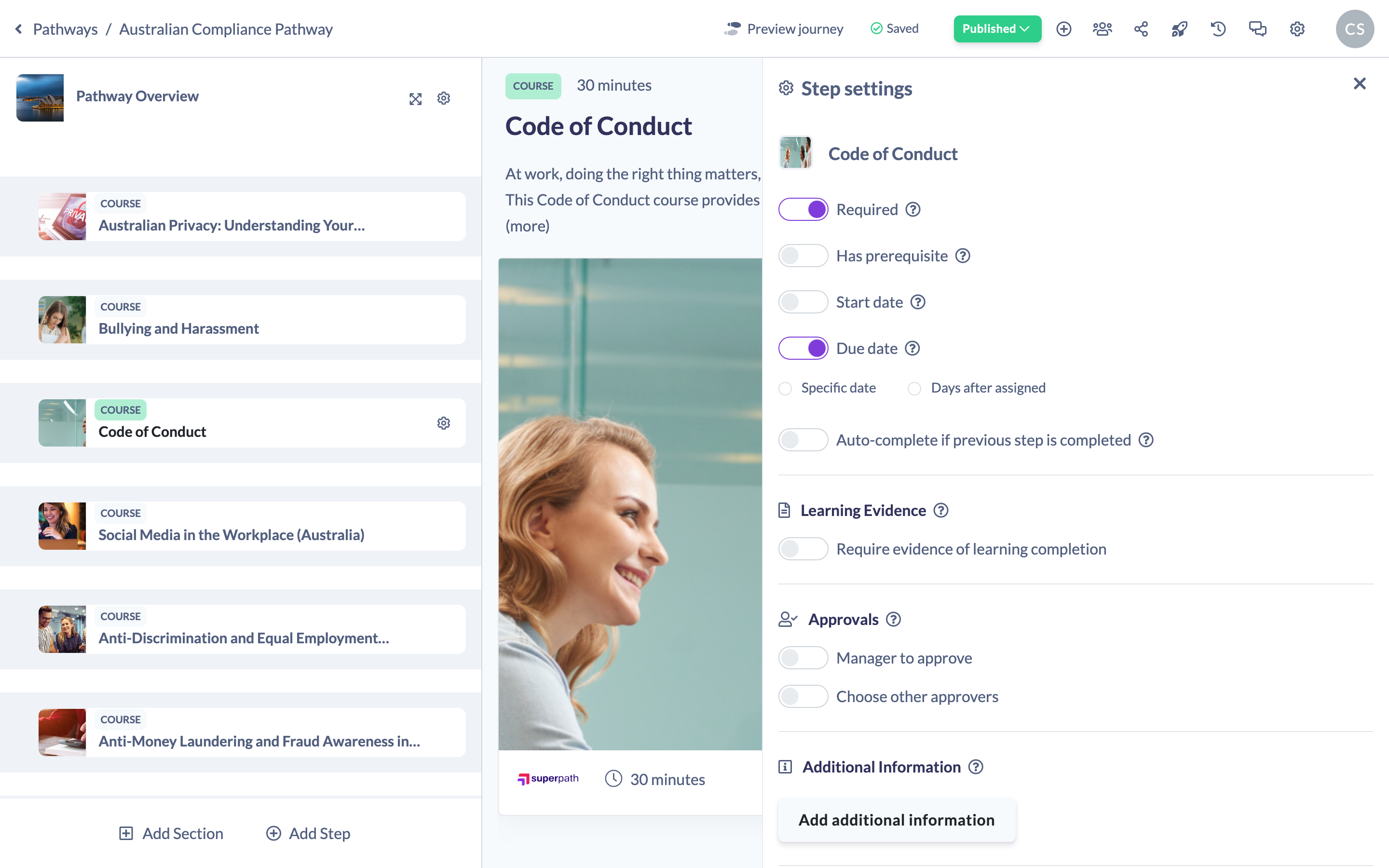
Set a due date
- Open your Pathway in the builder and hover over the step in the left steps panel.
- Click the cog icon to open the step's settings panel.
- Toggle Due date on.
- Choose how the due date works:
- a specific date, or
- a set number of days after the date of assignment.
Your due date saves automatically. "Setting a due date will require the assignee to complete the step on a specific date or a set number of days after the date of assignment."
Set a start date
Just above the due date is a Start date toggle, which works the same way. A start date determines when the step becomes available — on a specific date, or a set number of days after assignment. If you set both, SuperPath keeps the due date on or after the start date.
Remove a due date
Switch Due date off to clear the deadline from the step.
Things to keep in mind
- Due and start dates can also be applied to a whole section from the section's settings.
- Relative dates ("days after assignment") are calculated per learner from their own assignment date, so different learners get different calendar deadlines.
- Changing a step's settings returns a published Pathway to a draft (unpublished) state, so publish again once you're done.
FAQs
Can the due date be earlier than the start date?
No. If you set both, SuperPath ensures the due date is on or after the start date.
Does the due date apply the same date to everyone?
Only if you choose a specific date. A relative due date is worked out from each learner's assignment date.
Can I set a due date on a section?
Yes. Open the section's settings and use the Due date toggle there.
Who can do this
Owners, Admins, Managers, Content Managers and Instructors can set start and due dates on a step. People Managers, Employees, Members, Volunteers and Restricted users have read-only access to Pathways and cannot.
Updated on: 18/07/2026
Thank you!