
How to Set a Prerequisite for a Step
How to Set a Prerequisite for a Step
In this article:
- Overview
- Set a prerequisite
- Remove a prerequisite
- Things to keep in mind
- FAQs
- Who can do this
Overview
A prerequisite lets you gate one step behind another: the learner must finish the prerequisite step before they can complete this one. It's useful for enforcing an order — for example requiring an introduction to be completed before an assessment.
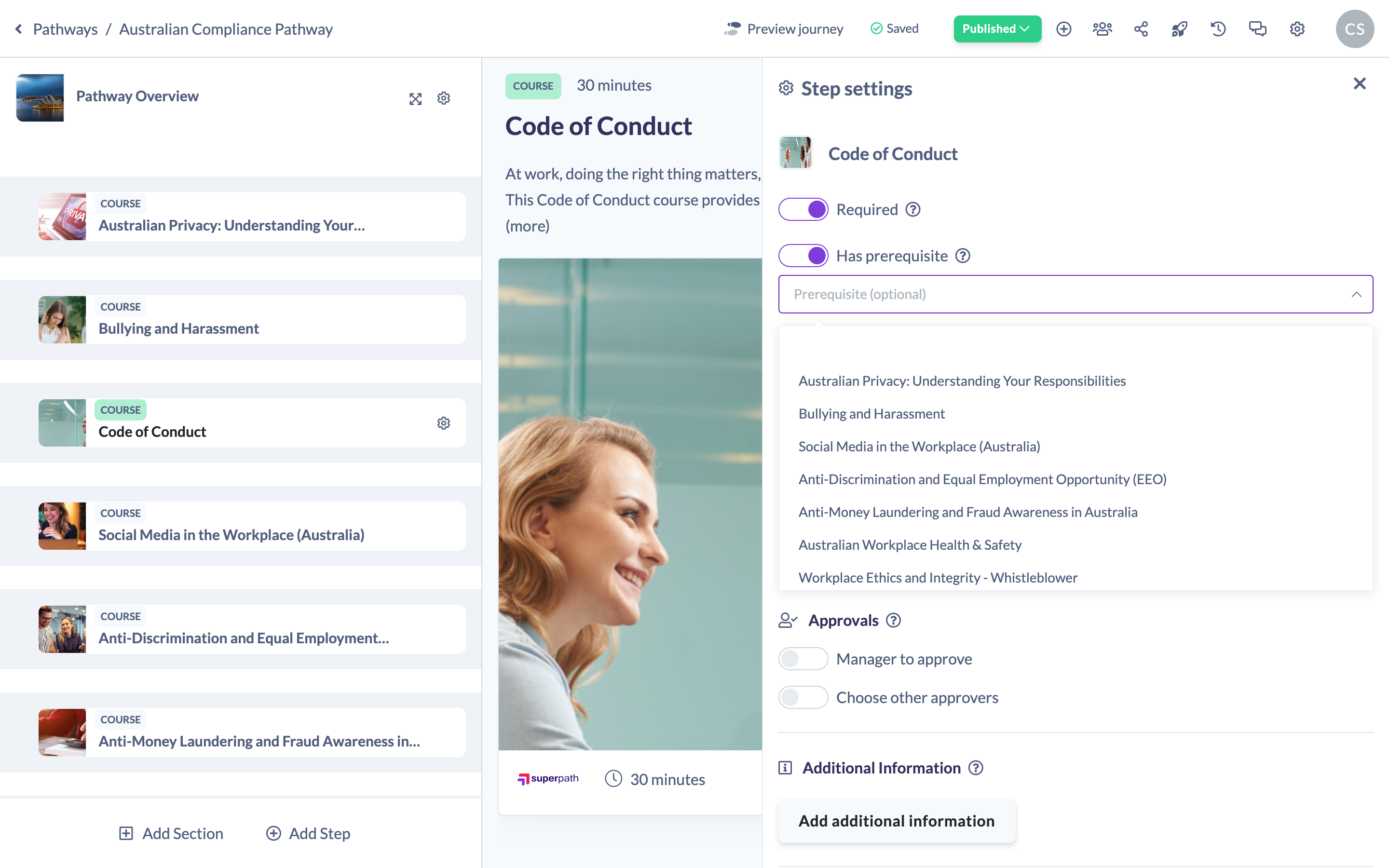
Set a prerequisite
- Open your Pathway in the builder and hover over the step in the left steps panel.
- Click the cog icon to open the step's settings panel.
- Toggle Has prerequisite on.
- In the Prerequisite (optional) dropdown, choose the step that must be completed first.
Your choice saves automatically. "If selected, the prerequisite needs to be completed before this step can be completed."

Remove a prerequisite
Switch Has prerequisite off to clear the prerequisite from the step.
Things to keep in mind
- A step can't be its own prerequisite, and a step within a section can't use its own section as the prerequisite — those options aren't offered in the dropdown.
- If you delete a step that's used as a prerequisite, SuperPath warns you and removes the prerequisite from the step that depended on it.
- Changing a step's settings returns a published Pathway to a draft (unpublished) state, so publish again once you're done.
FAQs
Which steps can I pick as a prerequisite?
Any other step in the same Pathway, except the step itself and the parent section of a step inside a section.
Can a step have more than one prerequisite?
No. Each step points to a single prerequisite step.
What happens for the learner?
The step stays locked until its prerequisite is completed.
Who can do this
Owners, Admins, Managers, Content Managers and Instructors can set a step's prerequisite. People Managers, Employees, Members, Volunteers and Restricted users have read-only access to Pathways and cannot.
Updated on: 18/07/2026
Thank you!