
How to Set the Learning Time or Length of Content
How to Set the Learning Time or Length of Content
In this article:
- Overview
- How to set the learning time
- Things to keep in mind
- FAQs
- Who can do this
Overview
The Learning Time setting lets you record how long a piece of content takes to complete. Showing an expected time helps your people plan their learning and set the right expectations before they start. You enter a number and choose the unit — for example 30 minutes or 2 hours.
How to set the learning time
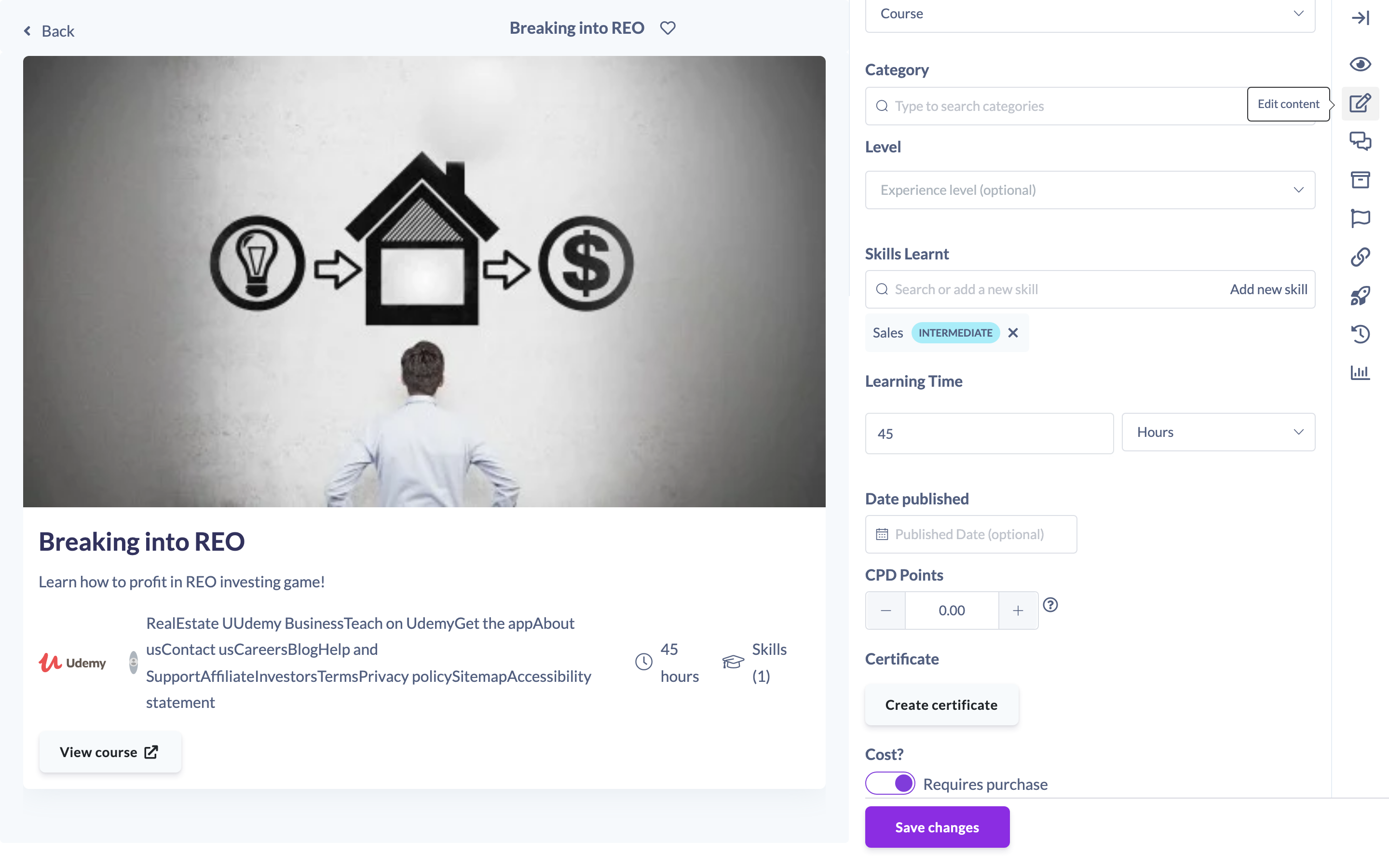
- Open the content item from your Library and open the Edit content panel (the pencil icon on the right-hand toolbar).
- Find the Learning Time section.
- Enter the length as a number in the Length field.
- Choose the unit from the Length unit selector alongside it.
- Click Save changes to save.
Things to keep in mind
- Both the length value and the unit are optional — leave them blank if the time is not known.
- The learning time is shown on the content's details page when set.
FAQs
Do I have to set a learning time?
No. It is optional, but adding one helps your people plan their time.
Can I use hours as well as minutes?
Yes. Enter the number in the Length field and pick the matching unit from the Length unit selector.
Who can do this
Owners, Admins, Managers, Content Managers and Instructors can edit Library content and set its learning time. People Managers, Employees and Restricted users cannot — they have read-only access to content.
Updated on: 18/07/2026
Thank you!