
How to Share Learning with a QR Code
How to Share Learning with a QR Code
In this article:
- Overview
- How to get the QR code
- Where QR codes work well
- Things to keep in mind
- FAQs
- Who can do this
Overview
Every Event, Pathway, Form, Roadmap and piece of Library content has a launch link, a single web address you can share that takes each of your people straight to their own assigned copy of that learning. The Launch Link window now shows a QR code of that same link alongside it, so you can put your learning somewhere a link cannot go.
That matters most for the people who are hardest to reach by email. Someone on a factory floor, behind a bar, on a ward or in a training room does not want to type a long web address into a phone. They point their camera at a code on a poster, a slide or a handout, and they are in their learning in seconds.
The code is generated instantly whenever you open the Launch Link window, and you can copy it as an image or download it as a file ready for print.
How to get the QR code
- Open the learning you want to share. This works the same way for an Event, a Pathway, a Form, a Roadmap or a piece of Library content.
- Click the Generate Launch Link (rocket) icon in the toolbar at the top of the page. For Library content you will also find it in the row actions in Settings → Library → Manage Private Library.
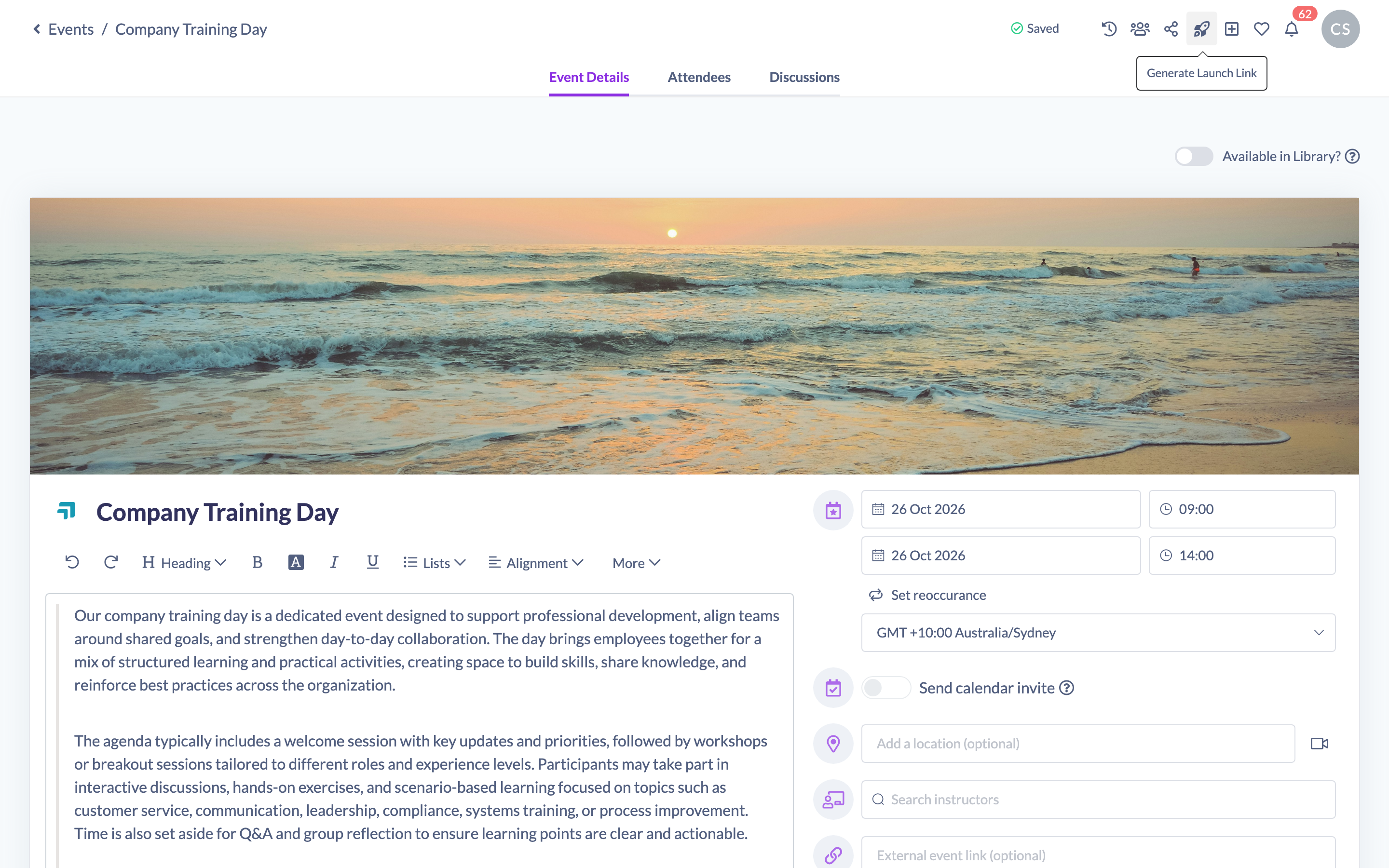
- The Launch Link window opens with the link on the left and the QR code on the right. There is nothing to generate and nothing to wait for, the code is already there.
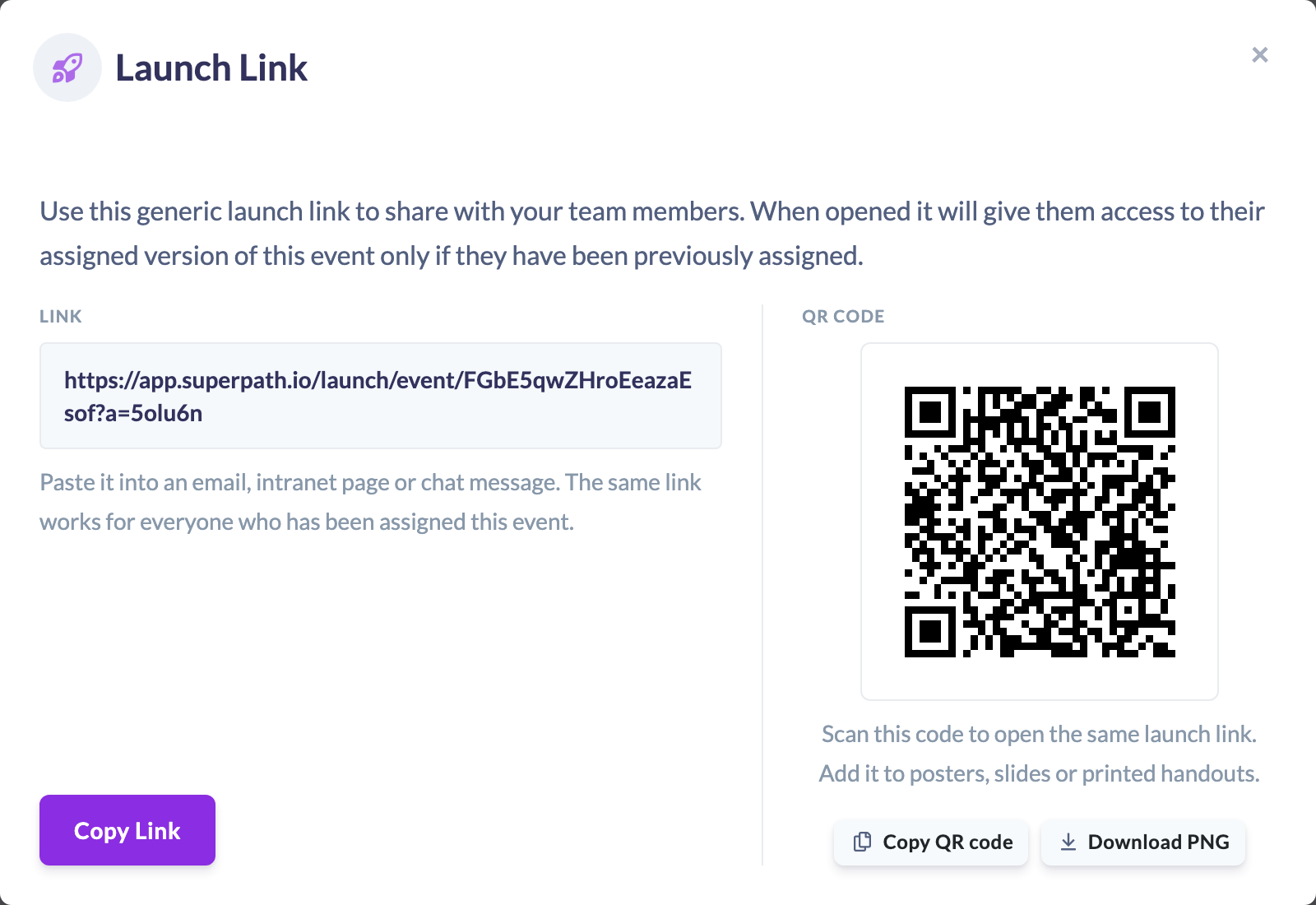
- Click Copy QR code to put the image straight on your clipboard, then paste it into your poster, slide or document.
- Or click Download PNG to save the image as a file. It downloads as
launch-link-qr-event.png, named after the type of learning you are sharing.
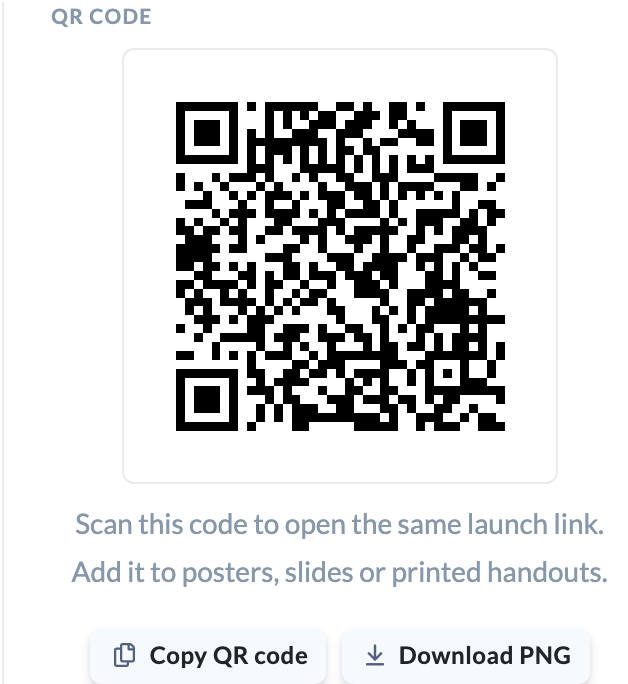
Tip: The image you copy or download is 1024 pixels square, which is large enough to stay sharp on an A3 poster. The code on screen is a smaller preview of exactly the same image.
Where QR codes work well
In-person training and Events. Put the code on the joining instructions, on a table card in the room, or on a slide at the start of the session. Attendees scan it as they sit down and open their own copy of the Event on their phone.
Posters and noticeboards. A code in a break room, staff room or on a noticeboard reaches people who do not sit at a desk and rarely open work email.
Printed handouts and induction packs. New starters get a paper pack on day one. A code on it takes them to their induction Pathway without you reading a web address out loud.
Slide decks. Add the code to your closing slide so the room can scan it before they stand up, rather than promising to send a link later.
Next to the thing the learning is about. A code beside a machine, a vehicle or a piece of equipment links to the safety Pathway for it, exactly where someone needs it.
Conferences and roadshows. Codes on lanyards, banners and stands let you point people at the right learning without a laptop in sight.
Things to keep in mind
- The launch link and its QR code only work for people who have already been assigned the learning. Scanning does not assign the learning and does not grant access on its own, so assign your people first, then share the code.
- Everyone you share the code with gets the same code, and each person who scans it lands on their own copy of the learning.
- If someone scans the code and is not signed in, they are taken to your organisation's sign in page first, then straight on to their learning.
- The code is built from the web address you are signed in to. If your organisation uses its own SuperPath address, generate the code while you are signed in there so the code carries your address rather than the standard one.
- The code is always black on white. Plain codes scan the most reliably, especially in poor light, at an angle or from across a room, and the colour and branding belong on the poster around it.
- The editors for Events and Forms load in stages. If you open the Launch Link window before the page has finished loading you may see only the link, so close it and open it again once the page has settled.
- Test the printed code before you order a hundred of them. Scan it from the distance people will actually stand at.
FAQs
Will the QR code give anyone access to the learning?
No. It behaves exactly like the launch link. It opens the assigned copy for people who already have the learning, and someone who has not been assigned it will not gain access by scanning it.
Is the code different each time I open the window?
No. The same link always produces the same code, so a code you printed last month is identical to the one you would generate today.
Do printed codes stop working over time?
No. The code is simply the launch link in a form a camera can read, so it keeps working for as long as that learning exists and people are assigned to it.
What happens if someone scans a code for a learning that repeats?
They are taken to their most recent copy that is not yet complete. If they have completed every copy, they are taken to the most recent one.
Can I change the colour of the code or put our logo in the middle?
Not at the moment. The code is black on white so that it scans as reliably as possible.
Which phones can scan it?
Any modern phone camera. On iPhone and Android the built in camera app recognises a QR code and offers to open the link, with no separate app needed.
Nothing happened when I clicked Copy QR code.
Some browsers do not allow an image to be copied to the clipboard. If you see a message telling you the code could not be copied, use Download PNG instead and insert the saved file.
How is this different from Copy link to this content?
The launch link, and its QR code, route an assigned learner to their own copy of the learning. Copy link to this content simply copies the web address of the content page itself.
Who can do this
The QR code appears in the Launch Link window for anyone who can open the learning item and see the Generate Launch Link icon, so it carries no separate permission of its own. In practice that means Owners, Admins, Managers, Content Managers and Instructors. Instructors are the exception for Roadmaps, which they cannot open. People Managers, Employees and Restricted users do not have access to the Event, Pathway, Form and Roadmap pages where the icon lives.
Anyone can scan a code you share, but only people who have been assigned that learning will reach it.
Updated on: 22/09/2026
Thank you!