
How to Submit Evidence for a Learning Step
How to Submit Evidence for a Learning Step
In this article:
- Overview
- How to submit evidence
- If you can't submit evidence
- After you submit
- Things to keep in mind
- FAQs
- Who can do this
Overview
Some learning steps ask you to prove you've done something — for example uploading a certificate, sharing a link to your work, or describing what you completed. When a step requires evidence, you submit it yourself from the learning player before the step can be finished. This article covers the learner side: how you provide your evidence. (Setting a step up to require evidence is done by an Admin or content creator — see Requesting Evidence.)
How to submit evidence
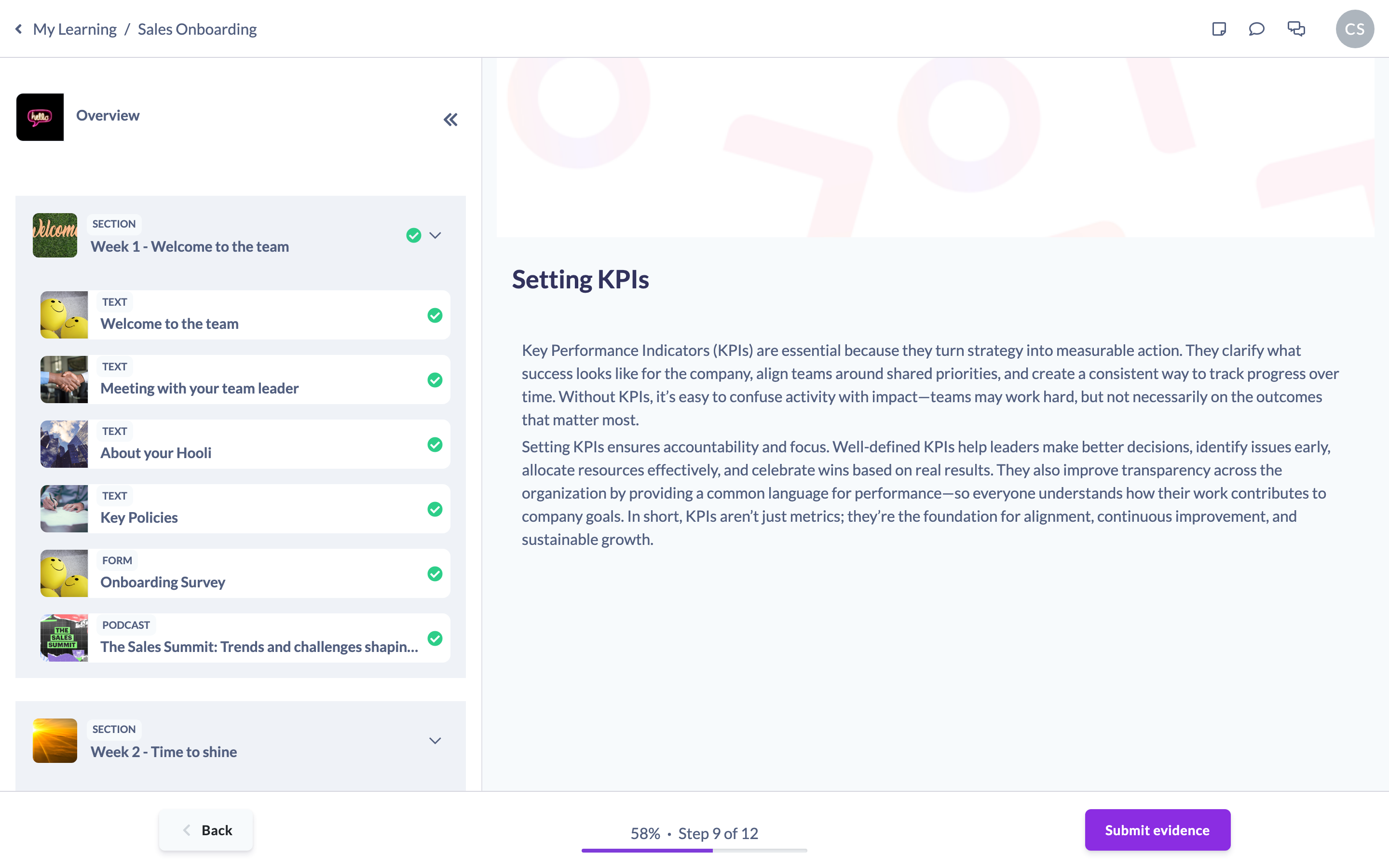
- Open the learning from My Learnings and work through the step as normal.
- When evidence is required, the step shows an Evidence required panel describing what you need to provide, and the action button reads Submit evidence rather than Mark as complete.
- Click Submit evidence to open the Submit Learning Evidence window.
- Choose how to provide your evidence:
- Link to evidence — paste a URL into the Enter a link to evidence box (for example a shared document or an external certificate).
- Upload evidence — upload a file from your device.
- In the Evidence description (required) box, describe the specific evidence you're providing.
- Click Submit evidence.
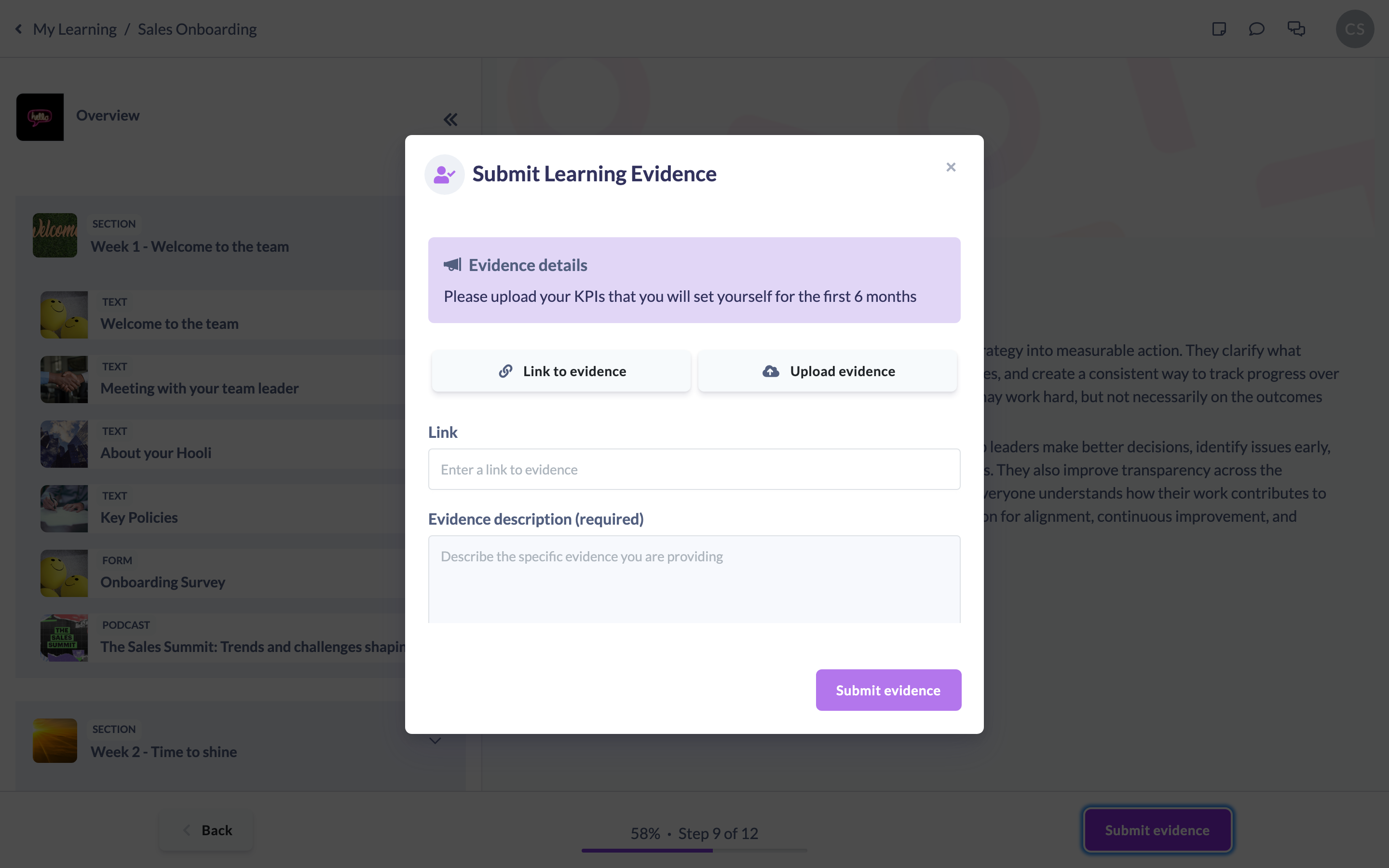
Note: The Submit evidence button in the window stays disabled until you've added a link or file and written a description — both are needed.
If you can't submit evidence
If you genuinely can't provide evidence, turn on the I cannot submit evidence switch in the same window and enter a reason explaining why. You can submit with just a reason in this case — you don't need to add a link or file. Your reason is recorded against the step for the reviewer to see.
After you submit
Once your evidence is in:
- The step shows Evidence submitted, and you can click View evidence to see the link or file and the description you provided.
- If the step also needs approval, submitting your evidence sends it for review — the status becomes Awaiting Review until someone reviews it.
- If the step only needs evidence, you can then complete the step in the usual way (see How to Complete a Learning Step).
Things to keep in mind
- If the step has required content — a video to watch or a course to finish — the Submit evidence button stays disabled until you've completed that content.
- You provide one piece of evidence per step: either a link or an uploaded file, plus a description.
- If a reviewer declines your submission, the step reopens so you can submit fresh evidence.
- Evidence can be required on Pathway steps and on standalone learning assignments — the process is the same in both.
FAQs
Can I submit both a link and a file?
You choose one or the other for the evidence itself — Link to evidence or Upload evidence — and always add a description alongside it.
Why won't the Submit evidence button turn on?
You need both a link or file and a description. If you've switched on I cannot submit evidence, you instead need to have entered a reason.
What if I truly can't provide evidence?
Use the I cannot submit evidence switch and explain why. Your reason goes to the reviewer, who decides how to proceed.
Can I change my evidence after submitting?
Not directly. If a reviewer declines your submission the step reopens for you to submit again. If you need to correct accepted evidence, ask your Manager or Admin.
Who can do this
Any learner submits evidence for their own learning steps — this includes Employees, Restricted users and every other role. Whether a step requires evidence at all, and who reviews it, is configured by an Admin or content creator; reviewing and accepting submitted evidence is done by the designated reviewer, not the learner.
Updated on: 16/07/2026
Thank you!