
How to Sync Content With an HRIS
How to Sync Content With an HRIS
In this article:
- Overview
- How to sync a piece of content with your HRIS
- Things to keep in mind
- FAQs
- Who can do this
Overview
If your account is connected to an HRIS (a human resources information system), you can choose whether completing a piece of content is pushed back to that system. The Sync with setting on a content item controls this per piece of content, so you can send the completions that matter to your HR records while leaving others out.
How to sync a piece of content with your HRIS
- Open the content item from your Library and open the Edit content panel (the pencil icon on the right-hand toolbar).
- Find the Sync with setting, which is named after your connected HRIS (for example, Sync with BambooHR).
- Turn the toggle on to sync completions of this content, or off to leave it out.
- Click Save changes to save.
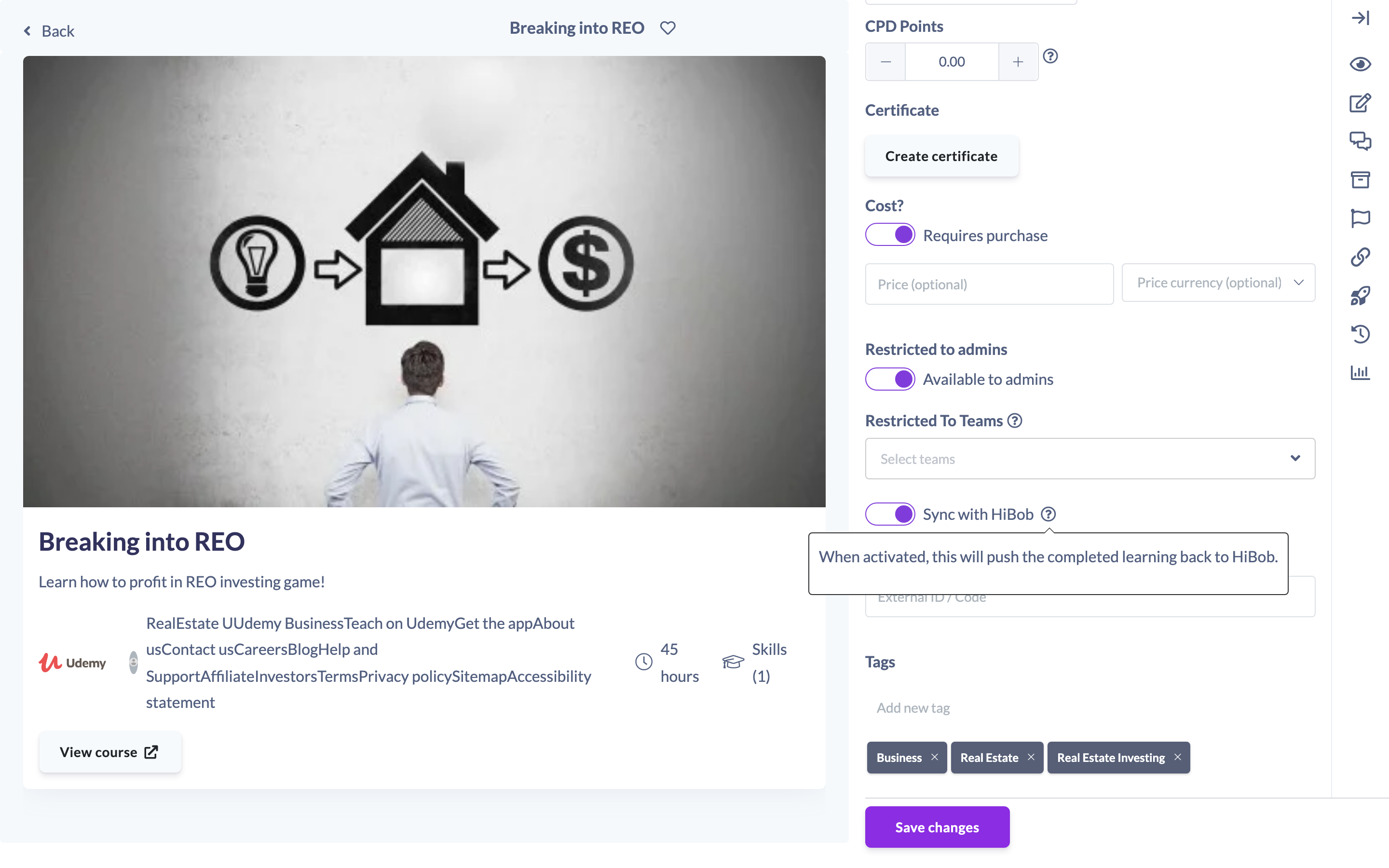
Note: When activated, this will push the completed learning back to your HRIS.
Things to keep in mind
- The Sync with setting only appears when your account has an HRIS integration connected. If you do not have one, you will not see this option.
- The setting controls what happens when the content is completed — it pushes that completion to your connected HRIS.
- You control this per piece of content, so you can sync some items and not others.
FAQs
Why can't I see a sync option on my content?
The setting only shows when an HRIS integration is connected to your account. Without a connected HRIS there is nothing to sync to.
What exactly gets sent to my HRIS?
When the toggle is on, completing this content pushes the completed learning back to your connected HRIS.
Who can do this
Owners, Admins, Managers, Content Managers and Instructors can edit Library content and set its HRIS sync. People Managers, Employees and Restricted users cannot — they have read-only access to content. Connecting the HRIS integration itself is a separate, Owner/Admin-level setup task.
Updated on: 18/07/2026
Thank you!