
How to Unassign a Pathway or Remove a Learner From It
How to Unassign a Pathway or Remove a Learner From It
In this article:
- Overview
- Remove a learning from one person's profile
- Remove one or more learners from a report
- What happens when you remove a learning
- Things to keep in mind
- FAQs
- Who can do this
Overview
Sometimes a Pathway, course, Form or Event has been assigned to the wrong person, is no longer relevant, or a learner has moved on — and you want to take it off their plate. In SuperPath this is called Delete: there is no button labelled "unassign", but deleting a learning from a person removes that assignment so it no longer appears in their My Learning. You can do this one person at a time from their profile, or remove several learners at once from a report.
Good to know: Removing a learning is a soft delete. The assignment is marked as deleted and stops showing for the learner, but the record is retained behind the scenes for your reporting and history — it is not permanently erased.
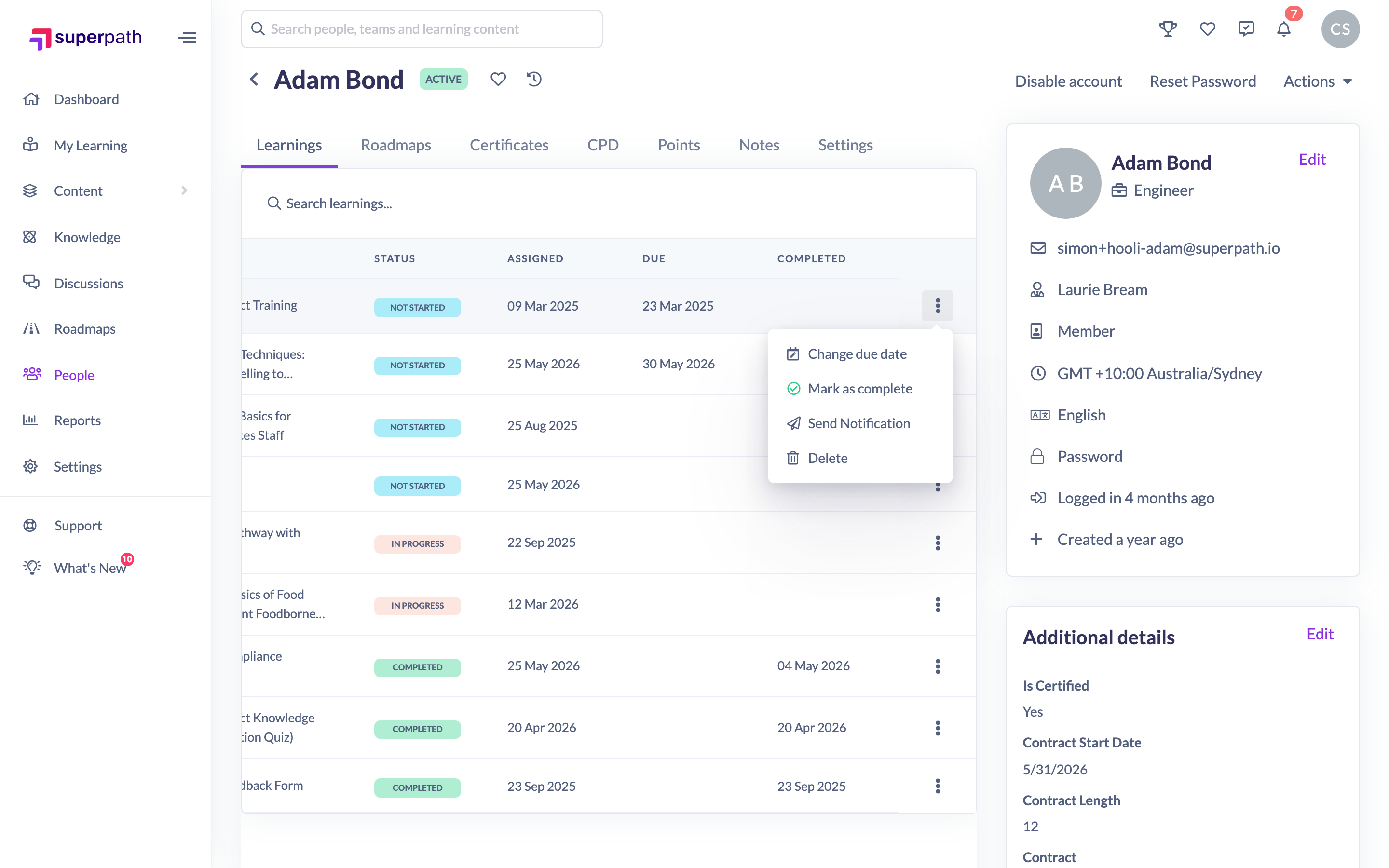
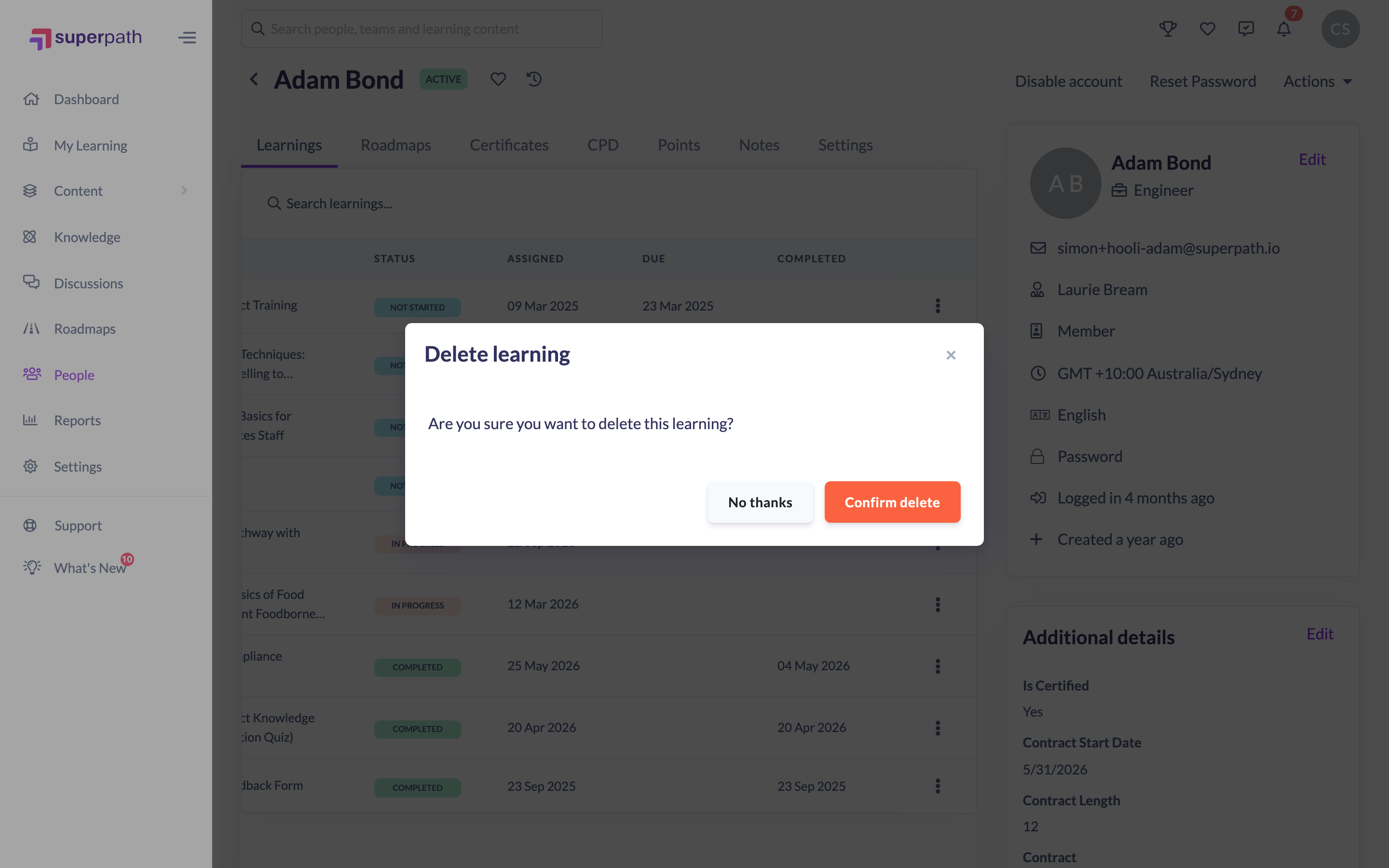
Remove a learning from one person's profile
- Go to People and open the person whose learning you want to remove.
- Scroll to the Learning section, which lists everything assigned to them.
- Find the Pathway, course, Form or Event you want to remove and click the three-dot menu (⋯) on its row.
- Click Delete.
- In the Delete learning dialog — "Are you sure you want to delete this learning?" — click Confirm delete (or No thanks to keep it).
You'll see an "Assignment successfully deleted" confirmation, and the learning drops off the person's list.
Remove one or more learners from a report
When you want to take a Pathway (or other learning) away from several people at once, work from the learning's own report rather than each profile.
- Open the learning from its library — for example go to Pathways and find the Pathway.
- Click View learners to open the report drawer listing everyone the learning is assigned to.
- To remove one person, click the three-dot menu (⋯) on their row and choose Delete, then Confirm delete in the "Delete learning?" dialog.
- To remove several people at once, tick the checkbox on each learner's row, open the Bulk Actions menu and choose Delete, then confirm in the "Delete Learnings?" dialog.
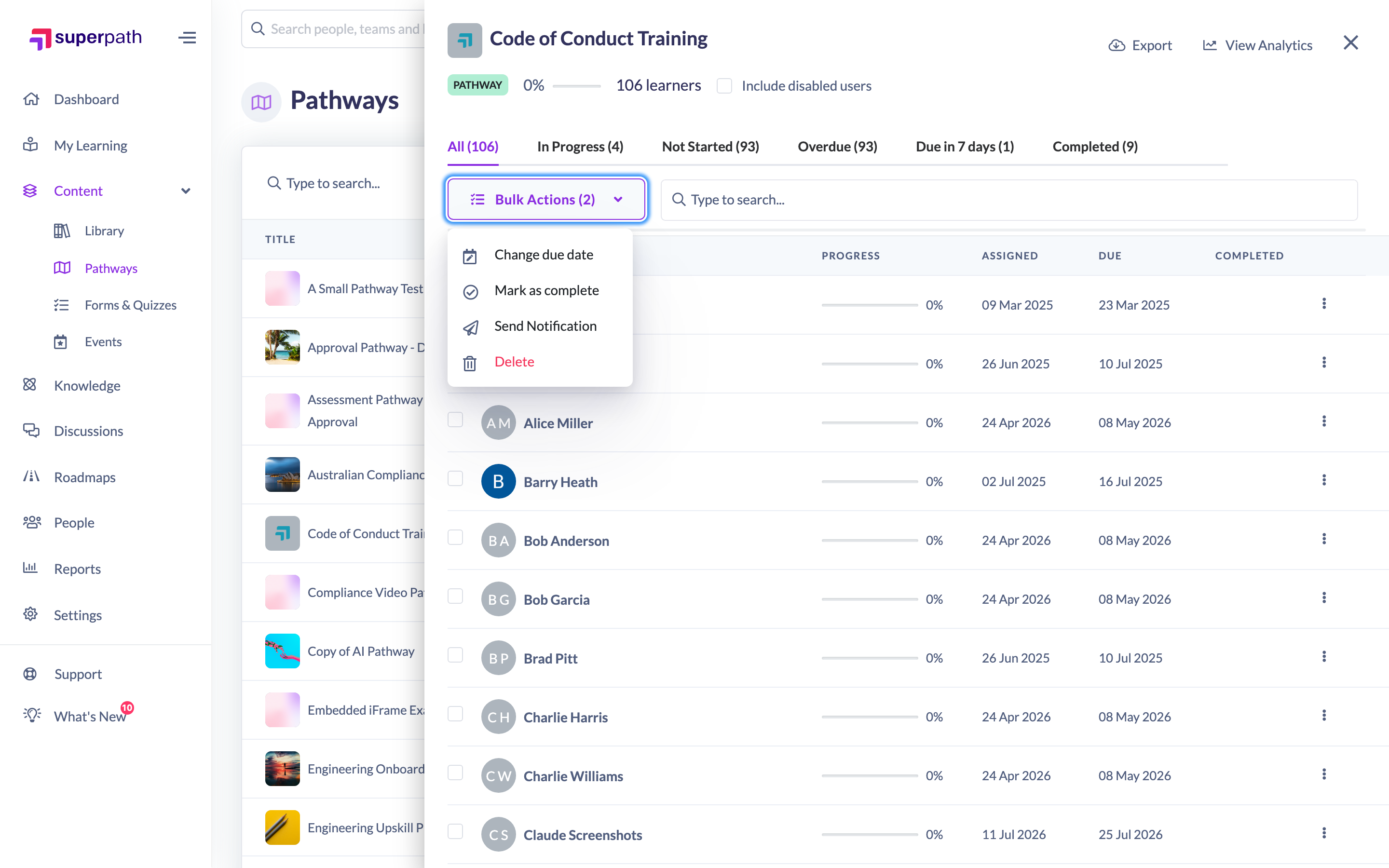
Note: In this report the confirmation reads "Are you sure you want to delete all {count} learnings?" for bulk actions, and success shows as "Item successfully deleted".
What happens when you remove a learning
- The assignment is soft-deleted — it disappears from the learner's My Learning and from selection lists, but the record is kept for reporting and history.
- The person keeps their account, profile and the rest of their learning history — only this one assignment is removed.
- If the learning was an Event synced to the learner's Google Calendar, the calendar entry is removed too.
- Learners are not notified when you remove a learning.
Things to keep in mind
- Pathways and other learnings are separate rows. A Pathway, a course, a Form and an Event each appear as their own row and are removed individually — removing one does not affect the others.
- Completed learnings can only be removed by Owners and Admins. For a learning a person has already completed, the Delete option is shown only to Owners and Admins; other roles can remove learnings that are still in progress (subject to the permissions below).
- Removing a learning does not stop it being re-assigned later — you can assign it again at any time.
- There is no self-service "restore" for a removed learning. If you delete one by mistake, re-assign it, or contact SuperPath support if you need the original record back.
FAQs
Is there an "unassign" button?
No. SuperPath calls this action Delete. Deleting a learning from a person removes their assignment — it does not delete the person or the underlying Pathway.
Does removing a learning delete the Pathway itself?
No. It only removes that one person's copy of the learning. The Pathway (or course, Form, Event) stays in your library and remains assigned to everyone else.
Can I remove a learning from lots of people at once?
Yes. Open the learning's report via View learners, tick the people you want, then use Bulk Actions → Delete.
Why can't I remove a completed learning?
Removing something a learner has already completed is restricted to Owners and Admins, to protect completion records. Ask an Owner or Admin if you need a completed learning removed.
Who can do this
Owners and Admins can remove any learner's learning, including completed ones. Managers, Content Managers, People Managers and Instructors can remove learnings that are still in progress where they assigned the learning themselves or the learner is one of their direct reports (Instructors can also remove learnings where they are the named instructor). Employees and Restricted users can only remove their own assignments. Only Owners and Admins see the Delete option on a learning a person has already completed.
Updated on: 16/07/2026
Thank you!