
How to Upload a SCORM Package to the Library
How to Upload a SCORM Package to the Library
In this article:
- Overview
- How to upload a SCORM package
- Things to keep in mind
- FAQs
- Who can do this
Overview
SCORM packages let you host interactive, self-contained courses (built in an authoring tool such as Articulate or Captivate) directly inside your SuperPath Library. Once uploaded and processed, a SCORM course behaves like any other Library content — you can assign it to people or add it to Pathways.
SCORM upload is only available when SCORM support is enabled for your account. If the SCORM option does not appear when adding content, get in touch with SuperPath to have it switched on.
How to upload a SCORM package
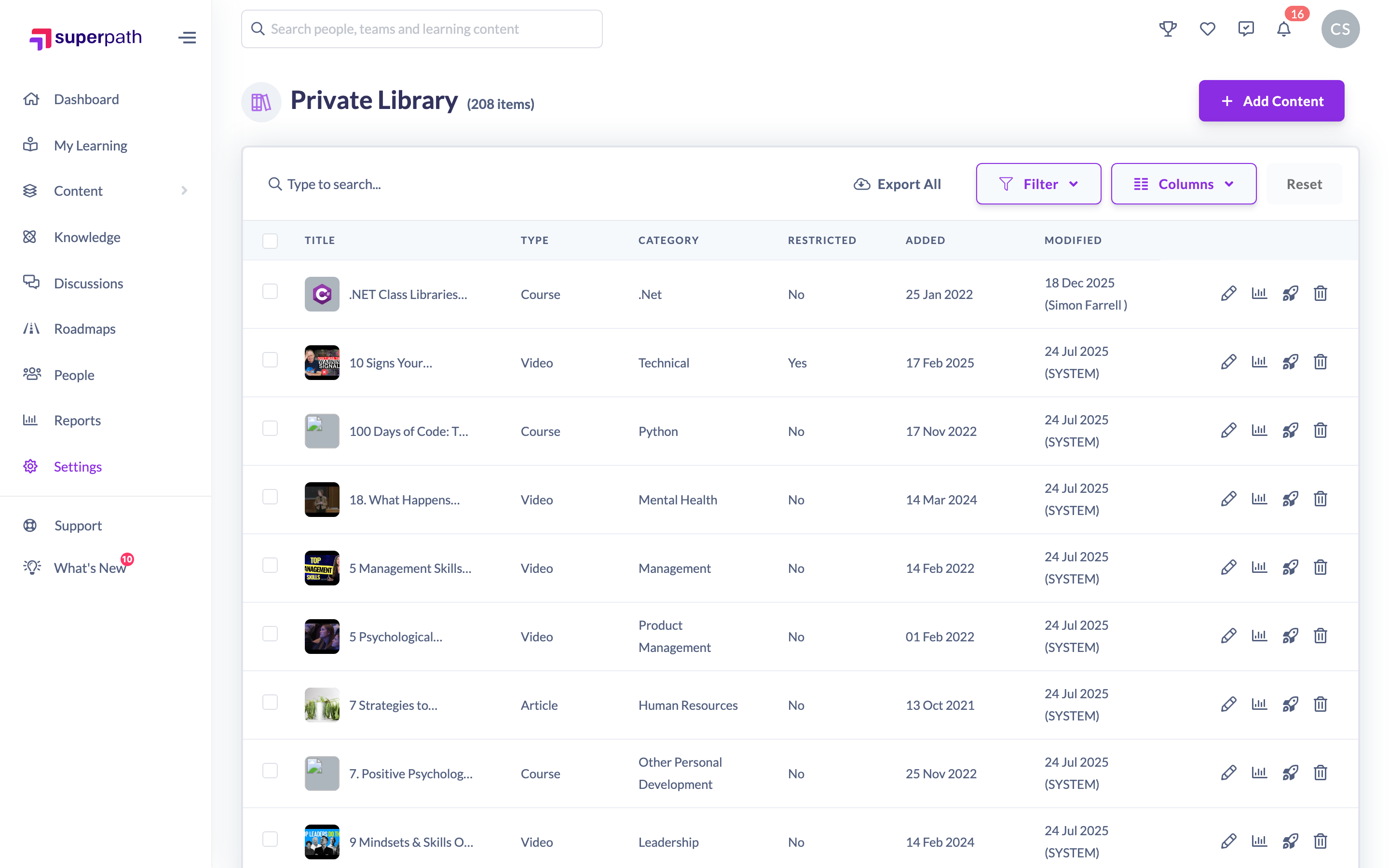
- Go to Settings → Library and click Manage Private Library.
- Click Add Content in the top right.
- In the Add Content panel, expand the Upload a SCORM course section. This section only appears if SCORM is enabled for your account.
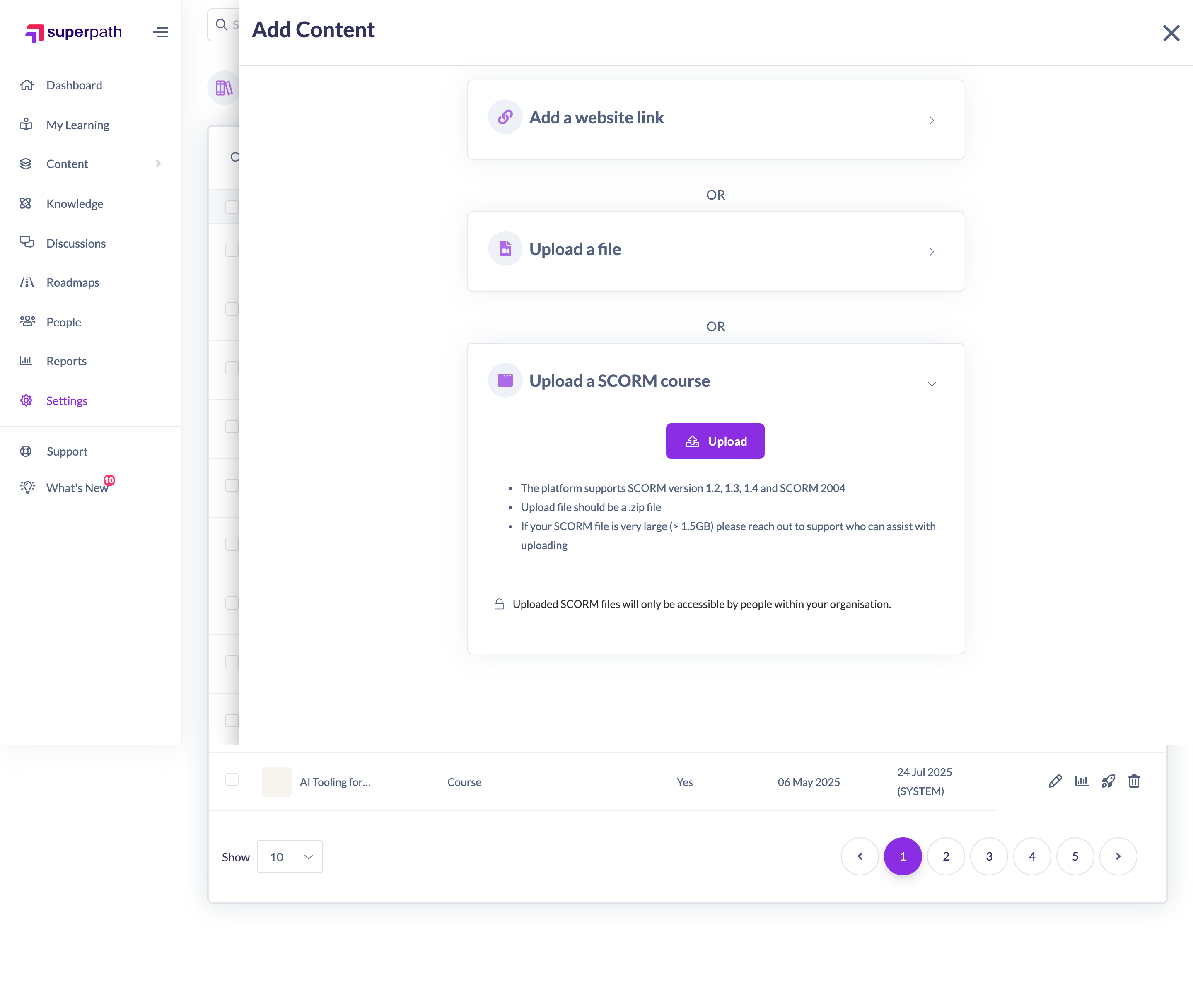
- Upload your SCORM package file.
- SuperPath processes the file. You will see the message Your SCORM file is being processed, this may take a few minutes. You can close the window if you like — you will be notified when processing has finished.
- Once processing finishes, you are taken to the new content item's edit view so you can add details such as the title and category. From there the SCORM course is saved to your Library, ready to assign or add to a Pathway.
Things to keep in mind
- The Upload a SCORM course option only appears when SCORM support is enabled for your account. If you cannot see it, contact SuperPath.
- Processing can take a few minutes. You do not need to keep the window open — you will be notified when the file has finished processing.
- Both SCORM 1.2 and SCORM 2004 are supported, and both versions can be downloaded again later from the content's row in Manage Private Library.
- After the file is processed you are dropped straight into the content's edit view to finish adding details before it appears in your Library.
FAQs
Why can't I see the option to upload a SCORM course?
SCORM support has to be enabled for your account. If the Upload a SCORM course section is missing from the Add Content panel, contact SuperPath to have it turned on.
How long does processing take?
Usually a few minutes. You can close the window while it processes and you will be notified when it is ready.
Which SCORM versions are supported?
SuperPath supports both SCORM 1.2 and SCORM 2004.
Who can do this
Owners, Admins, Managers, Content Managers and Instructors can add content, including uploading SCORM packages (when SCORM is enabled for your account). People Managers, Employees and Restricted users cannot — they have read-only access to content.
Updated on: 18/07/2026
Thank you!