
How to View Learners for a Content Item
How to View Learners for a Content Item
In this article:
- Overview
- How to view learners
- Things to keep in mind
- FAQs
- Who can do this
Overview
The View learners panel shows you who has this content and how they are getting on with it, without leaving the content item. It is the quick way to check progress and completion for a single piece of content.
How to view learners
- Open the content item from your Library, or find it in Settings → Library → Manage Private Library.
- Click the View learners (bar chart) icon — it is on the right-hand toolbar of the content page, and also in the row actions in Manage Private Library.

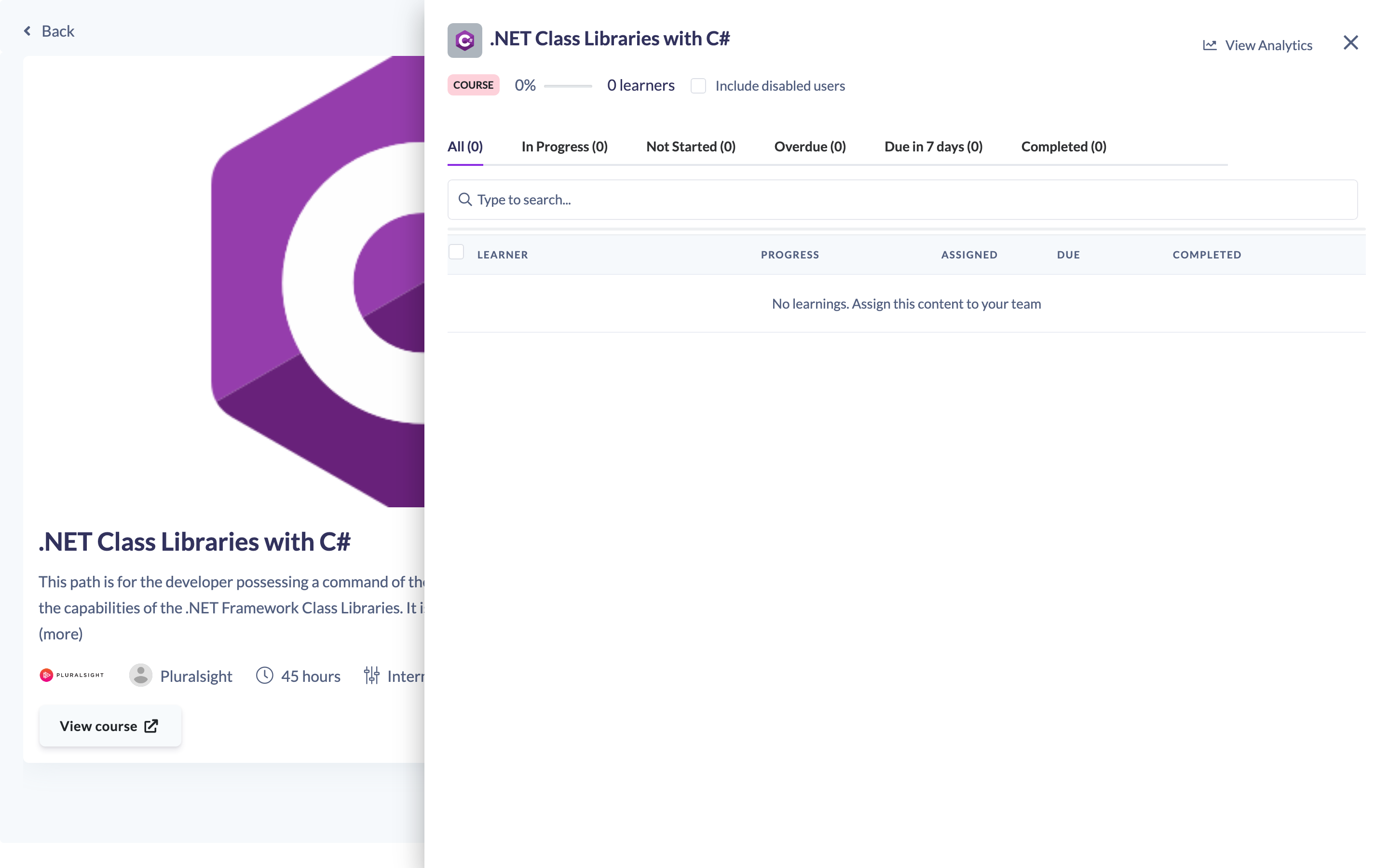
- A drawer opens listing the learners for that content and their progress.
Things to keep in mind
- On the content page, View learners is shown for private (non-public) content. It is not offered for public content.
- The drawer includes an option to show disabled users, so you can include or exclude people whose accounts have been disabled.
- The same View learners icon is available from the Manage Private Library table's row actions.
FAQs
Can I see learners for public content?
On the content page the View learners icon is only shown for private content, not public content.
Does the panel include people whose accounts are disabled?
You can choose to. The drawer has a show-disabled-users option to include or exclude them.
Who can do this
On the content page, View learners is shown to Owners, Admins, Managers, People Managers and Instructors (for private content). Content Managers, Employees and Restricted users do not see it there. The same icon is also available from the Manage Private Library row actions, where it has no separate role restriction.
Updated on: 18/07/2026
Thank you!