
Configuring auto registration
Configuring Auto Registration
In this article:
- Overview
- How to enable auto approve registrations
- Auto registration vs Self-Registration
- Things to keep in mind
- FAQs
- Who can do this
Overview
Auto registration lets anyone with an email address on your organisation's domain join SuperPath automatically. When it's on, a person can sign in with their work email and be added to your organisation without waiting for an invitation.
New people who join this way are added as Employees with no team, so you can move them into the right team and role once they've signed in. This setting is called Auto approve new registrations in your security settings.
How to enable auto approve registrations
- Go to Settings → Security.
- Find the Auto approve new registrations section.
- Turn on the toggle labelled Allow automatic access for any team member with a [your domain] email address.
- Click Save changes in the bar at the top of the page.
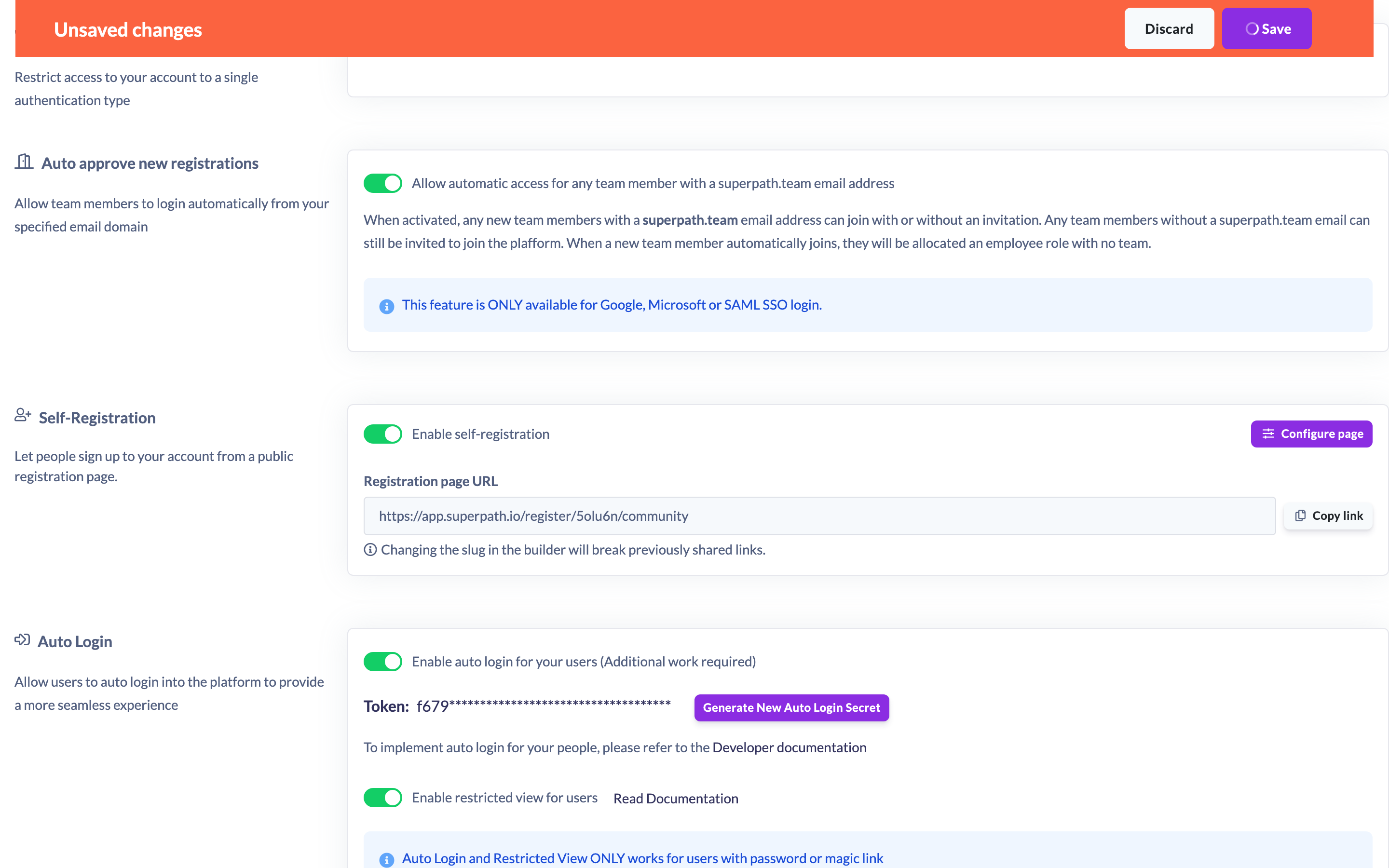
Note: This setting is only available if your organisation uses a private email domain. It can't be turned on for public email domains such as Gmail, Outlook or iCloud, because anyone could sign up with one of those.
Auto registration vs Self-Registration
Auto registration is a lightweight, domain-based option: anyone whose email matches your organisation's domain is let in automatically as an Employee. There's no registration page to configure and no approval step.
If you want a shareable public sign-up page with your own web address, a choice of sign-in methods, custom fields to collect, control over the team and role new people receive, and the option to review each sign-up before approving it, use Self-Registration instead. See "What Is Self-Registration?" and its related how-to articles.
Things to keep in mind
- Auto approve new registrations is only available on paid plans.
- It's only available for private (organisation) email domains, not public ones such as Gmail, Outlook or iCloud.
- People who join automatically are added as Employees with no team — change their role and team after they sign in.
- Team members without your organisation's email domain aren't affected — you can still invite them individually.
FAQs
What role do people get when they join automatically?
They're added as Employees with no team. You can change their role and add them to teams once they've signed in.
Why can't I turn this on?
The setting requires a paid plan and a private email domain. If your account email uses a public domain (such as Gmail or Outlook), the toggle won't be available.
How is this different from Self-Registration?
Auto registration simply auto-admits anyone with your email domain as an Employee. Self-Registration gives you a configurable public sign-up page with sign-in methods, custom fields, role and team assignment, and an optional approval step. See "What Is Self-Registration?".
Who can do this
Only Owners and Admins can open Settings and change security settings — the whole /settings area is restricted to these two roles. Managers, People Managers, Content Managers, Instructors, Employees and Restricted users cannot.
Updated on: 23/07/2026
Thank you!