
How to change your timezone
How to Change Your Timezone
In this article:
- Overview
- How to change your organisation's timezone
- Things to keep in mind
- FAQs
- Who can do this
Overview
Your organisation's timezone is the account-wide default that applies to everyone you add to SuperPath. It's used when scheduling and sending notifications, so setting it correctly means reminders and other messages reach your people at sensible local times.
Setting this timezone is one of the first things to do when you set up your account, and you can change it at any time from your general settings.
How to change your organisation's timezone
- Go to Settings → General.
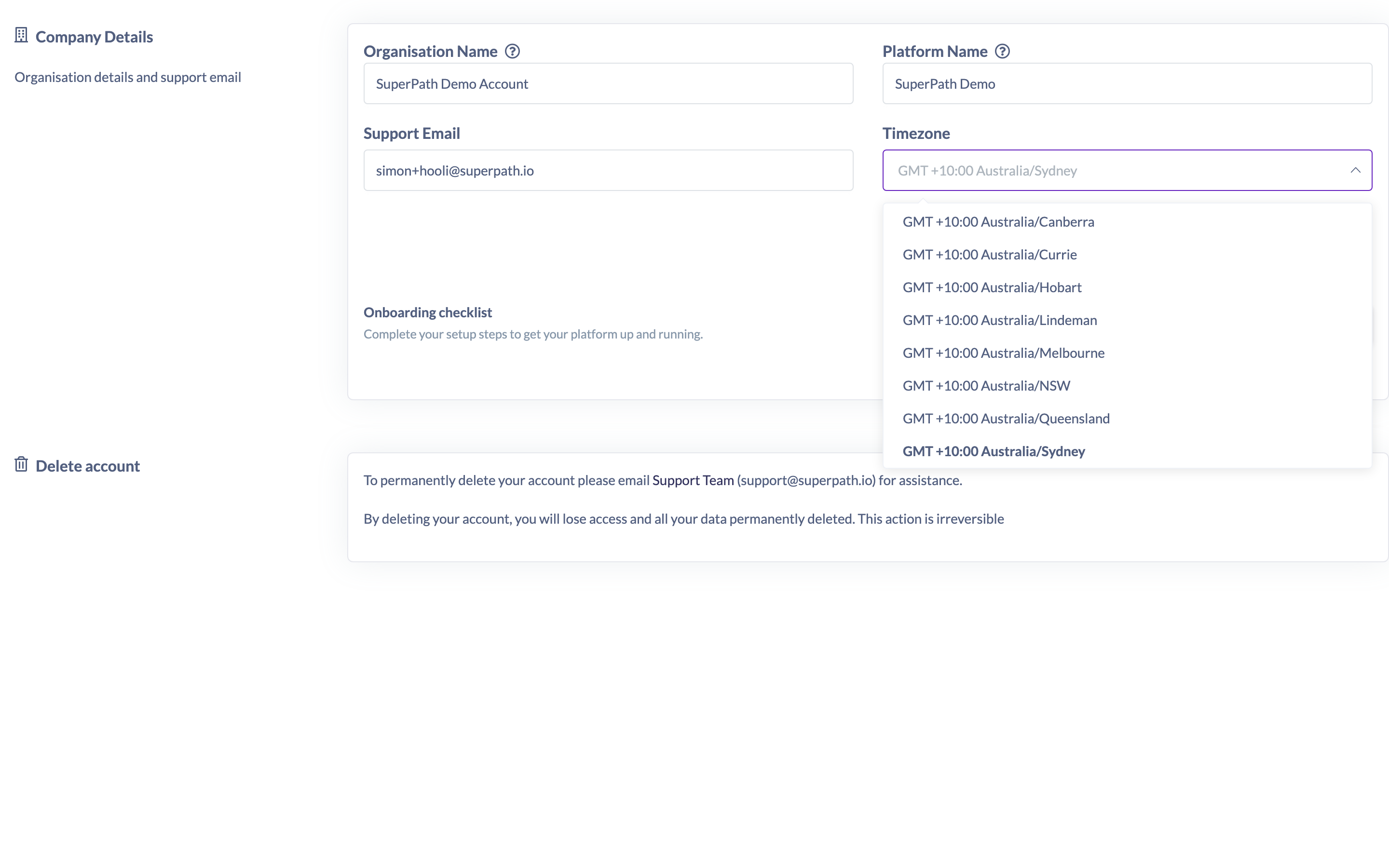
- In the Company Details section, find the Timezone field.
- Select your new timezone from the list. You can start typing to filter the options.
- Click Save changes in the bar at the top of the page.
Note: This is the organisation-wide default timezone. It's separate from the personal timezone an individual can set on their own profile — see "How to Change Your Personal Timezone" for that.
Things to keep in mind
- This timezone is the default for all people in your organisation and is used when sending notifications.
- Changing it here doesn't overwrite a personal timezone someone has already set for themselves.
FAQs
Who does this timezone apply to?
It's the default for everyone in your organisation. Individuals can still set their own personal timezone on their profile, which takes precedence for them.
What is the timezone used for?
It's used when scheduling and sending notifications, so your people receive messages at appropriate local times.
Who can do this
Only Owners and Admins can open Settings and change the organisation's timezone — the whole /settings area is restricted to these two roles. Managers, People Managers, Content Managers, Instructors, Employees and Restricted users cannot. (Any user can change their own personal timezone on their profile.)
Updated on: 23/07/2026
Thank you!