
What is Restricted View for Users?
What is Restricted View for Users?
In this article:
- Overview
- What the user sees
- How to enable Restricted View
- Things to keep in mind
- FAQs
- Who can do this
Overview
Restricted View lets you send a user straight into a single piece of assigned learning, with nothing else around it. When someone opens a restricted-view link, they land directly on that one learning item — there's no sidebar, navigation, notifications or account menu, and they can't move to any other part of SuperPath.
It's designed for embedding or linking one specific learning from outside SuperPath — for example, surfacing a single required course inside another system — so the user can focus on that content and nothing more.
Restricted View is part of SuperPath's Auto Login feature, so it's enabled alongside Auto Login under Settings → Security.
Note: Restricted View is different from a Restricted user (a role you assign when adding someone to SuperPath). A Restricted user is a person who only ever sees their assigned learning; Restricted View is a way to open one specific learning item in a locked, distraction-free session. See Using Restricted Users in SuperPath for the role.
What the user sees
In a restricted view, the experience is deliberately stripped back:
- The learning item opens directly, with no sidebar or navigation menu.
- Notifications and the account menu are hidden.
- A message reads: "You are in a restricted view. If you would like to access your full account please sign in."
- The session is locked to that one learning — trying to navigate elsewhere signs the user out.
How to enable Restricted View
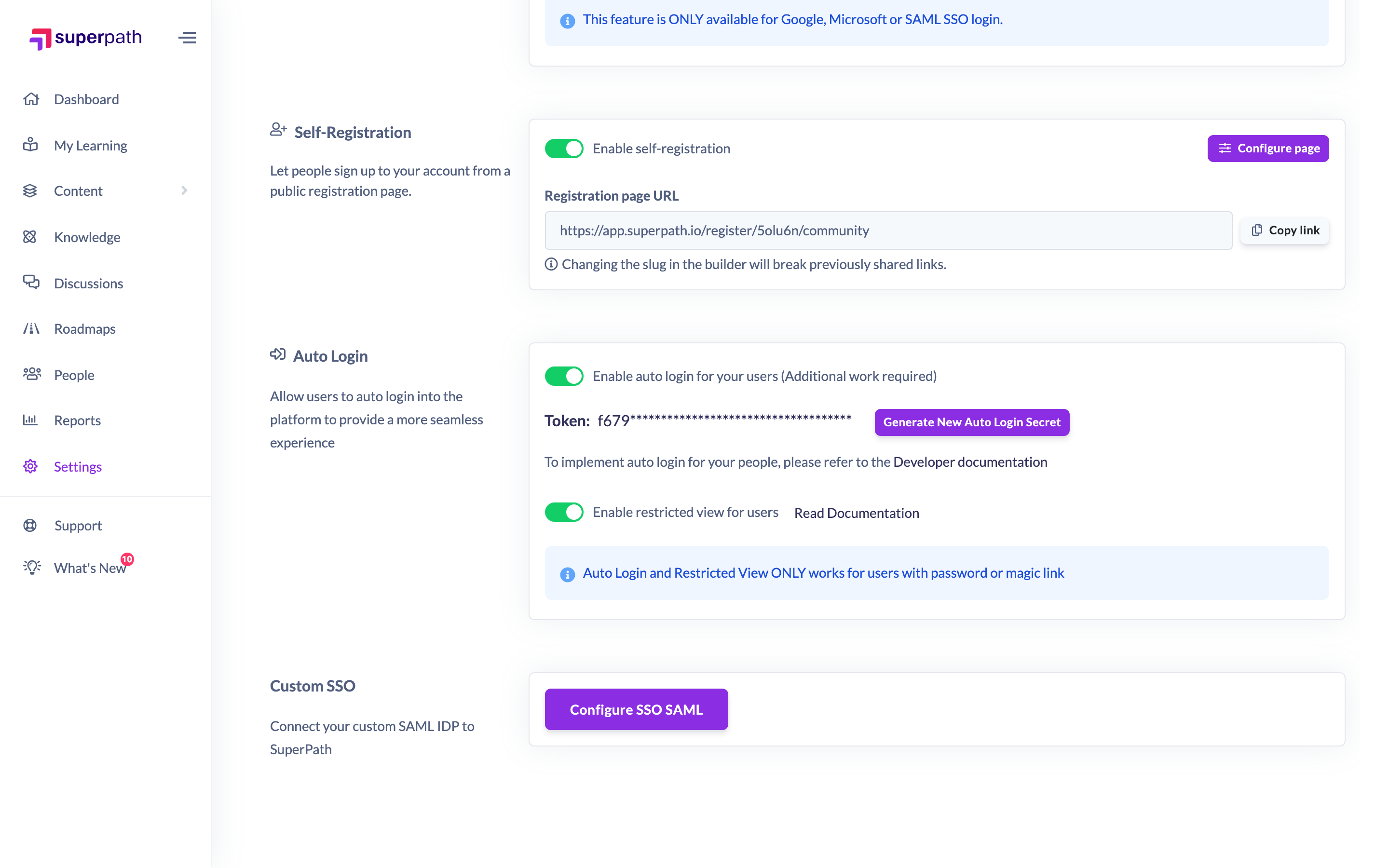
- Go to Settings → Security.
- In the Auto Login section, switch on Enable auto login for your users. (Auto Login is available on paid plans and requires some developer setup to generate the links.)
- Switch on Enable restricted view for users.
- Click Save.
Things to keep in mind
- Restricted View sits under Auto Login — the toggle only appears once Auto Login is enabled.
- Auto Login and Restricted View only work for users who sign in with a password or magic link. They aren't supported for SSO/SAML sign-ins.
- Generating restricted-view links is part of an Auto Login integration and requires some developer work; see the Auto Login developer documentation.
FAQs
Is Restricted View the same as making someone a Restricted user?
No. A Restricted user is a role — that person only ever sees their assigned learning when they log in. Restricted View is a locked, single-learning session opened via an Auto Login link, and can apply to any user Auto Login supports.
Why don't I see the Restricted View toggle?
It only appears once Auto Login is enabled, and Auto Login itself is available on paid plans.
Does it work with SSO?
No. Restricted View works only for users who sign in with a password or magic link.
Who can do this
Owners and Admins can enable Restricted View — the whole Settings area is restricted to those two roles. Managers, Instructors, Employees and Restricted users cannot open Settings and so cannot change this. Setting up the links themselves is part of an Auto Login integration and is typically handled by a developer.
Updated on: 24/07/2026
Thank you!