
Create an Auto-Generated Roadmap
Create an Auto-Generated Roadmap
In this article:
- Overview
- Step 1: describe the Roadmap you want
- Step 2: review the role progression
- Step 3: review the competencies
- Step 4: generate the Roadmap
- Things to keep in mind
- FAQs
- Who can do this
Overview
Auto-generating a Roadmap is the fastest way to get a complete career framework in front of your team. You tell SuperPath the role you are building for and how big you want the grid to be, review and edit the suggested progression and competencies as you go, and SuperPath then drafts behaviours for every Competency at every Level. The finished Roadmap opens in the editor as Unpublished, ready for you to refine before anyone sees it.
To start, go to Roadmaps, click Create Roadmap and select Auto Generate Roadmap.
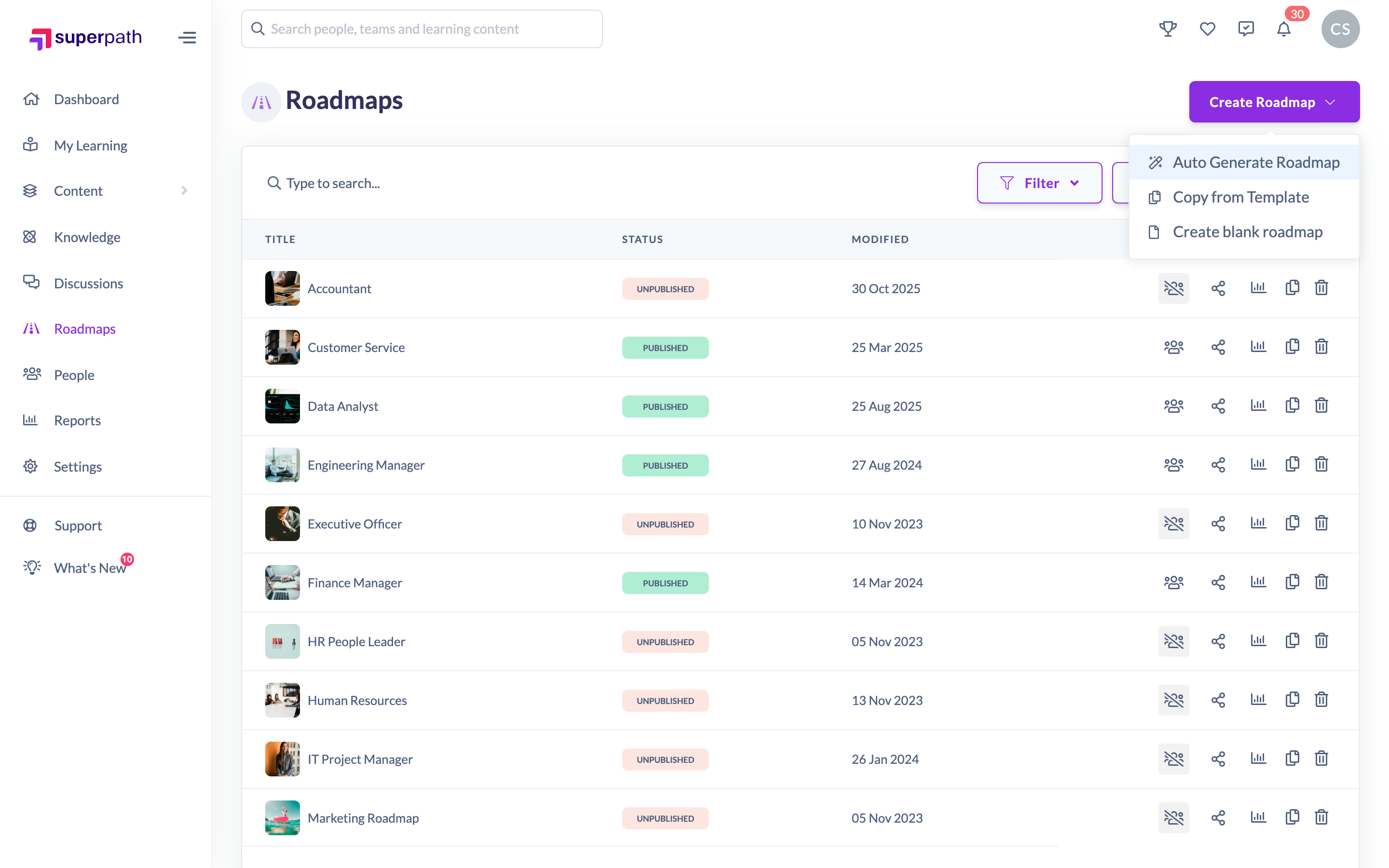
Step 1: describe the Roadmap you want
- Under What is the role for this career roadmap?, type the role in the Enter career role box — for example Software Engineer, Sales, Marketing or Customer Service.
- Set Number of roles in this career roadmap? using the + and - buttons. These become the Levels (the columns of your grid) and you can have between 1 and 8; three or four is recommended.
- Set Number of competencies in this career roadmap? — the rows of your grid, between 1 and 6, with three or four recommended.
- Set Number of behaviours for each role competency? — between 1 and 10, with five or six recommended.
- Click Next.
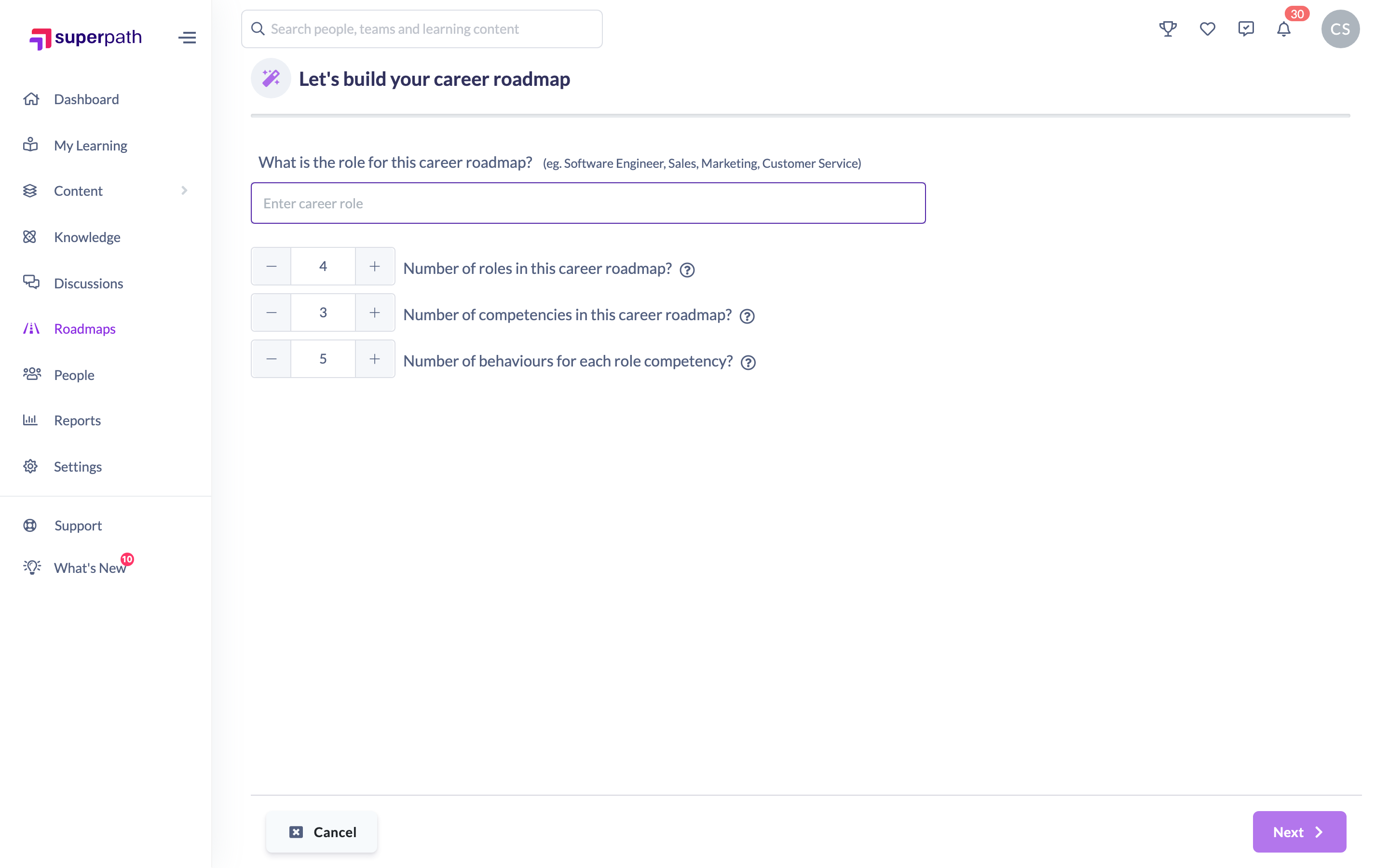
Tip: Hover the question-mark icon beside each counter for guidance on what that number controls.
Step 2: review the role progression
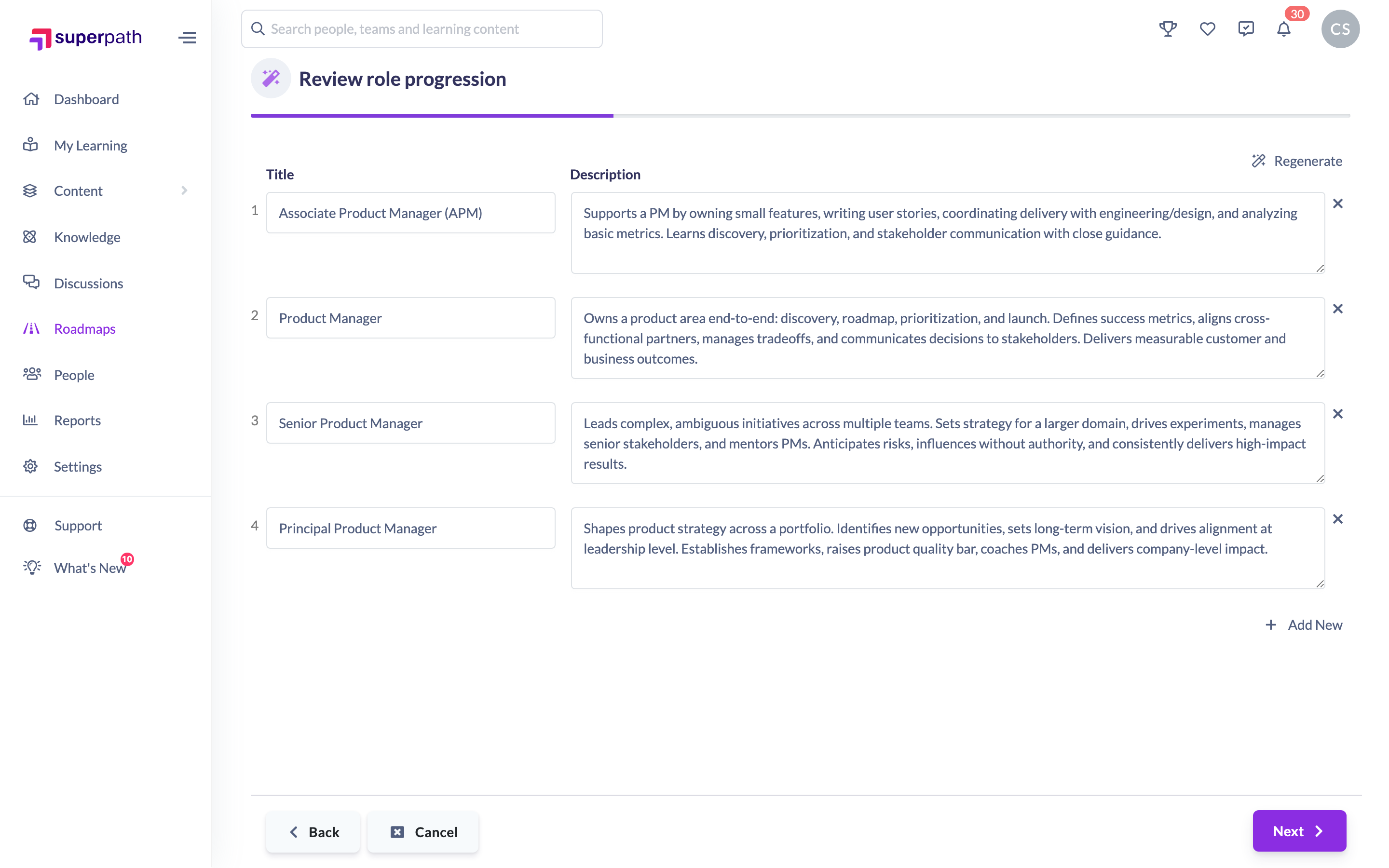
- On Review role progression, SuperPath suggests a set of roles with a title and description each, ordered from most junior to most senior.
- Edit any title or description directly in the list to match the language your organisation uses.
- Use Remove role (x) to drop one, Add new (+) to add your own, or Regenerate for a different set of suggestions.
- Click Next.
Step 3: review the competencies
- On Review competencies, SuperPath suggests the competencies for the role — the skill areas that will run down the side of your grid.
- Edit, remove or add competencies in exactly the same way, or click Regenerate for a different set.
- Click Generate.
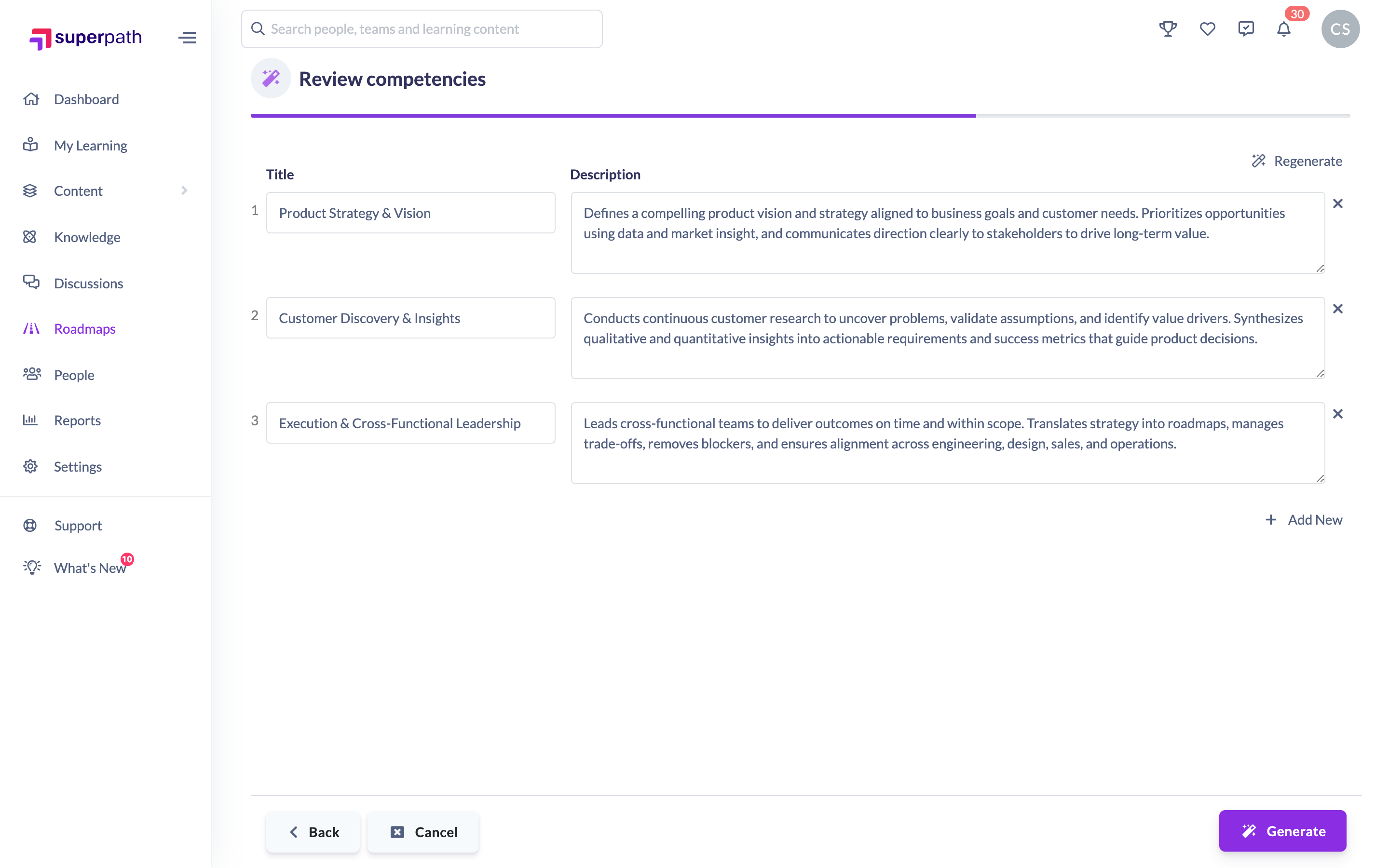
You can click Back at any point to change an earlier step, or Cancel to leave without creating anything.
Step 4: generate the Roadmap
SuperPath now builds the full grid and shows "Generating roadmap. This can take up to 45 seconds" while it works. When it finishes, the new Roadmap opens in the editor containing:
- one Level for each role you reviewed, in the order you left them;
- one Competency for each competency you reviewed;
- the number of behaviours you asked for in every cell, written for that Competency at that Level;
- a title taken from the role you entered, plus a generated sub title, description and cover image.
The Roadmap is created Unpublished. Review it, add your skills and learning, then click the Unpublished button in the top right and select Publish — see How to Publish a Roadmap.
Things to keep in mind
- Nothing is saved to your account until you click Generate — the suggestions in steps 2 and 3 are drafts, and cancelling before generating leaves nothing behind.
- Next stays disabled until you have entered a role, and Generate needs at least one competency.
- Regenerate replaces the whole list with a fresh set of suggestions, so any edits you have made to that list are lost.
- The generated behaviours are a strong starting point, not a finished framework — read them through and edit anything that doesn't fit your organisation.
- Skills and learning are not generated. Add Key skills, Technical skills and learning per cell afterwards — see Assigning Learning to Competencies or Behaviours.
- You are not locked into the sizes you chose. Use Add Level and Add Competency in the editor to grow the grid later.
- Generation can take up to about 45 seconds — leave the page open while it runs.
- The Roadmap editor is available on desktop or tablet, not on mobile.
FAQs
Can I change the suggestions before the Roadmap is built?
Yes. Both review steps are fully editable — change the wording, remove entries, add your own, or regenerate the list.
How long does it take?
Usually well under a minute. SuperPath shows a message telling you it can take up to 45 seconds.
Is the Roadmap live as soon as it's generated?
No. It is created as Unpublished, so nothing is visible to learners and it cannot be assigned until you publish it.
Can I add more Levels or Competencies afterwards?
Yes. The generated Roadmap behaves like any other — use Add Level and Add Competency in the editor.
Why do the review steps say "roles" when the grid says "Levels"?
They are the same thing. Each role you review becomes a Level (a column) in the Roadmap grid.
Who can do this
Owners, Admins, Managers and Content Managers can auto-generate a Roadmap (it uses the same "create" permission on the Roadmap subject as creating one by hand). People Managers, Instructors, Employees and Restricted users cannot — the admin Roadmaps area is limited to the roles that can create or update Roadmaps. Roadmaps must also be enabled for your organisation.
Updated on: 25/07/2026
Thank you!