
How to Add or Remove a Level in a Roadmap
How to Add or Remove a Level in a Roadmap
In this article:
- Overview
- How to add a Level
- How to move a Level into position
- How to remove a Level
- Things to keep in mind
- FAQs
- Who can do this
Overview
A Roadmap is a grid. Levels run across the top as columns and Competencies run down the side as rows, and the cell where a Level meets a Competency holds the detail for that combination. Each Level is a stage of progression — usually a job title or seniority band — so adding a Level is how you add a new role to a career Roadmap, and removing one is how you retire a role you no longer use.
Note: In SuperPath the grid columns are called Levels. Older guidance refers to them as "roles" — they are the same thing, and the button in the app is Add Level.
How to add a Level
- Go to Roadmaps and click the Roadmap you want to update.
- Click Add Level at the top right of the grid. A new column titled Untitled level is added to the right of your existing Levels.
- Click the new column's title and type the name of the role or stage, then click the description beneath it and describe what that Level covers.
- Click a cell beneath the new Level to open the Competency Level Settings panel, where you add the description, Key skills, Technical skills, Behaviours and Learnings for that Competency at that Level. To add behaviours, expand Behaviours, click the Type to add behaviours box and press Enter after each one.
- Repeat step 4 for each Competency in the new column.
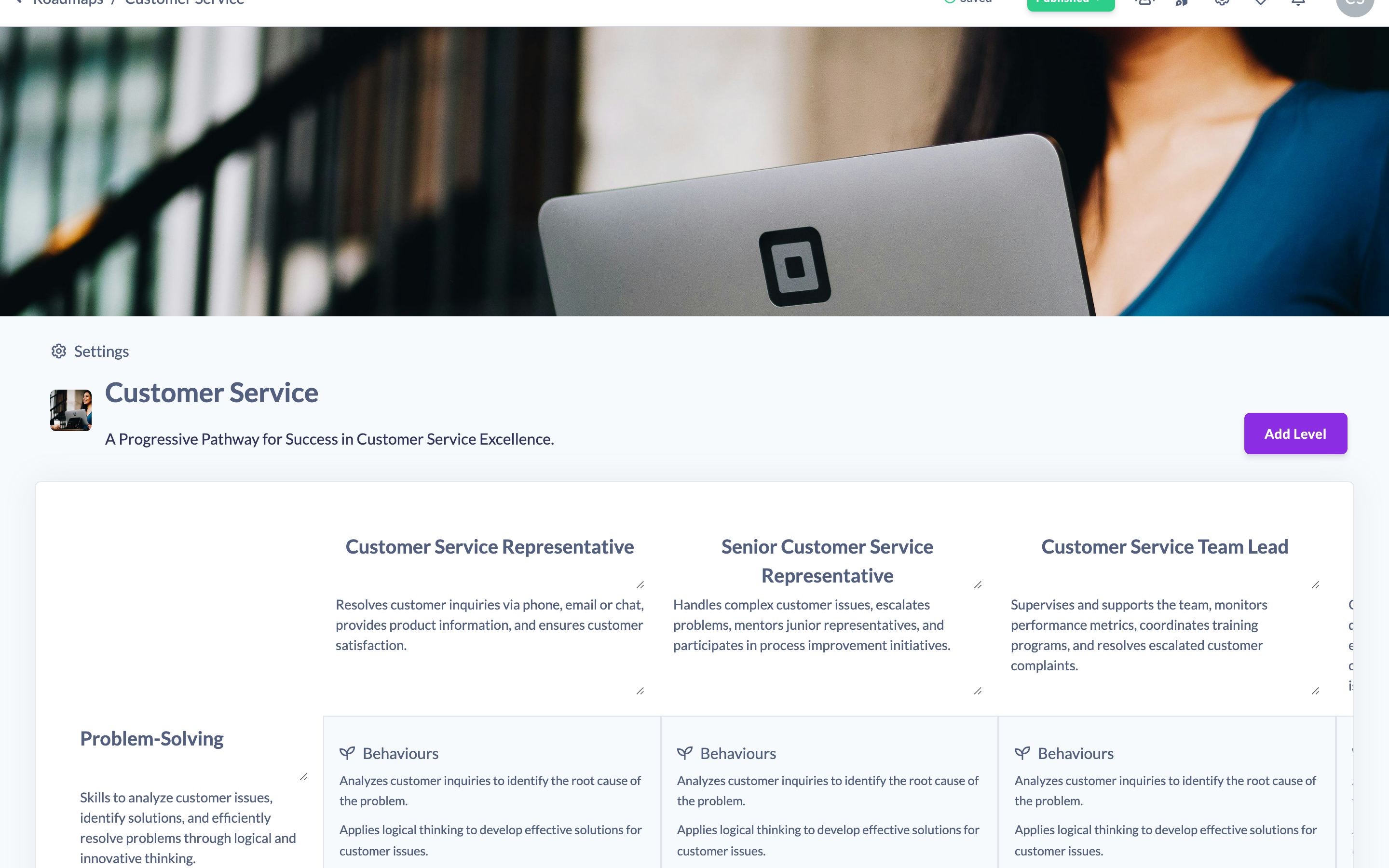
Your changes save automatically as you type — there is no separate save button. For more detail on filling in a cell, see How to Edit a Competency-Level Cell, How to Add Behaviours to a Competency Level and How to Add Skills to a Competency Level.
How to move a Level into position
- Hover over the Level (column) you want to move. A row of icons appears above its title.
- Click the Move level left (left chevron) or Move level right (right chevron) icon to move the Level one position at a time.
- Repeat until the Level is where you want it. Each move saves automatically and the grid re-orders straight away.
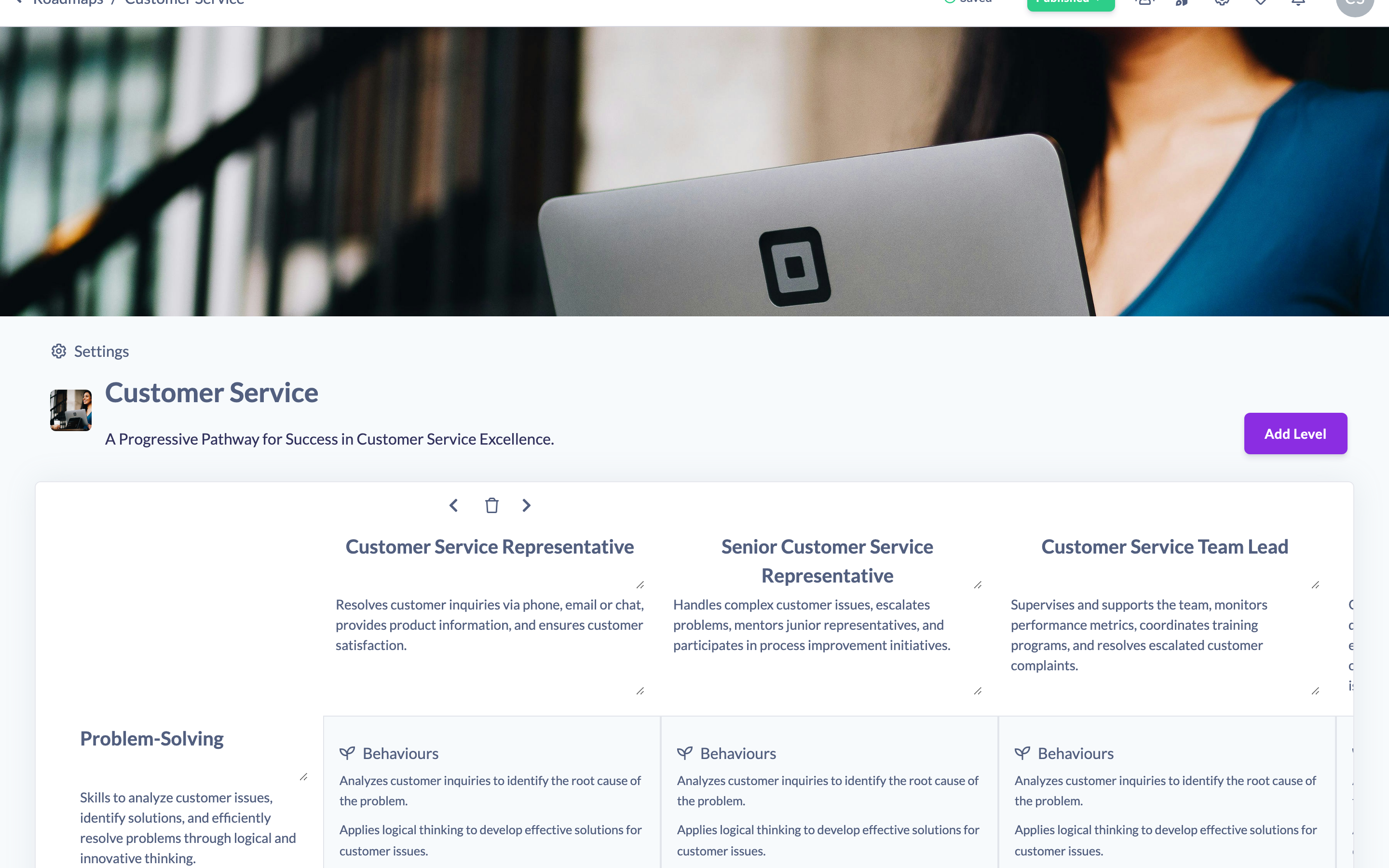
A new Level is always added as the last (right-most) column, so this is how you slot a new role into the correct point in a progression. See also How to Reorder Levels in a Roadmap.
How to remove a Level
- Hover over the Level you want to remove and click the Delete level (trash) icon above its title.
- When Are you sure you want to delete this level? appears, click Confirm remove to delete it, or No thanks to cancel.
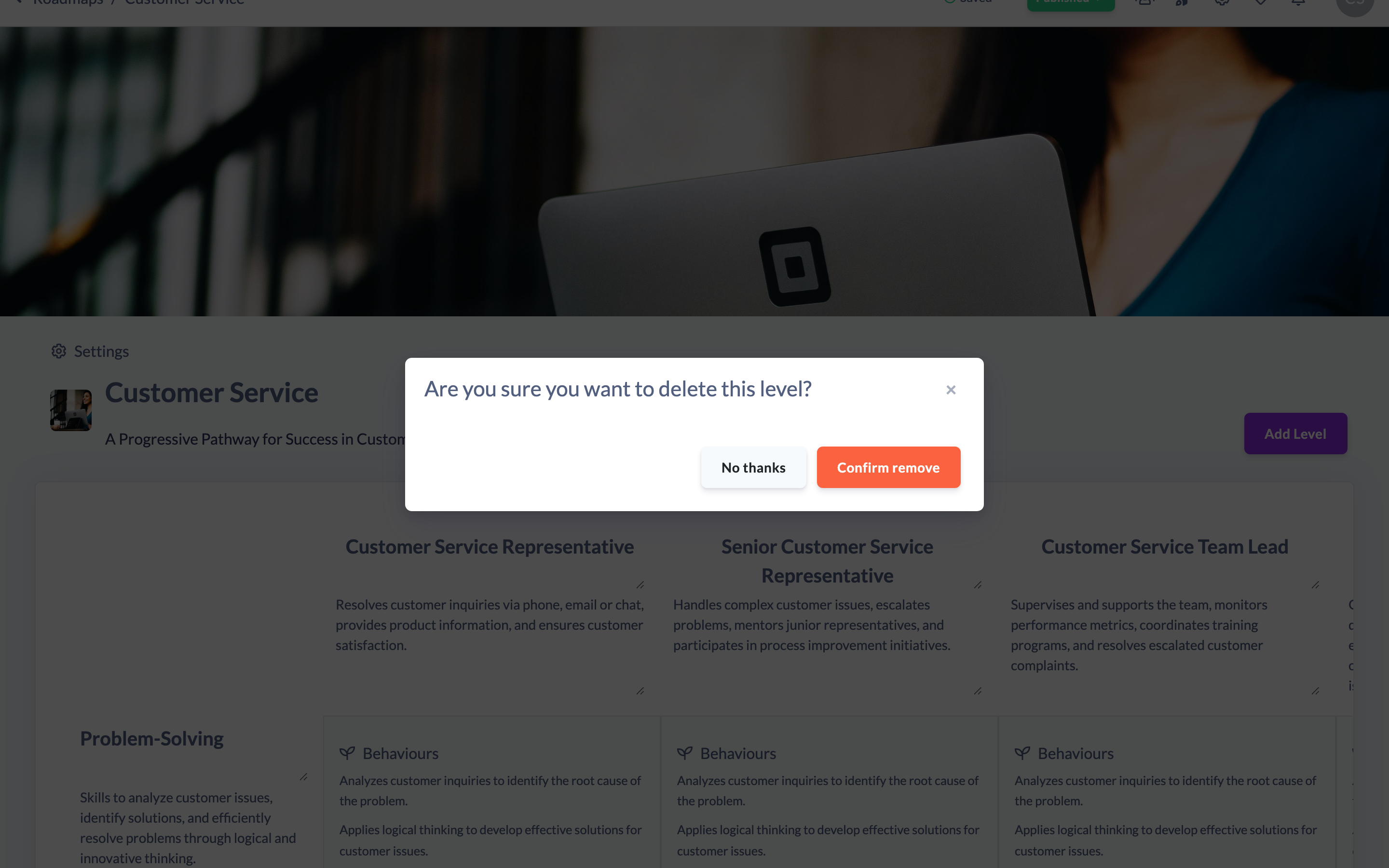
Deleting a Level removes the whole column, including everything stored in the cells beneath it. See also How to Delete a Level From a Roadmap.
Note: Adding, moving or deleting a Level on a published Roadmap sets the Roadmap back to Unpublished. When you have finished, click the Unpublished button in the top right of the editor and select Publish so your changes reach active Roadmap assignments — see How to Publish a Roadmap.
Things to keep in mind
- Deleting a Level also deletes every cell in that column — the descriptions, key skills, technical skills, behaviours and linked learnings for that Level against each Competency. This cannot be undone.
- The action icons only appear when you hover over a Level, so nothing is changed or deleted by accident.
- Levels move one position per click, and the first and last Levels cannot move any further left or right.
- No fixed limit on Levels is enforced. The grid scrolls horizontally, but a focused set of Levels keeps a Roadmap easier to read.
- The Roadmap editor is available on desktop or tablet — you cannot build or edit a Roadmap on a mobile device.
FAQs
Where is the "Add role" button?
There isn't one — a role is a Level, so use Add Level at the top right of the Roadmap grid.
Can I undo deleting a Level?
No. Once you click Confirm remove, the Level and all of its cell content are permanently removed. If you're unsure, copy the Roadmap first as a backup.
Do I need to save after adding or renaming a Level?
No. Titles and descriptions save automatically as you type, and a new Level is saved as soon as you add it.
Why did my Roadmap become Unpublished?
Structural changes such as adding, moving or deleting a Level revert a published Roadmap to Unpublished so learners don't see a half-finished change. Publish it again when you're ready.
Who can do this
Owners, Admins, Managers and Content Managers can add, move and remove Levels in a Roadmap. People Managers, Instructors, Employees and Restricted users cannot — the admin Roadmaps area is limited to the roles that can create or update Roadmaps. Roadmaps must also be enabled for your organisation.
Updated on: 25/07/2026
Thank you!