
Roadmap Reporting
Roadmap Reporting
In this article:
- Overview
- How to open the report for a Roadmap
- How to filter by progress
- What else the report gives you
- Things to keep in mind
- FAQs
- Who can do this
Overview
Roadmap reporting answers a simple question: who is on this Roadmap, and how far have they got? It lives on the Roadmap itself rather than in the Reports area, so you open it straight from your Roadmaps list and get every level assignment for that Roadmap in one panel — in progress and completed — with progress, dates and an export.
How to open the report for a Roadmap
- Go to Roadmaps.
- In the row for the Roadmap you want to analyse, click the View learners (chart) icon in the row actions.
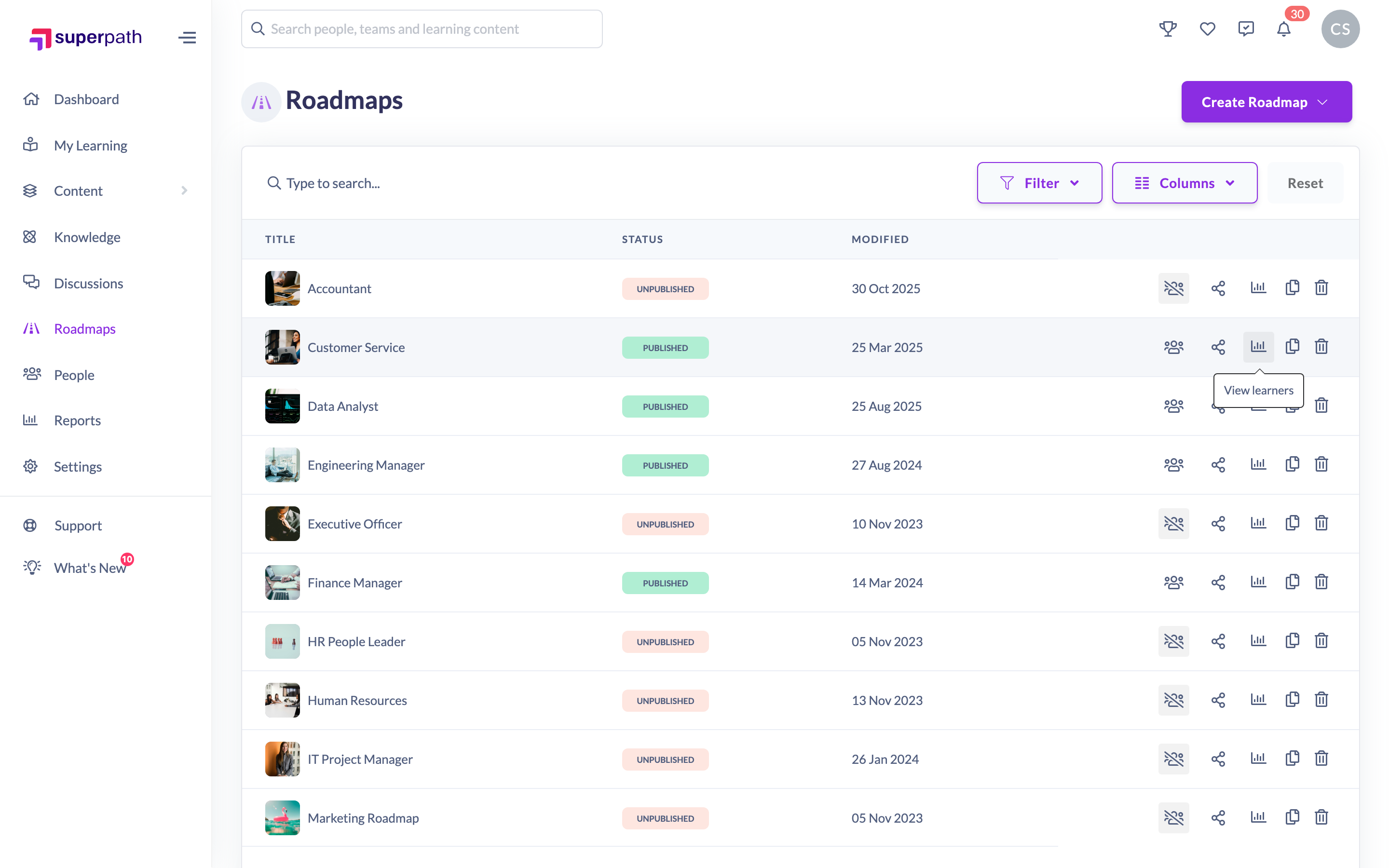
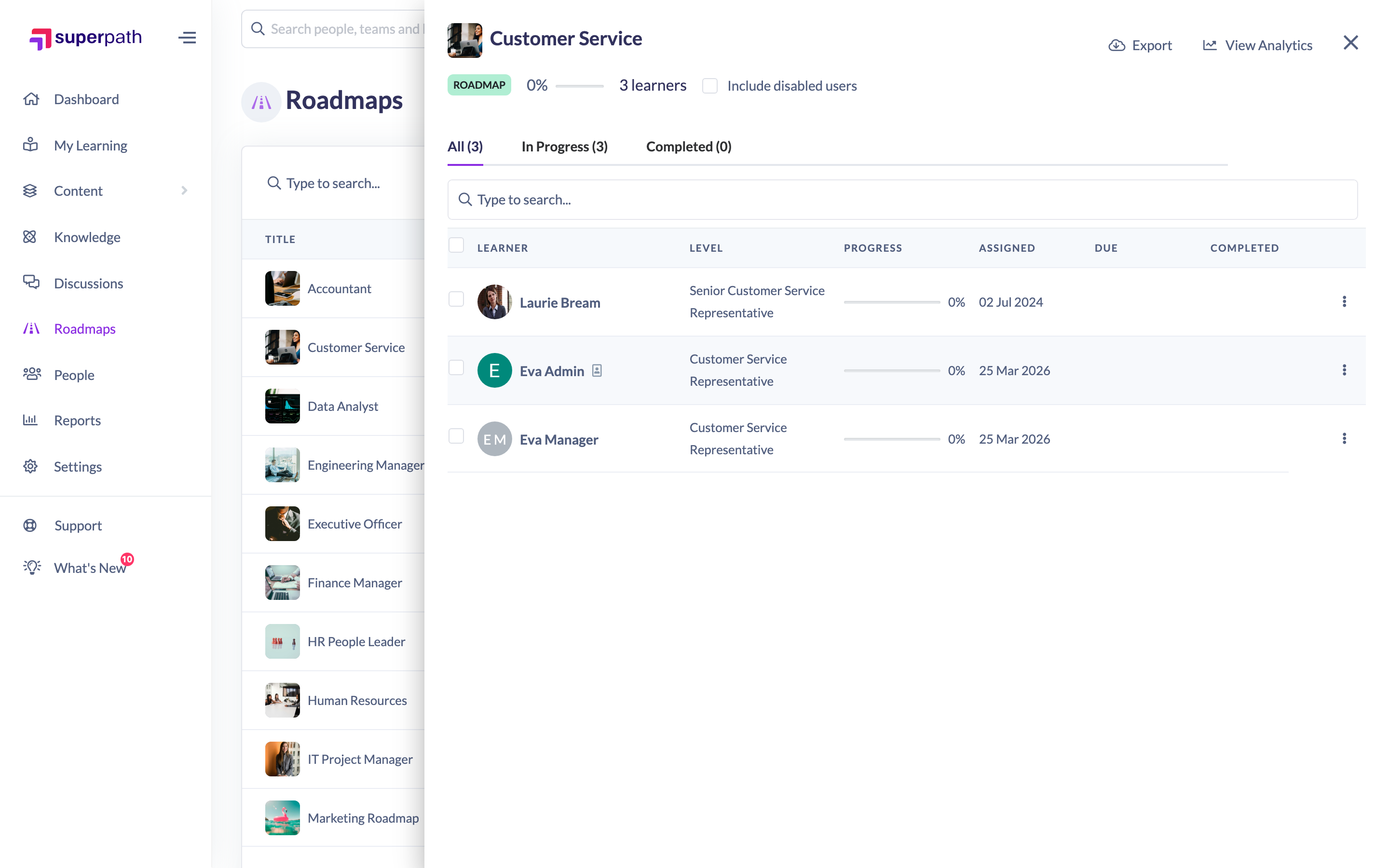
- The report opens in a panel on the right, listing every level assignment for that Roadmap across your people. The header shows the Roadmap's average progress and the number of learners on it.
How to filter by progress
Three tabs sit above the table, each showing a count:
- All — every level assignment for this Roadmap.
- In Progress — only the level each person is currently working through.
- Completed — only the levels people have finished.
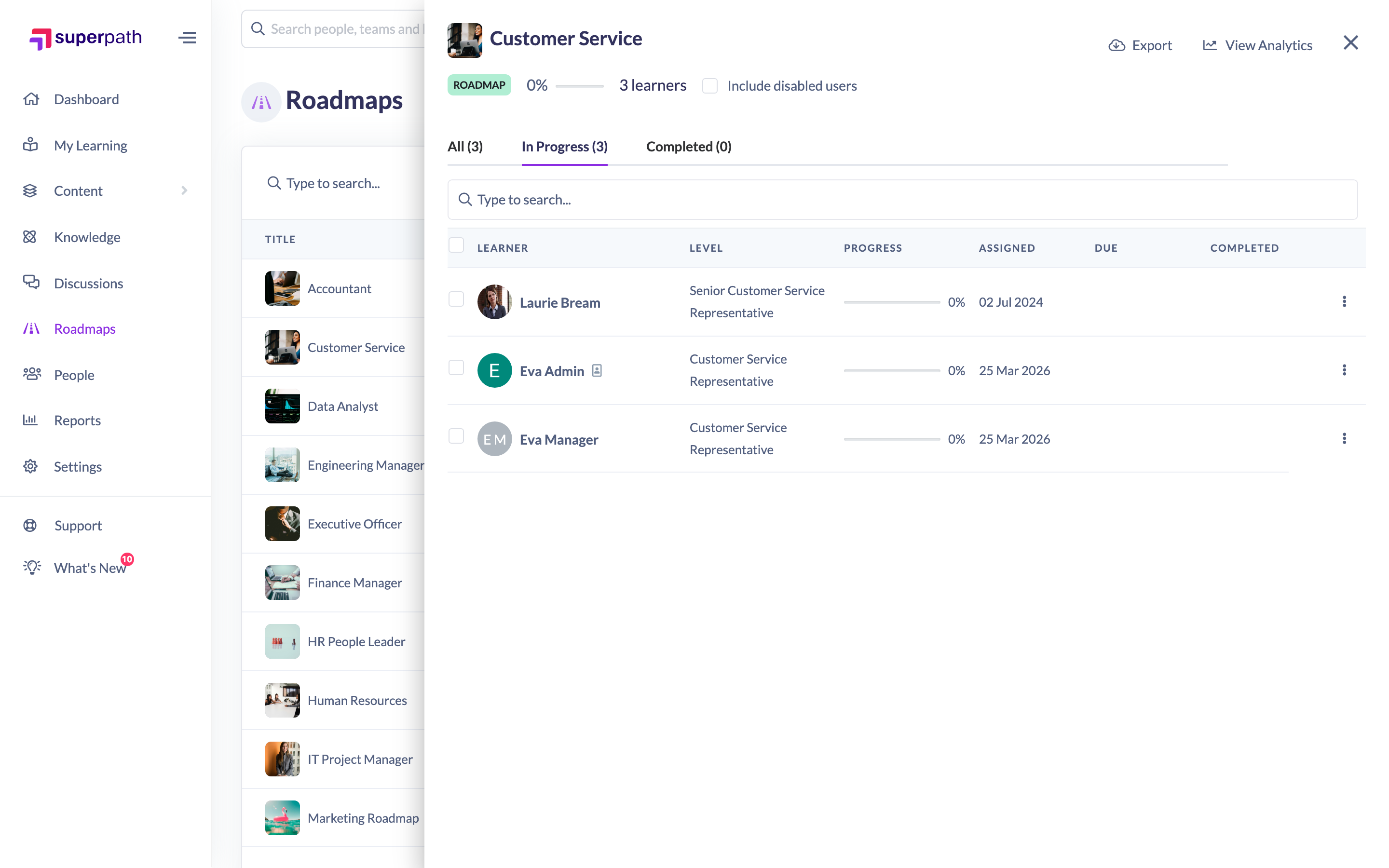
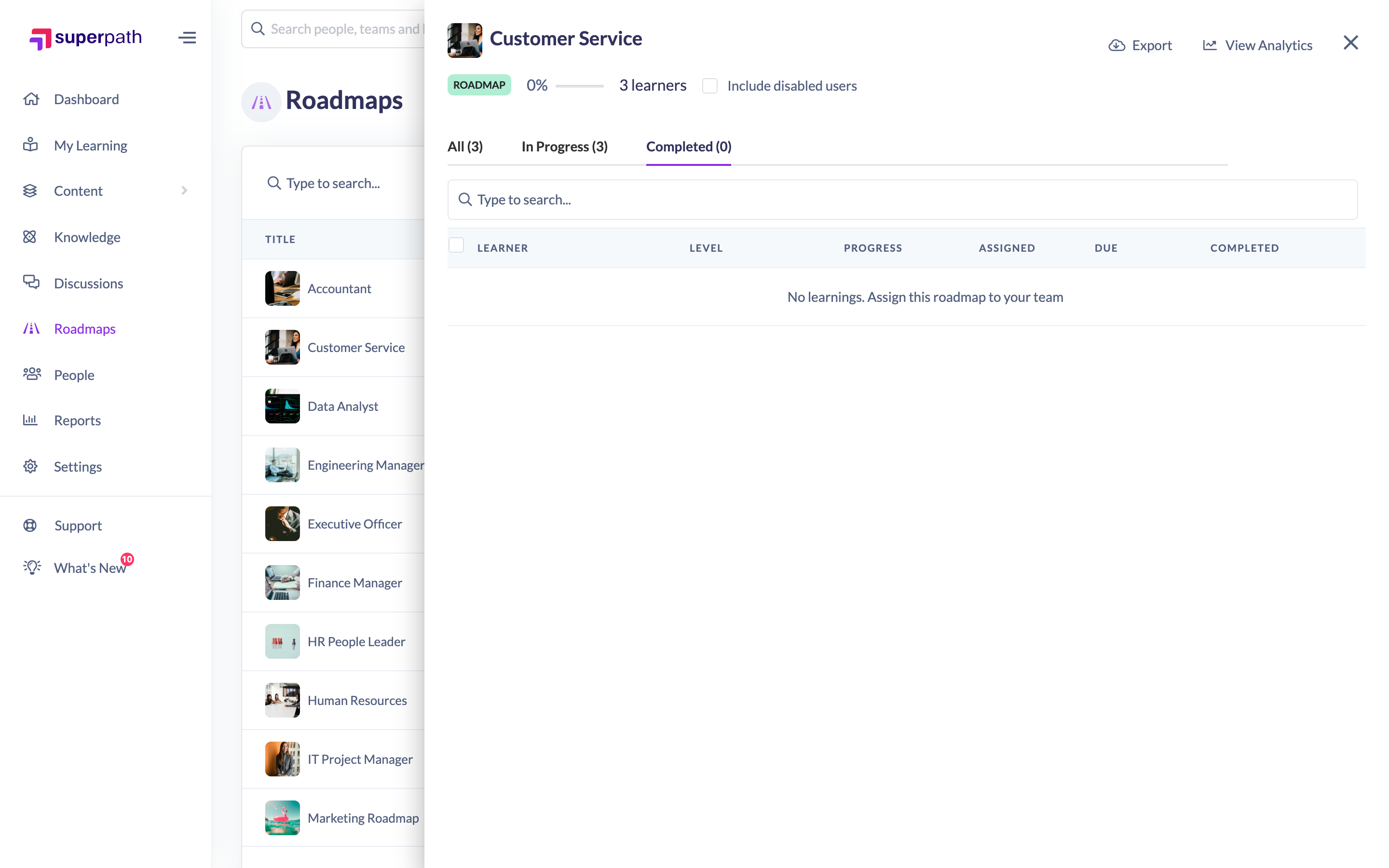
You can also type in the search box to find a particular person.
What else the report gives you
- Include disabled users — a checkbox in the header that pulls disabled people into the figures, useful when you are reconciling historic progression.
- Export — downloads the report as a CSV file for further analysis in a spreadsheet.
- View Analytics — switches the panel from the table to a charted view of status and completions over time. Click View Table to switch back.
- Bulk Actions — select rows and a Bulk Actions menu appears. Which actions you get depends on your role: Owners and Admins can mark levels complete and delete assignments; Managers and Content Managers can send a notification, and can change a due date or delete an assignment where they made the assignment themselves.
Things to keep in mind
- People appear once per level, so the same person shows up more than once as they progress. Each Roadmap level someone has been assigned is its own record, so the All tab naturally contains "double-ups" — one completed row per level they have finished plus the level they are on now. Use the In Progress tab when you want a single current position per person.
- A Roadmap level is recorded as complete rather than partially complete, so the percentage column reads 0% until the level is marked complete and 100% afterwards. The Roadmap's average progress figure is therefore the share of assigned levels that have been completed.
- Newly assigned levels start as In Progress — there is no "not started" state for Roadmap levels, which is why the report has no Not Started tab.
- The report covers one Roadmap at a time. There is no combined Roadmap report in the Reports area, so open the panel per Roadmap.
- Managers and Content Managers only see the Roadmaps they own or collaborate on, so their reporting is limited to those Roadmaps.
- The Export button appears on desktop only, and only when the Roadmap has at least one learner.
FAQs
Why does the same person appear several times?
Because each Roadmap level they have been assigned is its own row. As they move up the Roadmap, previous levels stay in the report as completed records.
How do I see just where everyone is right now?
Use the In Progress tab — it shows only the level each person is currently working through.
Can I get this out into a spreadsheet?
Yes. Click Export in the panel header to download a CSV of the report.
Is there a Roadmap report under Reports?
No. Roadmap reporting is opened per Roadmap from the Roadmaps list using the View learners icon.
Why has someone's level suddenly gone from in progress to completed?
Assigning a person a new Roadmap level automatically completes the level they had in progress — people only ever hold one in-progress level at a time.
Who can do this
Owners, Admins, Managers and Content Managers can open Roadmap reporting, because it is reached from the Roadmaps area and that area requires the create, update or manage permission on the Roadmap subject. People Managers (who can only read Roadmaps), Instructors, Employees and Restricted users cannot reach the Roadmaps list and so cannot open the report. Owners and Admins see every Roadmap in the organisation; Managers and Content Managers see the Roadmaps they own or collaborate on.
Updated on: 25/07/2026
Thank you!