
Historic Import Errors and Skipped Rows
Historic Import Errors and Skipped Rows
In this article:
- Overview
- File and column problems
- Row errors on the Upload step
- Skipped rows on the Confirm step
- After the import
- FAQs
- Who can do this
Overview
The Historic Import wizard checks your file at three points: when you upload it (file structure and cell formats), on the Confirm step (a full server-side check against your SuperPath data), and while the import runs. This article lists every message you can see at each point, what it means, and how to fix it.
One principle throughout: skipped is not failed. Duplicate rows, records that already exist, and people who aren't in SuperPath are simply skipped — the rest of the file still imports, and you see the skip counts up front on the Confirm step before anything is written.
File and column problems
These block the whole file until you fix it and upload again:
Message | What it means | Fix |
|---|---|---|
"Please upload a .csv file." | The file isn't a CSV | In your spreadsheet tool, use Save As / Download → CSV |
"That file has no data rows." | The file has a header row but no data | Check you exported/saved the right sheet |
"This file has {count} rows. The limit is 5000 per upload…" | Too many rows | Split the file and run multiple imports |
"Your file is missing required column(s): …" | A required heading ( | Fix the header row — headings are matched case-insensitively and common variants are accepted, so check for typos |
"Pathway imports don't use score or percentage. Remove these column(s) and re-upload: …" | A Pathway file has values in | Delete those columns (or clear their values) — Pathways don't record them |
You may also see "These column(s) weren't recognized and were ignored: …" — that's a warning, not a blocker. The named columns simply aren't imported; check them for misspelt headings.
Row errors on the Upload step
Invalid cells are highlighted red in the rows table with the reason in brackets. Next is disabled until every row is clean — fix the file in your spreadsheet and upload it again.
Cell message | What it means | Fix |
|---|---|---|
(Enter a valid email address) | The cell isn't a valid email address | Correct the address |
(Use YYYY-MM-DD) | The date isn't in | Reformat the date column, e.g. |
(Add a start date — required when there is no completion date) | The row has no completion date and no start date | In-progress rows need a |
(Start must be on or before completion) |
| Check the two dates aren't swapped |
(Enter a score from 0 to 100) | The score is out of range | Scores are whole percentages from 0 to 100 |
(Enter 0–99 — add the completion date if this row is complete) | The percentage on an in-progress row is out of range — most commonly | If the person finished, fill in |
A percentage_complete value on a completed row is simply ignored (completed rows always import at 100%), and a score on an in-progress row is stored as a partial score — neither is an error.
Skipped rows on the Confirm step
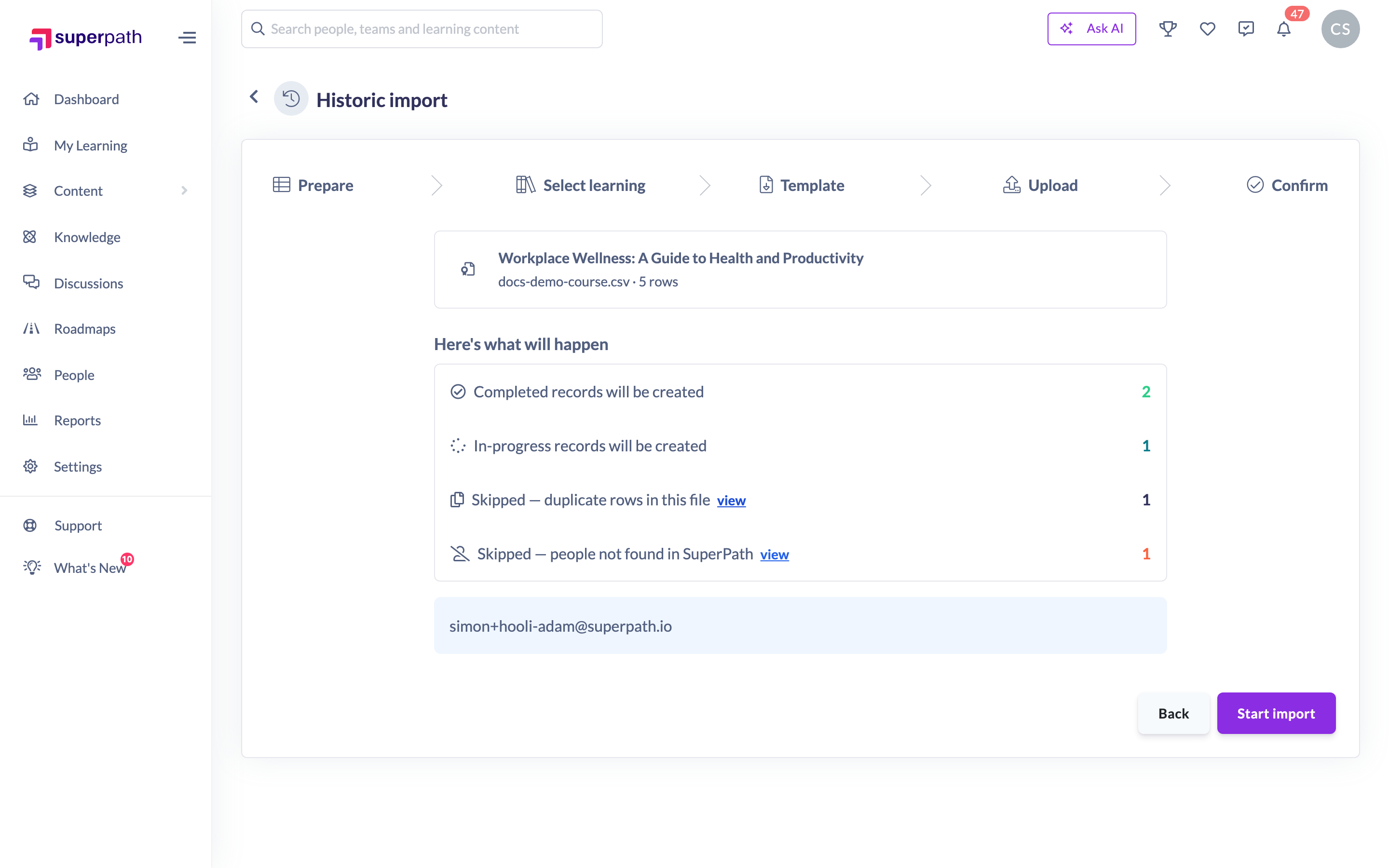
The Confirm step re-checks everything on the server — including things the Upload step can't know, like whether each person exists — and shows the plan before anything is written. Click view next to any line to see the affected rows (the first 50 are listed).
Summary line | What it means | What to do |
|---|---|---|
Completed records will be created / In-progress records will be created | These rows import | Nothing — this is the good bit |
Skipped — duplicate rows in this file | Two rows have the same email and the same completion date (or the same person appears on more than one in-progress row) | Usually nothing — the first copy imports. Check your export isn't double-counting |
Skipped — already recorded in SuperPath | A matching record already exists — same person, same learning, same completion date (or the person already has that course in progress / that Pathway) | Nothing — this makes re-running a file safe |
Skipped — people not found in SuperPath | The email doesn't match anyone in your account | Add them with a bulk people upload, then upload the same file again — the rows that already imported are skipped |
Rows with errors | The server rejected the row — most commonly a date in the future, which the Upload step doesn't check | Click view to see each row's reason, fix the file and re-upload |
You may also see a note that some people "already have this course assigned and in progress" — their historic completion is still created, and their current assignment is untouched. Start import is only disabled if nothing at all would be created.
After the import
The progress page shows three numbers: Total Records, Success and Failure count. Skipped rows count towards Success — they were handled as planned. The Failure count only counts records that genuinely couldn't be written; those appear under Failed Messages with the reason for each.
Failures are rare (for example, a person deactivated between Confirm and processing). Because re-running is safe, the usual remedy is to fix the cause and upload the same file again — everything that already imported is skipped.
FAQs
The Confirm step says most of my rows will be skipped — is something wrong?
Check which skip line they're under. "Already recorded in SuperPath" usually means the file (or part of it) was imported before. "People not found" means the users need to be created first. Neither stops the remaining rows importing.
Why did a row pass the Upload step but get rejected at Confirm?
The Upload step checks format only, in your browser. Existence checks (does this person exist? is this already recorded?) and a few final rules (like dates in the future) need your SuperPath data, so they run on the server at Confirm.
Can I export the list of skipped rows?
Not currently — the view lists on the Confirm step show the first 50 affected rows on screen. For large clean-ups, filter your source file by the emails shown.
I fixed my file — do I need to remove the rows that already imported?
No. Upload the whole file again; anything already recorded is skipped automatically.
Who can do this
Owners and Admins can run historic imports and see the import progress pages. Managers, Content Managers, People Managers, Instructors, Employees and Restricted users cannot.
Updated on: 07/08/2026
Thank you!