
How to Add Collaborators to a Roadmap
How to Add Collaborators to a Roadmap
In this article:
- Overview
- How to add a collaborator
- How to remove a collaborator
- Things to keep in mind
- FAQs
- Who can do this
Overview
Collaborators let you share a Roadmap with other people so they can work on it alongside you rather than it belonging to one person. Adding someone as a collaborator makes the Roadmap available to them in their own Roadmaps list.
How to add a collaborator
- Go to Roadmaps.
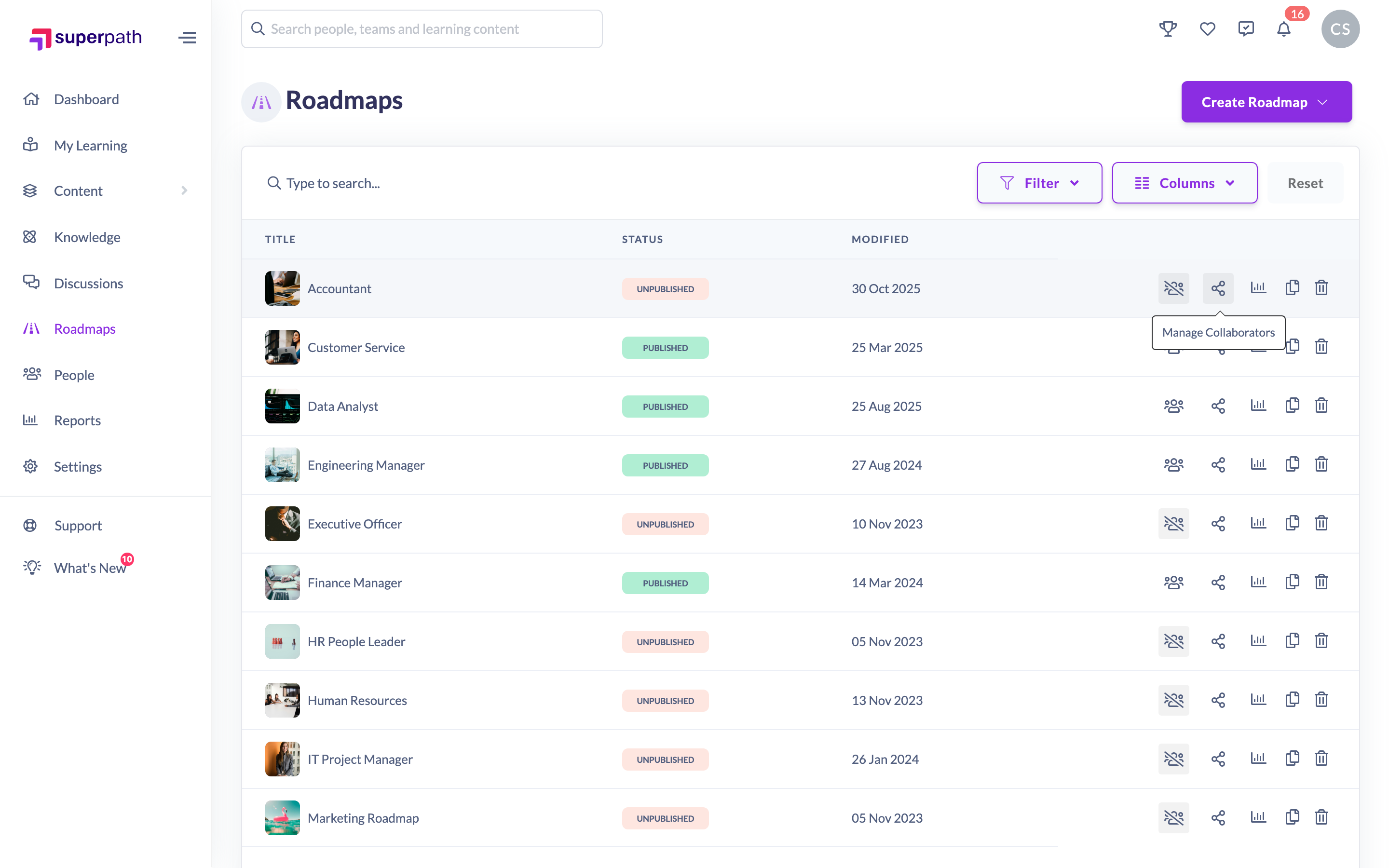
- In the row for the Roadmap you want to share, click the Manage Collaborators (share) icon in the row actions.
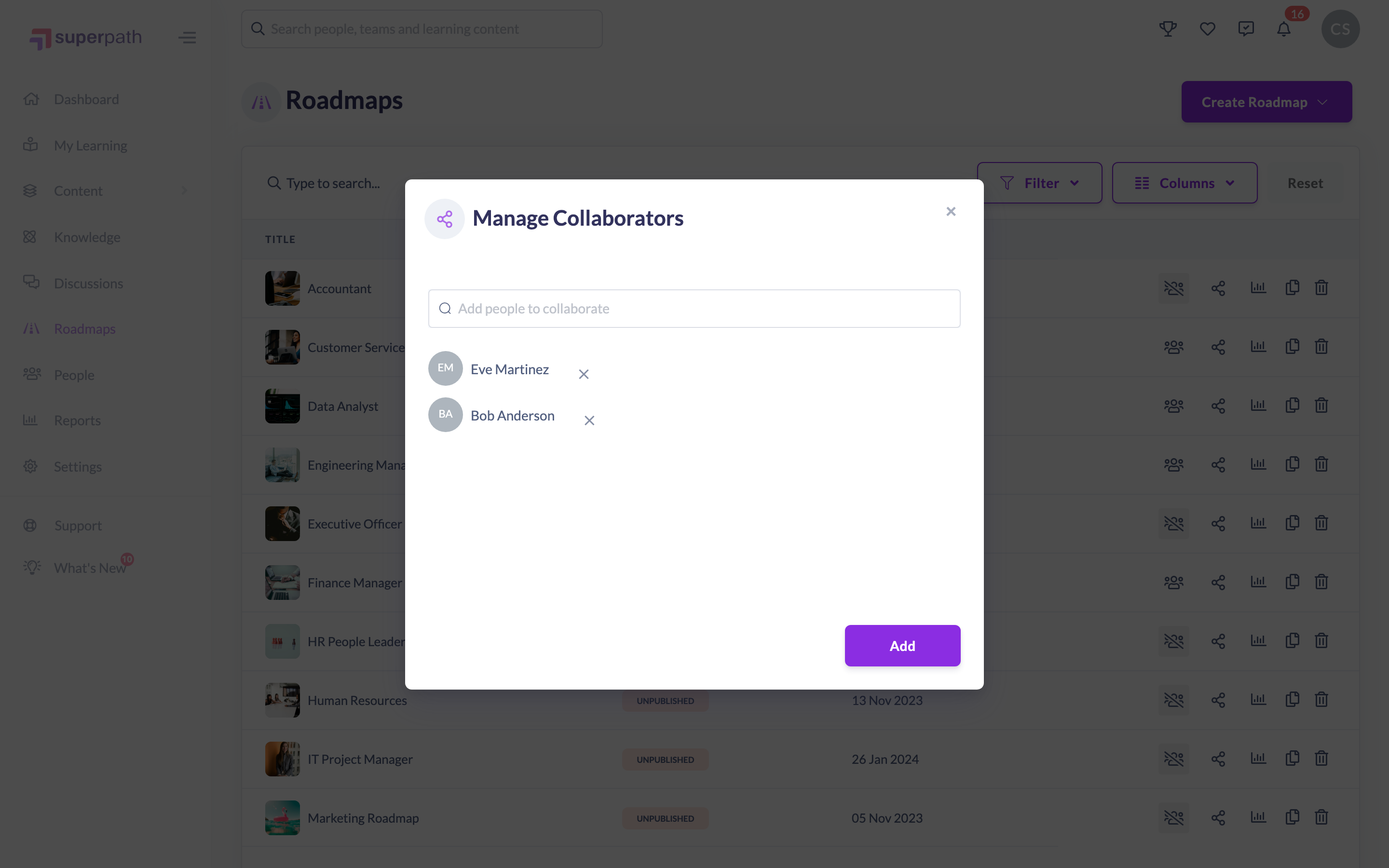
- In the Manage Collaborators window, use the Add people to collaborate search box to find a person by name or email, then select them from the results. Add as many people as you need.
- Click Add to save.
How to remove a collaborator
- Open Manage Collaborators for the Roadmap.
- Under Collaborators, find the person and click the Remove (minus) control next to their name.

Things to keep in mind
- The Roadmap owner is always listed and is labelled Owner — the owner cannot be removed as a collaborator.
- Collaborators are found by searching your existing users; you cannot invite someone who is not already a user.
- Sharing a Roadmap makes it appear in a collaborator's Roadmaps list. Actually editing the Roadmap still depends on that person having Roadmap edit permissions.
FAQs
Can I add someone who isn't a SuperPath user yet?
No. The search only returns existing users, so the person must already have an account.
Why can't I remove the owner?
The owner is fixed and shown with the Owner label; only other collaborators can be removed.
Who can do this
Managing collaborators saves changes to the Roadmap, so it is governed by the "update" permission on the Roadmap subject: Owners, Admins, Managers and Content Managers can add and remove collaborators. People Managers, Instructors, Employees and Restricted users cannot.
Updated on: 19/07/2026
Thank you!