
How to Add Notes to a Competency Level
How to Add Notes to a Competency Level
In this article:
- Overview
- How to add notes
- Things to keep in mind
- FAQs
- Who can do this
Overview
Each cell in a Roadmap — one competency at one level — has a Notes field. Use it to capture context for that competency at that level: guidance for assessors, examples, or anything you'd want to remember when working on the Roadmap.
This article covers the Notes section only. For how to open a cell's settings panel, see How to Edit a Competency-Level Cell.
How to add notes
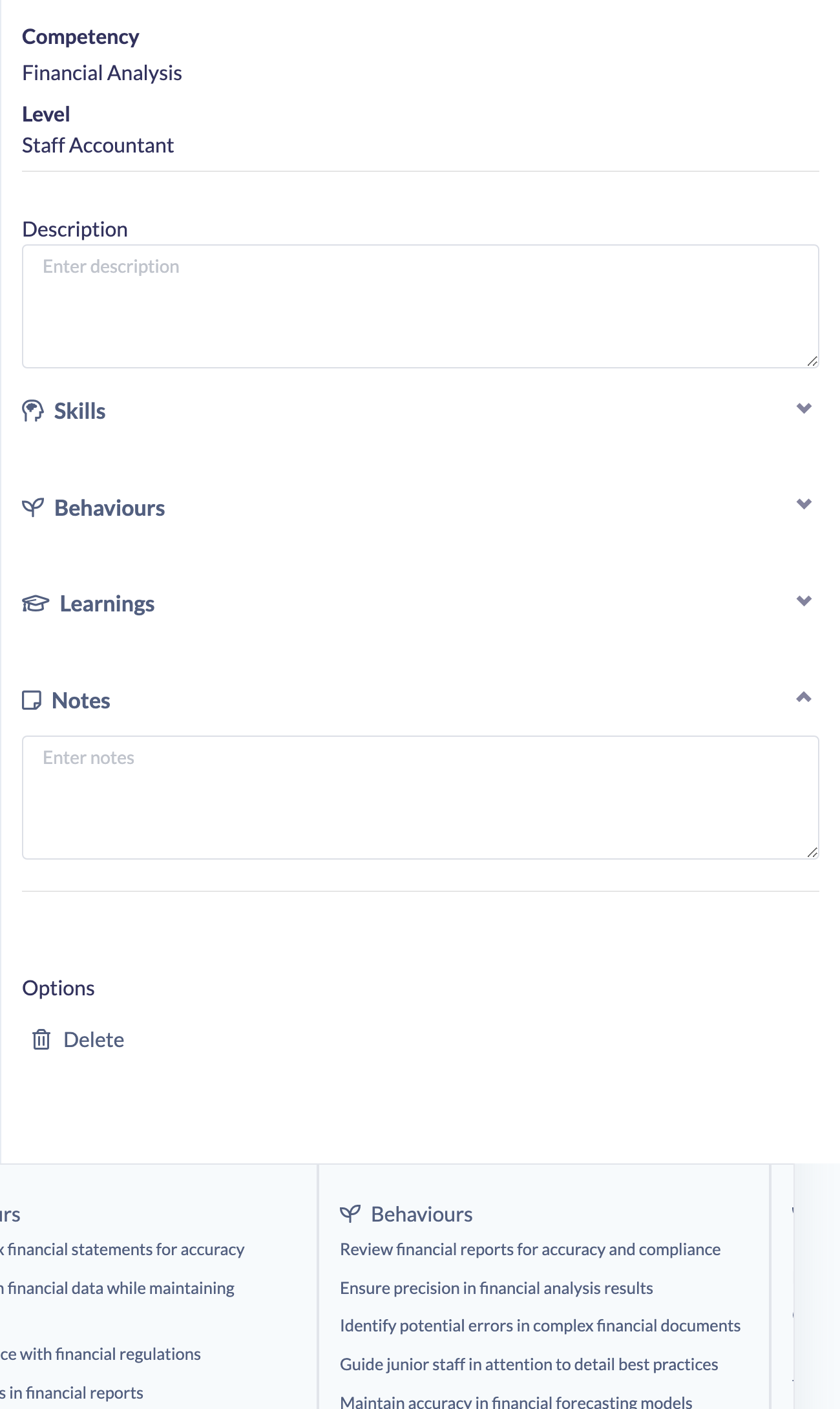
- Open the cell's Competency Level Settings panel (click the cell in the grid).
- Click the Notes section to expand it.
- Type your notes into the box. They save automatically a moment after you stop typing — there is no Save button.
Things to keep in mind
- Notes save automatically shortly after you stop typing.
- Editing a cell on a Roadmap that is already Published flips the Roadmap back to Unpublished. Re-publish it once you're done.
- Notes are separate from the cell's Description — the Description sits at the top of the panel and is the summary of the competency at this level, whereas Notes are for your own context.
FAQs
Do I need to save my notes?
No. The Notes box saves automatically a moment after you stop typing.
What's the difference between Notes and the Description?
The Description at the top of the panel summarises what the competency looks like at this level; Notes are a separate field for additional context you want to keep against the cell.
Who can do this
Owners, Admins, Managers and Content Managers can edit competency-level cells, including notes. People Managers, Instructors, Employees and Restricted users cannot edit Roadmaps.
Updated on: 19/07/2026
Thank you!