
How to Approve a Pending Registration
How to Approve a Pending Registration
In this article:
- Overview
- Opening the approvals queue
- Approving a registration
- When the registration's team was deleted
- What happens when you approve
- Things to keep in mind
- FAQs
- Who can do this
Overview
When your registration page is set to require approval, each person who signs up becomes a pending request rather than an account. You review these requests in one place and decide who gets in. Approving a request creates the person's account, adds them to the team and role set on your registration page, and emails them so they can log in.
If you haven't set Self-Registration up yet, see "What Is Self-Registration?" and "How to Enable Self-Registration" first.
Opening the approvals queue
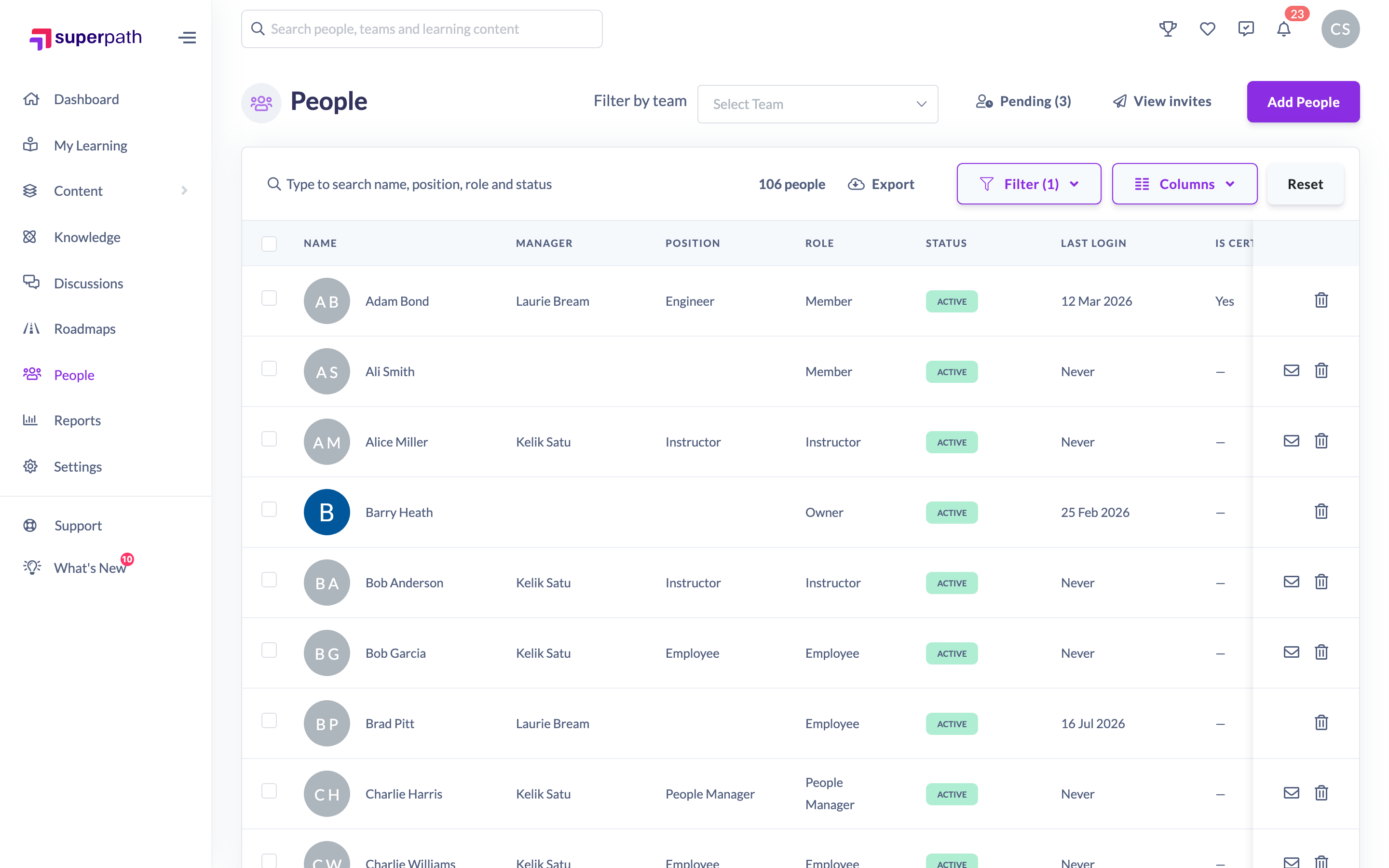
- Go to People.
- Click the Pending button near the top of the list. When there are requests waiting, the button shows a count, for example Pending (3).
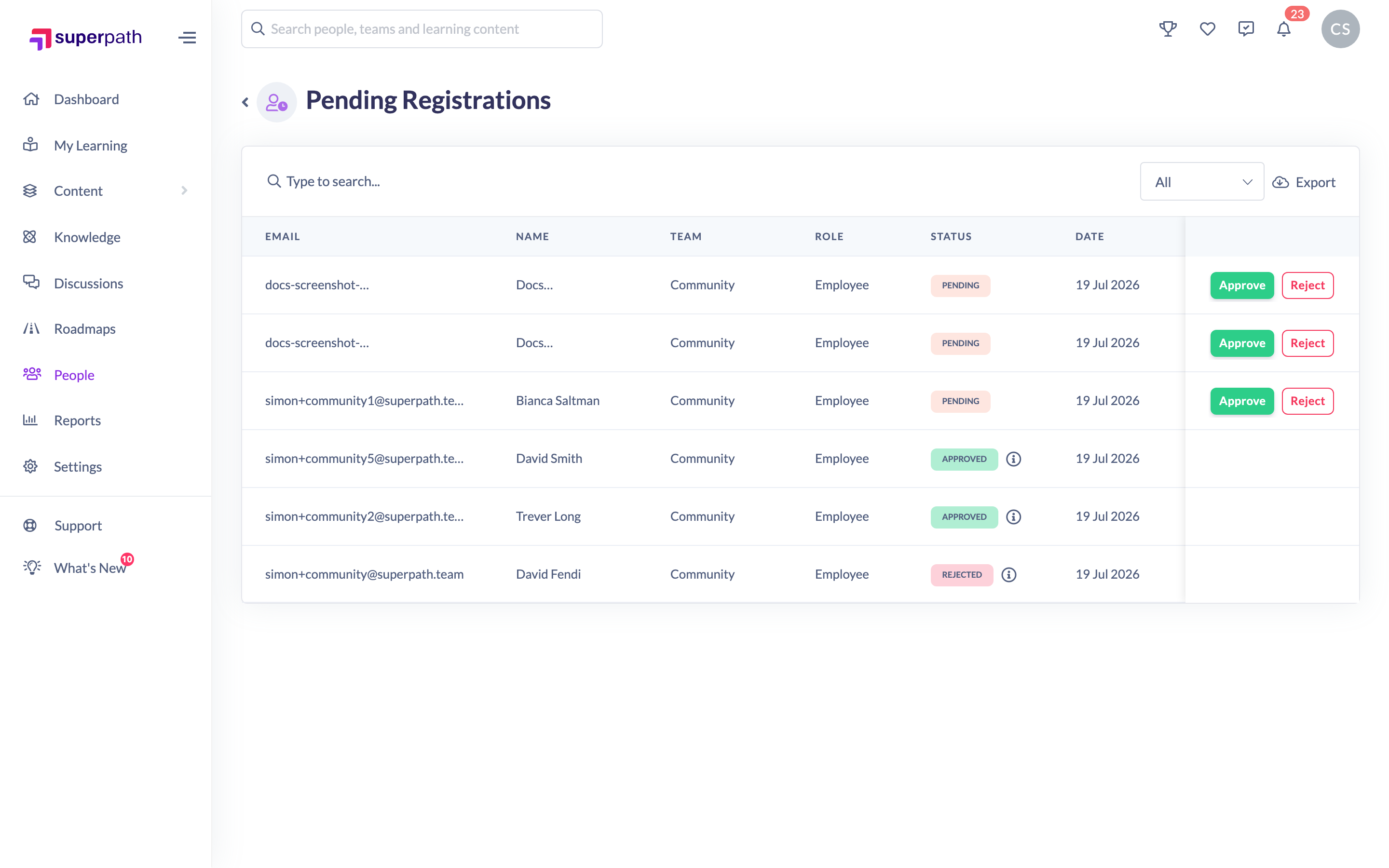
- This opens the Pending Registrations queue, listing everyone who has registered — pending requests first, followed by those already approved or rejected.
Approving a registration
- In the Pending Registrations queue, find the pending request you want to approve. You can use the search box or the status filter to narrow the list.
- Click Approve on that row. Approve and Reject only appear on rows that are still pending.
- A confirmation appears: This will create an account for {name}, add them to your account, and email them. They'll be able to log in right away.
- Click Approve to confirm, or Cancel to close without approving.

When the registration's team was deleted
If the team that was set for this registration has since been deleted, you'll see a prompt inside the approve window before it completes: This registration's team was deleted. Pick a replacement team to continue. Choose a Replacement team from the list, then click Approve. The person is added to the replacement team you pick, and that team is saved against their record.
What happens when you approve
- An account is created for the person.
- They're added to the team and given the role configured on your registration page (or the replacement team, if you picked one).
- They're sent an approval email and a welcome email, and they can log in straight away.
- The request moves to Approved in the queue, showing who approved it and when.
Things to keep in mind
- Approving works one request at a time — there are no bulk actions in the queue.
- Approving creates an account, so it's subject to the same seat check as any other new account. If your plan has a fixed number of seats and you've reached the limit, the approval can be blocked with a licensing error. Free up a seat, upgrade your plan, or contact Support, then try again.
- A rejected request can't later be approved. If someone was rejected in error, ask them to register again.
- Approving is a one-off action per request. There's no "un-approve" — to remove someone after approving, manage their account from the People list as normal.
FAQs
Does the person get an email when I approve them?
Yes. Approving sends them an approval email and a welcome email, and they can log in right away.
Can I approve several requests at once?
No. Requests are reviewed individually — approve or reject each one on its own row.
What if the team on the request no longer exists?
The approve window will ask you to pick a replacement team before it completes. The person is added to the team you choose.
Approval failed with a licensing or seat error — why?
Approving creates an account, which needs an available seat on plans with a fixed number of seats. Free up a seat, upgrade, or contact Support, then approve again.
Who can do this
Owners and Admins can review and approve pending registrations from People → Pending, reached through the Pending button on the People page. Managers, People Managers, Content Managers, Instructors, Employees and Restricted users cannot — they don't see the queue.
Updated on: 19/07/2026
Thank you!