
How to Assign Self-Registered Users to a Team
How to Assign Self-Registered Users to a Team
In this article:
- Overview
- Assign everyone to one team
- Let people choose a team
- Things to keep in mind
- FAQs
- Who can do this
Overview
When people sign up through your registration page, they need to land in a Team. Self-Registration gives you two ways to handle this: put everyone into a single Team you choose, or offer a shortlist of Teams and let each person pick the one that fits them. You set this once, and it applies to everyone who registers.
The Team assignment option lives in the registration page configuration, alongside the role and the details you collect.
Assign everyone to one team
Use this when every new sign-up should go into the same Team — for example a general "New starters" Team you triage later.
- Go to Settings → Security.
- In the Self-Registration section, click Configure page.
- Under Team assignment, choose Assign everyone to one team.
- Use the Select team dropdown to pick the Team.
- Click Save.
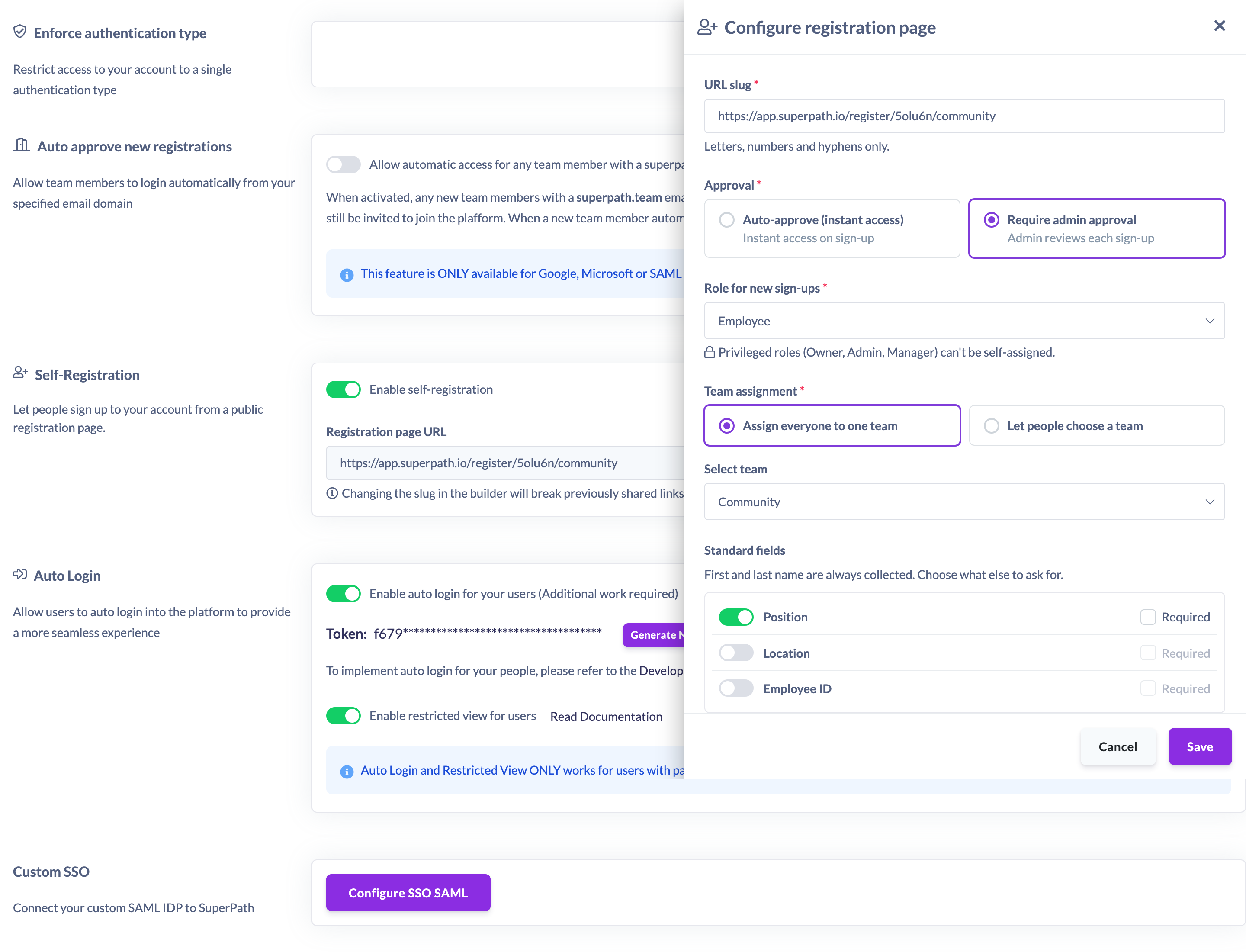
Everyone who registers is added to that one Team automatically — they aren't asked to choose.
Let people choose a team
Use this when it makes sense for people to self-select, such as choosing their department or location.
- Go to Settings → Security.
- In the Self-Registration section, click Configure page.
- Under Team assignment, choose Let people choose a team.
- In Teams people can choose from, use Add a team… to build the shortlist of Teams a registrant may pick from.
- Click Save.
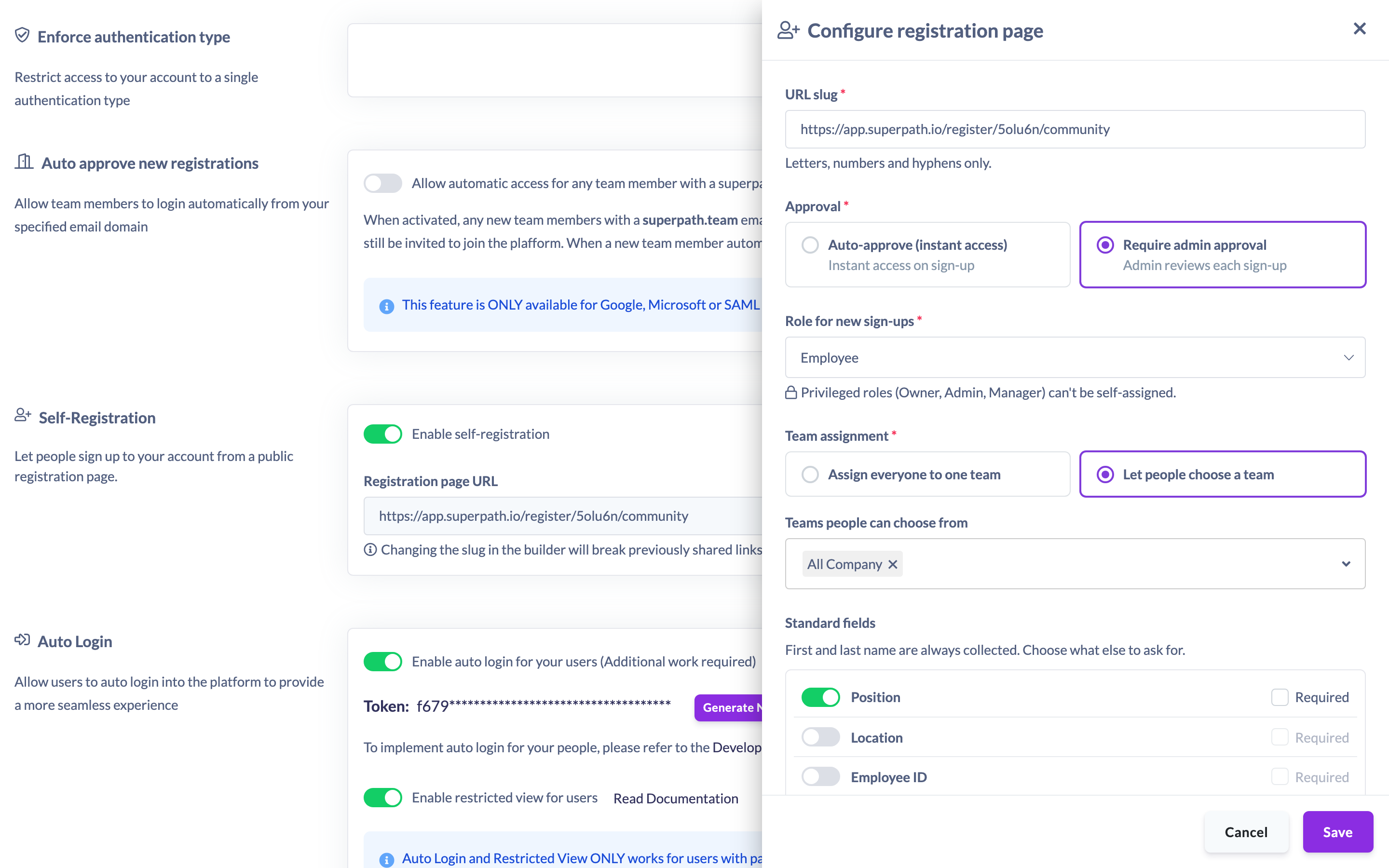
On the public registration page, each person then picks their Team from the shortlist you set. Only the Teams you add here are offered — nothing else on your platform is exposed.
Note: A registrant can only be placed in a Team from your shortlist. If someone submits a Team that isn't on the list, the sign-up is rejected.
Things to keep in mind
- You must have at least one valid Team configured before you can turn Self-Registration on. In single-Team mode that's the selected Team; in choice mode it's at least one Team in the shortlist.
- If a Team you selected is later deleted, it shows a (deleted) badge in the configuration so you can spot it. Pick a replacement Team before relying on the page again.
- Changing the Team assignment only affects people who sign up afterwards. It doesn't move anyone who has already registered.
- Team assignment works the same whether sign-ups are approved automatically or reviewed first.
FAQs
Can I offer more than one team for people to choose from?
Yes. Choose Let people choose a team and add as many Teams as you like to the Teams people can choose from shortlist. The registrant picks one when they sign up.
What happens if the team I picked gets deleted?
The deleted Team is flagged with a (deleted) badge in the configuration. Choose a different Team so new sign-ups have somewhere valid to land.
Can someone join a team that isn't on my list?
No. In choice mode people can only pick from the shortlist you set, and any Team submitted outside that list is rejected.
Who can do this
Only the Owner can configure Self-Registration, including team assignment. The Self-Registration settings live under Settings → Security, which is restricted to the Owner. Admins, Managers, People Managers, Content Managers, Instructors, Employees, and Restricted users cannot access these settings.
Updated on: 19/07/2026
Thank you!