
How to Auto-Assign Learning at a Competency Level
How to Auto-Assign Learning at a Competency Level
In this article:
- Overview
- How to attach learning and turn on auto-assign
- How auto-assign is triggered
- Things to keep in mind
- FAQs
- Who can do this
Overview
You can attach learning — content, Pathways, Events, Knowledge and Forms — to a cell (one competency at one level), and optionally have it auto-assigned to a learner. When auto-assign is on, the learning attached to that level is assigned to a learner automatically the moment they're assigned that level of the Roadmap, so they get exactly the right learning for where they are.
This article covers the Learnings section and the auto-assign toggle. For how to open a cell's settings panel, see How to Edit a Competency-Level Cell.
How to attach learning and turn on auto-assign
- Open the cell's Competency Level Settings panel (click the cell in the grid).
- Click the Learnings section to expand it.
- Click Add Learning, choose the learning type (Content, Event, Knowledge, Pathway or Form), select the item, then click Add Learning to confirm. Repeat to add more.
- Turn on the Auto Assign toggle so the attached learning is assigned automatically when a learner reaches this level.
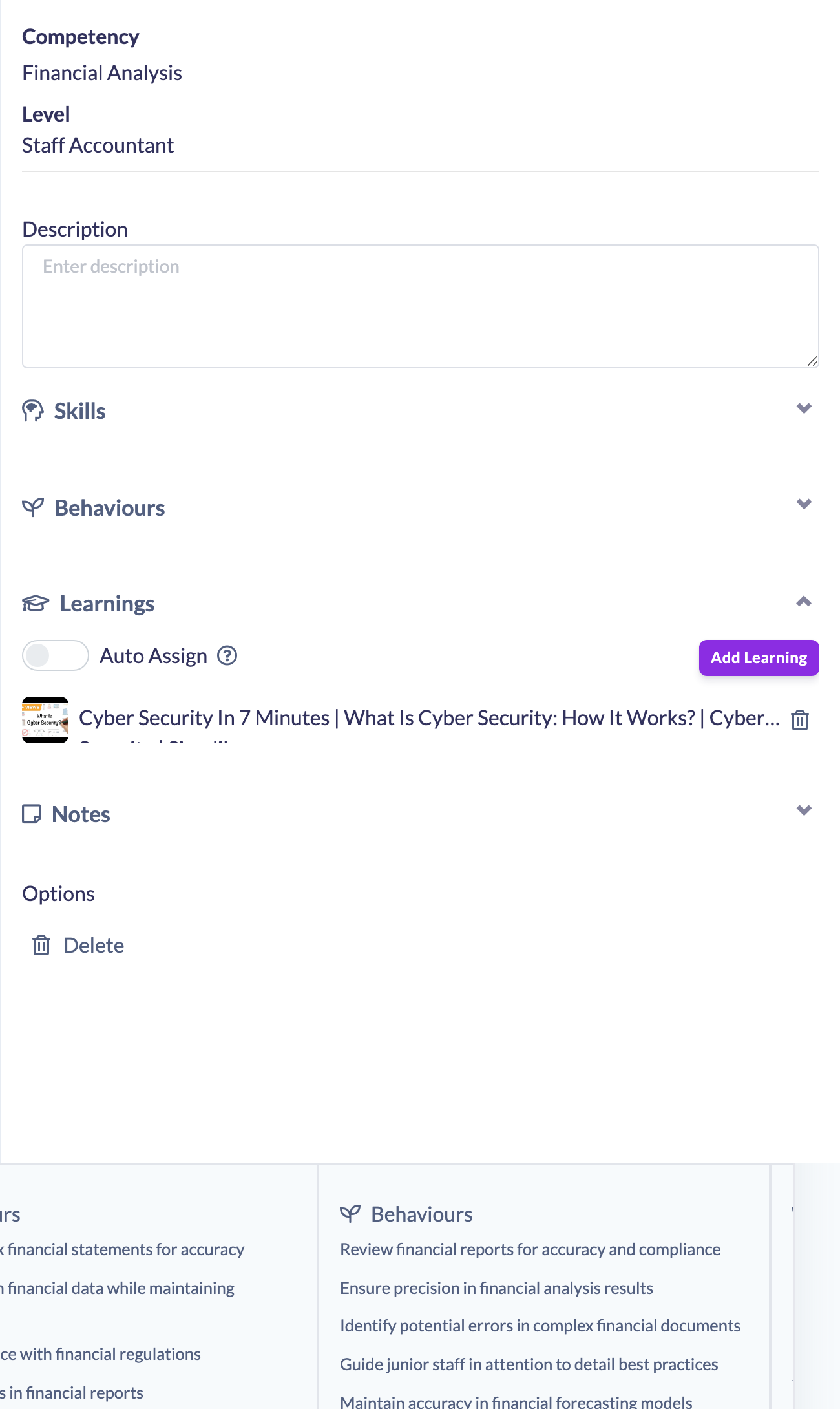
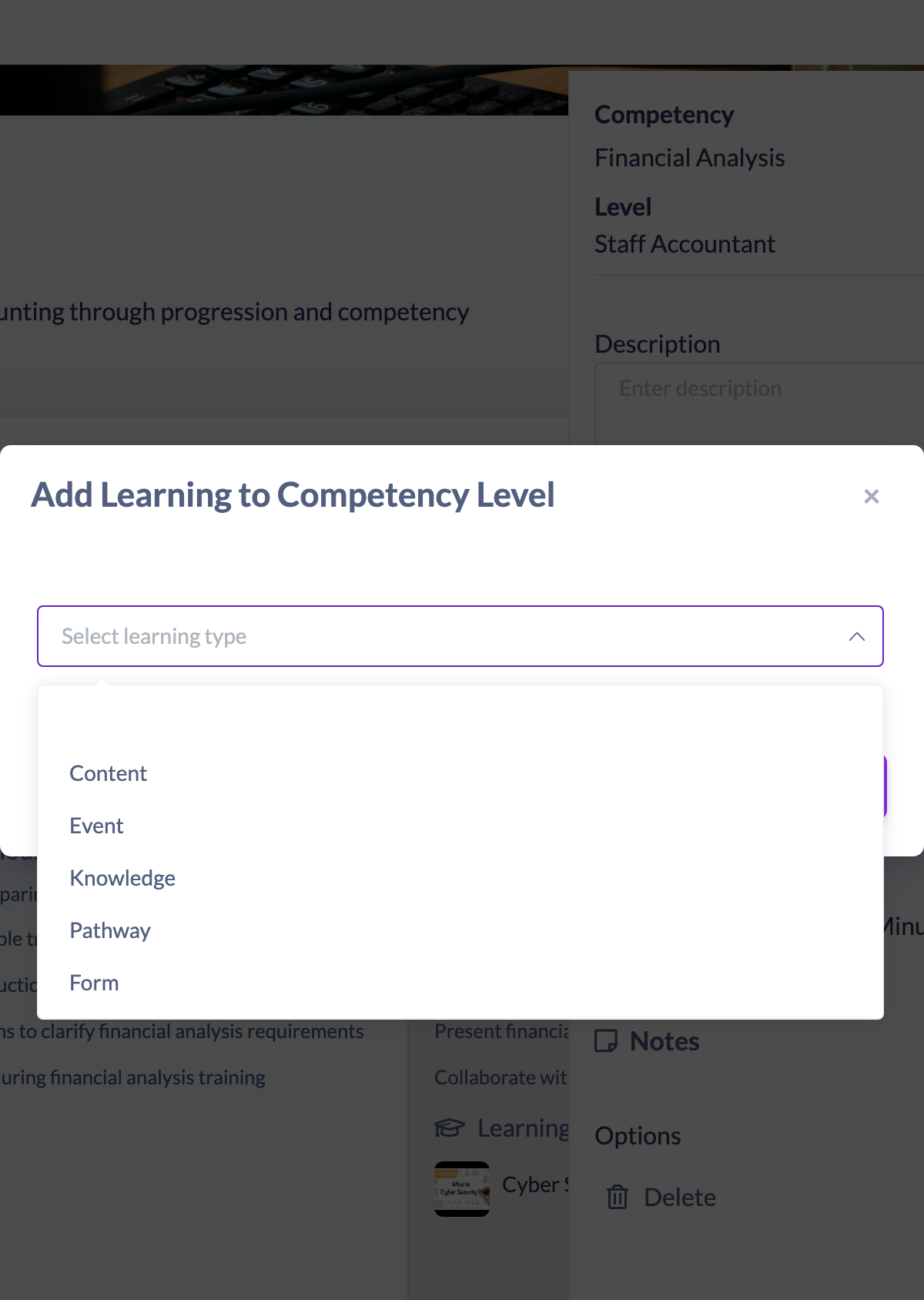
Your changes save automatically — the toggle and the learning list save as soon as you change them.
How auto-assign is triggered
Auto-assign runs when a learner is assigned that level of the Roadmap (individually or as part of a bulk assignment). At that point, SuperPath gathers the learning from every cell at that level that has Auto Assign switched on, and assigns it to the learner with a notification:
- Pathways are assigned as a Pathway.
- Content, Events and Forms are assigned as an assignment.
- Knowledge is not auto-assigned — Knowledge cannot be assigned, so any Knowledge attached to the cell is skipped.
Things to keep in mind
- Auto-assign fires at the moment a learner is assigned the level — it does not retroactively assign learning to people who were already on that level before you turned it on.
- If Auto Assign is off, the learning still shows on the cell but is not assigned automatically.
- Knowledge attached to a cell is skipped by auto-assign, even when the toggle is on.
- Editing a cell on a Roadmap that is already Published flips the Roadmap back to Unpublished. Re-publish it for the change to take effect.
- To remove a piece of learning from the cell, use the trash icon next to it in the Learnings list.
FAQs
When exactly does the learning get assigned?
When a learner is assigned that level of the Roadmap. SuperPath then assigns all auto-assign learning attached to that level, with a notification to the learner.
Can I auto-assign a Knowledge article?
No. Knowledge can be attached to a cell for reference, but it is skipped during auto-assign because Knowledge cannot be assigned.
Will turning on auto-assign push learning to people already at that level?
No. It only applies to learners assigned the level after auto-assign is on.
Who can do this
Owners, Admins, Managers and Content Managers can edit competency-level cells, including attaching learning and turning on auto-assign. People Managers, Instructors, Employees and Restricted users cannot edit Roadmaps.
Updated on: 19/07/2026
Thank you!