
How to Change a Person's Role
How to Change a Person's Role
In this article:
- Overview
- How to change a person's role
- The roles you can assign
- Things to keep in mind
- FAQs
- Who can do this
Overview
A person's role decides what they can see and do in SuperPath — from an Owner who manages everything to a Restricted user who only completes their assigned learning. You can change someone's role at any time from their profile. This article shows how, lists the roles you can assign, and answers common questions like how many Admins you're allowed.
How to change a person's role
- Go to People and open the person's profile.
- Click Actions, then choose Change role (or Edit account — both open the same panel).
- In the Edit {name}'s Account panel, open the Role dropdown and choose the new role.
- Click Save changes.

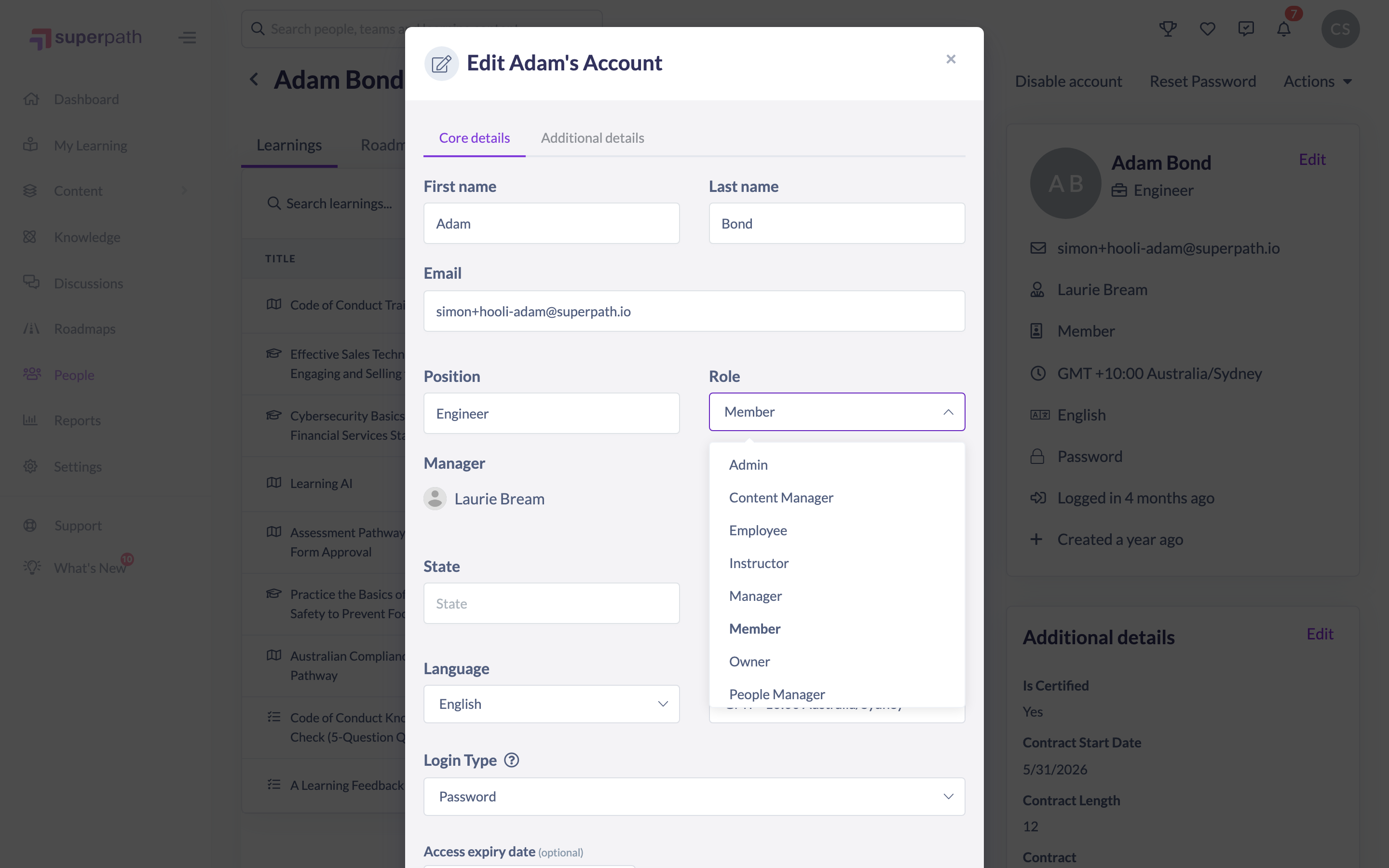
Note: You can't change your own role from this screen — the Role dropdown is disabled when you're viewing your own account. Ask another Owner or Admin to change it for you.
The roles you can assign
The Role dropdown lists SuperPath's standard roles. In brief:
- Owner — the highest level of access, including billing. Best kept for whoever ultimately manages your SuperPath account.
- Admin — manages all content, people, teams and settings.
- Manager — manages learning content and the people who report to them.
- People Manager — manages only the people who report to them, with no content management.
- Content Manager — manages all learning content, but not people.
- Instructor — accesses learning content and the people attending learning where they're the instructor.
- Employee — accesses their own profile, the Library and any learning assigned to them.
- Restricted — accesses only their assigned learning, with no dashboard or Library.
For the full breakdown of what each role can do, see Roles & Permissions.
Good to know: There's no limit on how many Owners or Admins you can have — you can have more than one of each. It's good practice to have at least two Owners so you're never locked out.
Things to keep in mind
- Changing a role takes effect immediately and changes what the person can see and do the next time they load a page.
- Creating your own custom roles isn't currently available — the dropdown offers SuperPath's standard roles only.
- Moving someone to a more limited role (for example, from Admin to Employee) removes their access to the areas that role can't reach, so check they no longer need it first.
FAQs
How many Owners or Admins can we have?
As many as you need — there's no cap on either. We recommend having at least two Owners as a safeguard.
Can I create my own custom roles?
Not at the moment. SuperPath offers a fixed set of standard roles, and custom-role creation isn't available to customers.
Can a Manager or People Manager change someone's role?
No. The Role dropdown only appears for Owners and Admins. Managers and People Managers can edit their reports' account details, but not their role.
Why can't I change my own role?
The Role dropdown is disabled when you're editing your own account, to prevent you accidentally locking yourself out of access you need. Another Owner or Admin can change it for you.
Who can do this
Owners and Admins can change any person's role. Managers, People Managers, Content Managers, Instructors, Employees and Restricted users cannot change roles — the Role field is hidden from them, even where they're able to edit other account details for their direct reports.
Updated on: 16/07/2026
Thank you!