
How to Change Your Display Language
How to Change Your Display Language
In this article:
- Overview
- How to change your display language
- Things to keep in mind
- FAQs
- Who can do this
Overview
SuperPath can display its interface in your preferred language. You set this from the same Edit your account window used for the rest of your profile details, and the change applies to your account only.
How to change your display language
- Click your profile icon in the top-right corner of the page and select My Profile.
- On your user card, open the Actions dropdown and click Edit account.
- On the Core details tab, open the Language dropdown and choose your language.
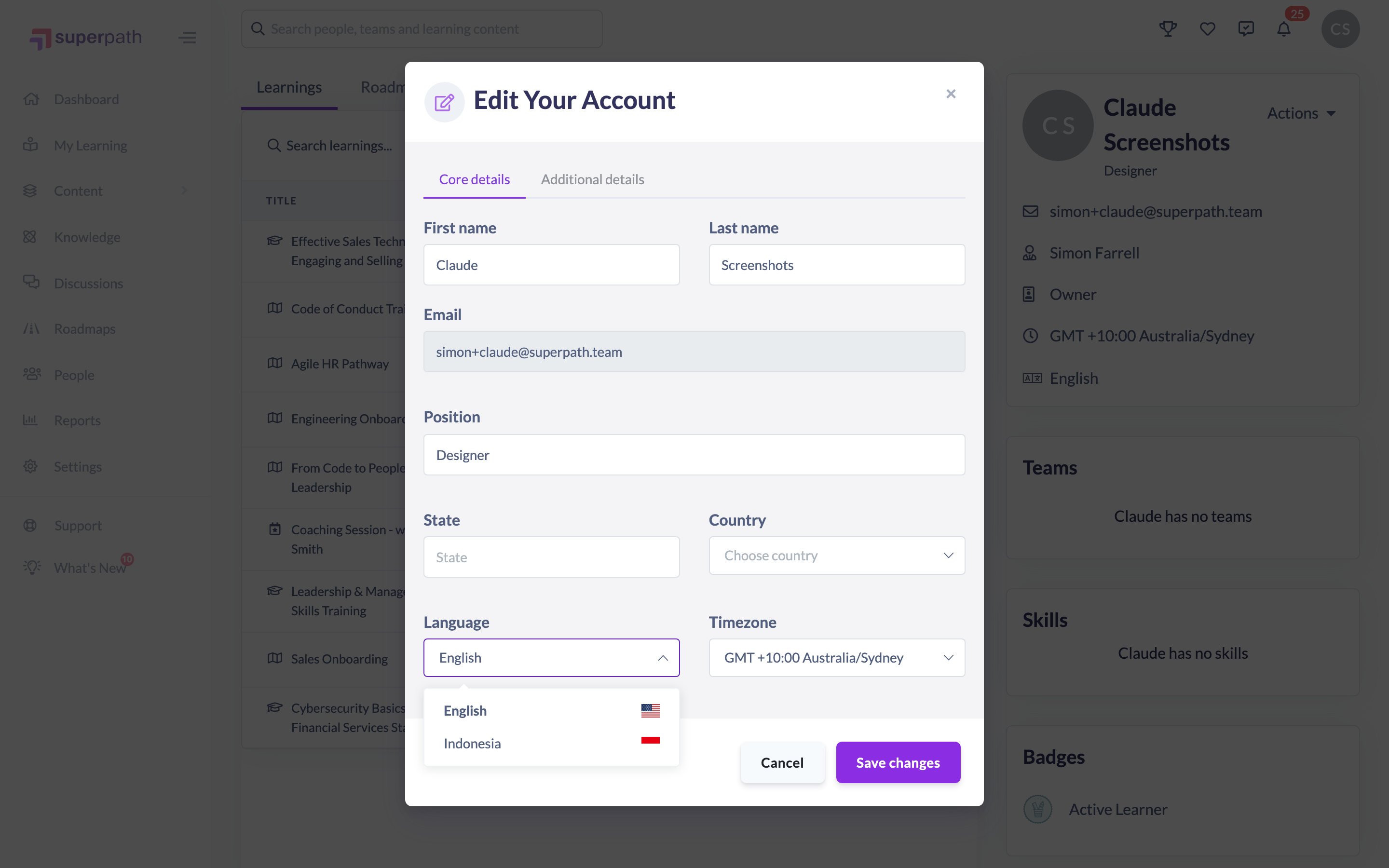
- Click Save changes. The interface updates to your chosen language.
Things to keep in mind
- Two languages are currently available: English and Indonesia (Indonesian).
- This setting changes the language of the SuperPath interface for your account only — it does not affect other users.
- Learning content itself is shown in whatever language it was created in; the language setting changes the surrounding interface, not the course material.
FAQs
Which languages can I choose from?
SuperPath currently offers English and Indonesia (Indonesian).
Will changing my language affect anyone else?
No — this is a personal setting that only changes the interface language for your own account.
Does this translate my courses?
No. The language setting changes the SuperPath interface. Learning content appears in the language it was originally created in.
Who can do this
Any signed-in user can change their own display language — this is self-service and not restricted by role. If your account is managed by a partner or reseller that has disabled member modifications, the Edit account option is hidden.
Updated on: 20/07/2026
Thank you!