
How to Sign In with Microsoft
How to Sign In with Microsoft
In this article:
- Overview
- How to sign in with Microsoft
- Things to keep in mind
- FAQs
- Who can do this
Overview
If your SuperPath account is set up to allow Microsoft sign-in, you can access the platform using your Microsoft account instead of a SuperPath password. This is quicker and means one less password to remember.
How to sign in with Microsoft
- Go to the sign-in page.
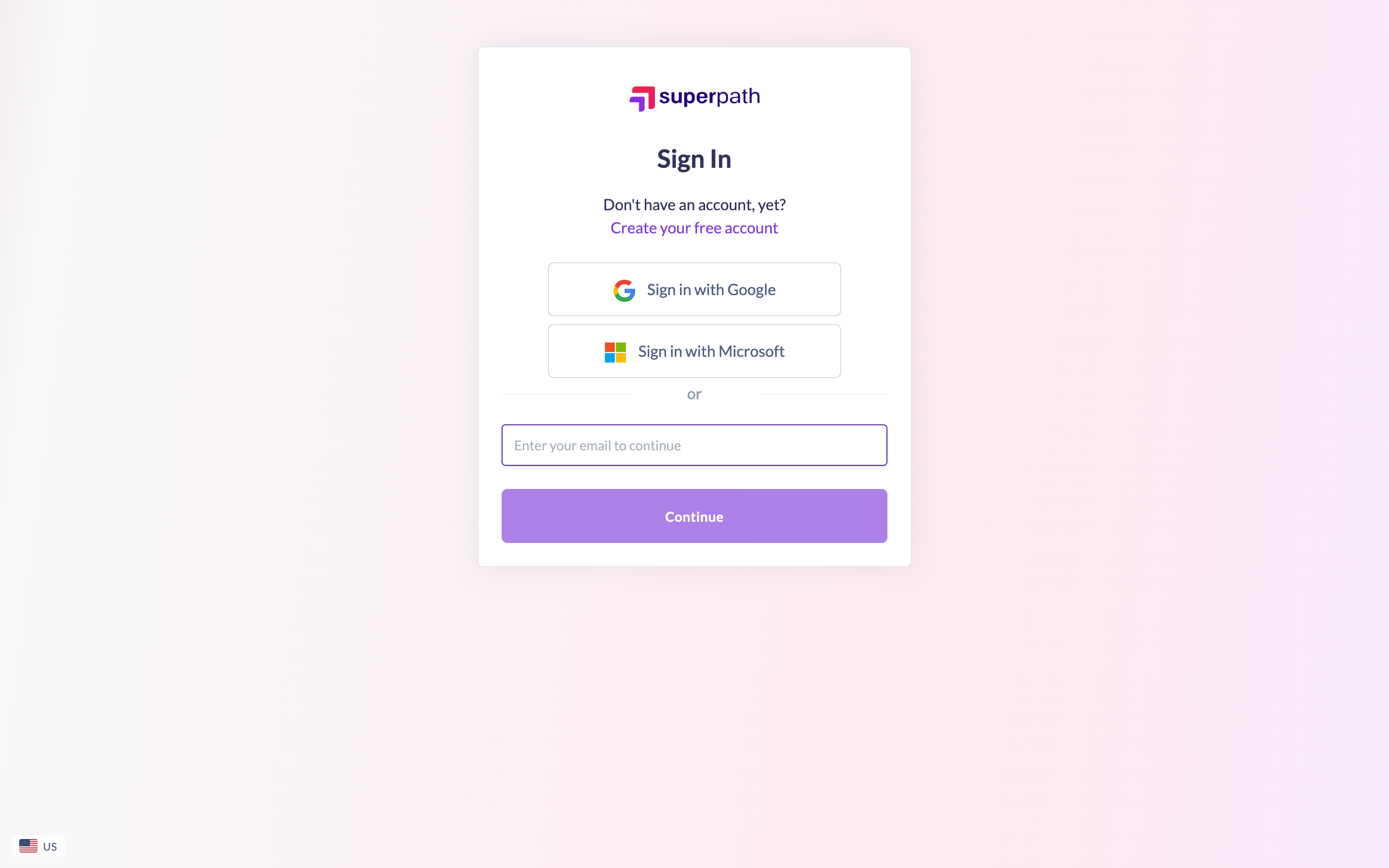
- Click Sign in with Microsoft.
- Choose your Microsoft account and complete Microsoft's sign-in prompts. Once Microsoft confirms your identity, you are signed straight into SuperPath.
Good to know: You can also enter your email and click Continue first. If your account uses Microsoft sign-in, SuperPath recognises this and offers the Microsoft sign-in option for you.
Things to keep in mind
- Signing in with Microsoft only works if your account has been set up to allow it. If Microsoft sign-in is not enabled for your account, use the sign-in method configured for you instead — a password, a magic link, or your organisation's single sign-on.
- The email on your Microsoft account needs to match the email on your SuperPath account.
- Because sign-in is handled by Microsoft, you manage that password and any two-step verification through your Microsoft account, not through SuperPath.
FAQs
I clicked Sign in with Microsoft but couldn't get in — why?
Your SuperPath account may not be set up for Microsoft sign-in, or your Microsoft email may not match your SuperPath account email. Check with your platform administrator which sign-in method applies to your account.
Do I need a SuperPath password as well?
No. When you sign in with Microsoft, Microsoft verifies your identity, so you do not need a separate SuperPath password.
Can I switch to a password later?
The sign-in methods available to you are configured by your organisation. If you need to change how you sign in, contact your platform administrator.
Who can do this
Anyone whose SuperPath account is set up to allow Microsoft sign-in can use this method. Accounts configured for password, magic link or company single sign-on should use their own method instead.
Updated on: 20/07/2026
Thank you!