
How to View and Manage Your Notifications
How to View and Manage Your Notifications
In this article:
- Overview
- How to view your notifications
- How to mark notifications as read
- How to search your notifications
- Things to keep in mind
- FAQs
- Who can do this
Overview
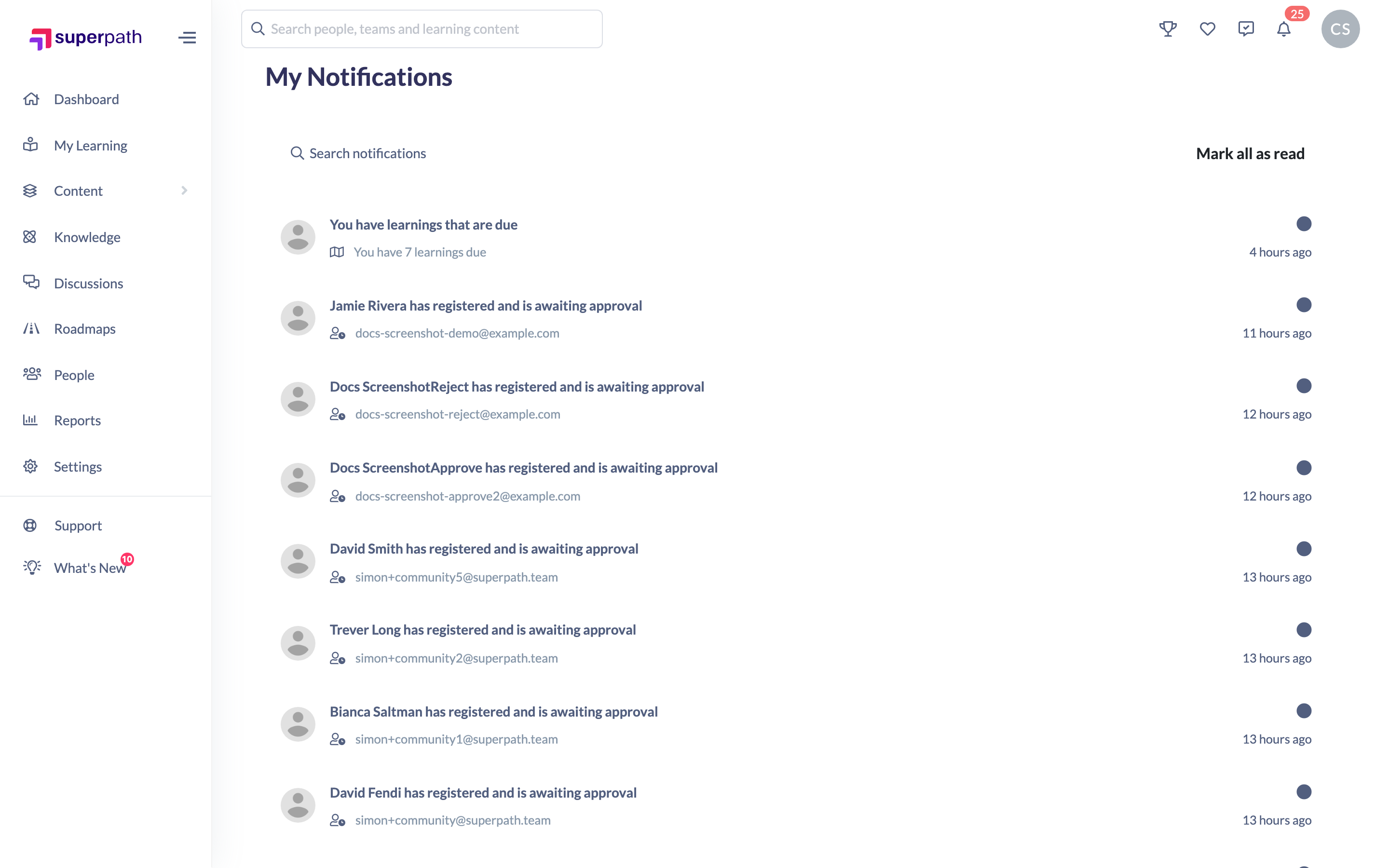
The My Notifications page is your personal inbox of updates from SuperPath — things like new assignments and reminders. From here you can read your notifications, mark them as read, and search for a particular one. Opening a notification takes you straight to the item it relates to.
How to view your notifications
- Go to the My Notifications page.
- Your notifications are listed with the most relevant ones at the top. Any notification you haven't read yet shows a blue dot on the right.
If you have no notifications, the page shows You have no notifications.
How to mark notifications as read
- Mark one as read: click the notification. This marks it as read and opens the related item at the same time.
- Mark everything as read: click Mark all as read at the top of the list. This link only appears when you have unread notifications.
How to search your notifications
- On the My Notifications page, type into the search box at the top of the list.
- The list filters as you type to show matching notifications. Clear the search box to see them all again.
Things to keep in mind
- Clicking a notification does two things at once: it marks it as read and navigates you to the related item.
- Mark all as read is only shown while you have unread notifications.
- You cannot delete or dismiss notifications — they can be marked as read but not removed.
- The only way to filter the list is the text search; there are no category filters and no pages to click through.
- There are no notification or email preference settings — this page is for viewing and reading your notifications.
FAQs
How do I know which notifications are unread?
Unread notifications show a blue dot on the right-hand side of the row.
Can I delete a notification?
No. Notifications can be marked as read (individually or all at once) but they cannot be deleted or dismissed.
Can I filter my notifications by type?
There are no type or category filters — the only way to narrow the list is the text search box at the top.
Can I choose which notifications I receive?
There are no notification preference settings. The My Notifications page is for viewing and reading the notifications you receive.
Who can do this
Every signed-in user has their own My Notifications page and can view, search and mark their own notifications as read. This is self-service and not restricted by role.
Updated on: 20/07/2026
Thank you!