
How to Reset a Forgotten Password
How to Reset a Forgotten Password
In this article:
- Overview
- How to reset your password
- Things to keep in mind
- FAQs
- Who can do this
Overview
If you have forgotten your SuperPath password, you can reset it yourself from the sign-in page without needing to contact your administrator. SuperPath emails you a secure link that lets you set a new password and get back into your account.
This is the reset flow for when you are signed out and cannot remember your password. If you are already signed in and simply want to change your password, see How to Change Password instead, as that flow asks for your current password.
How to reset your password
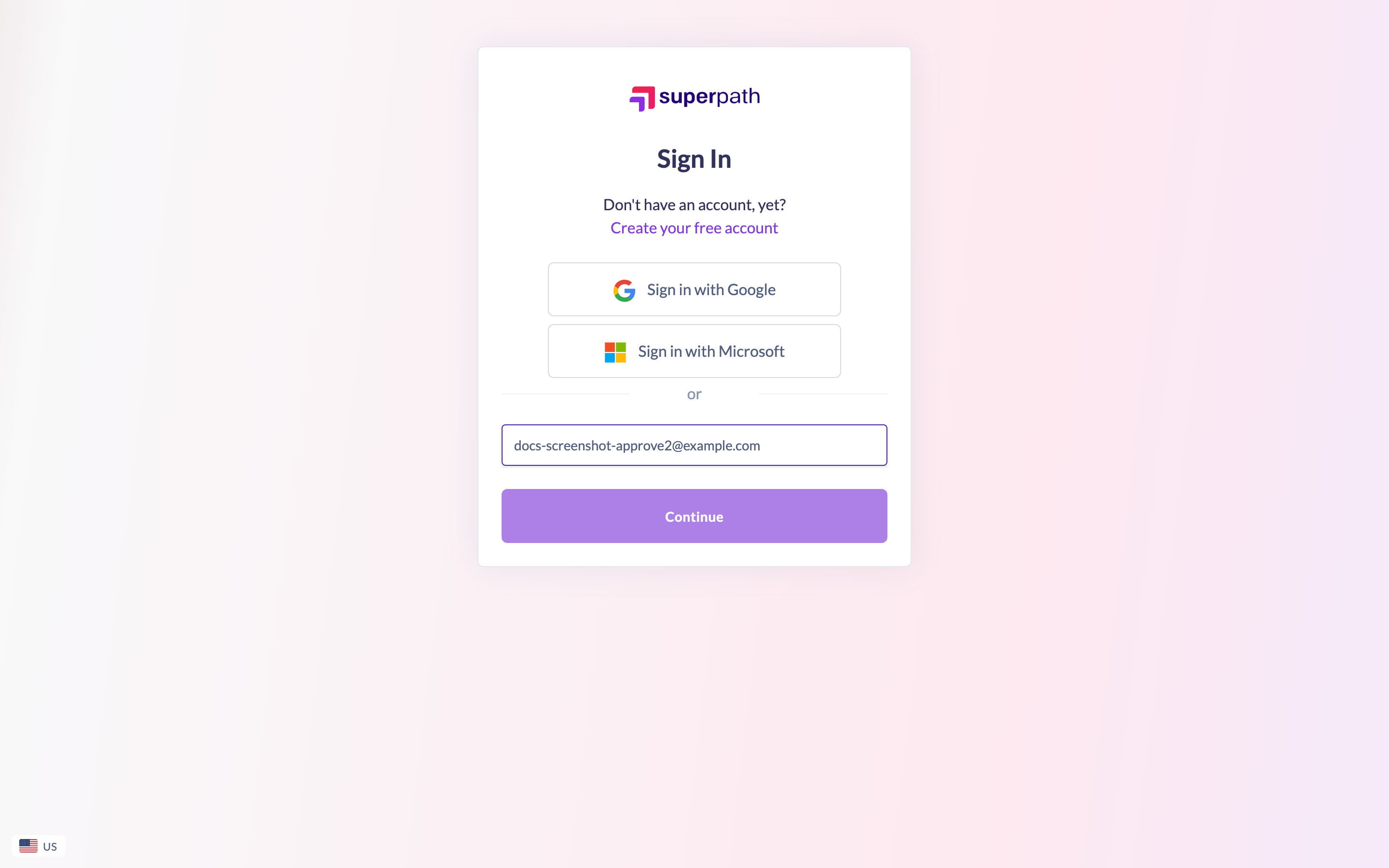
- Go to the sign-in page and enter your email in the field, then click Continue.
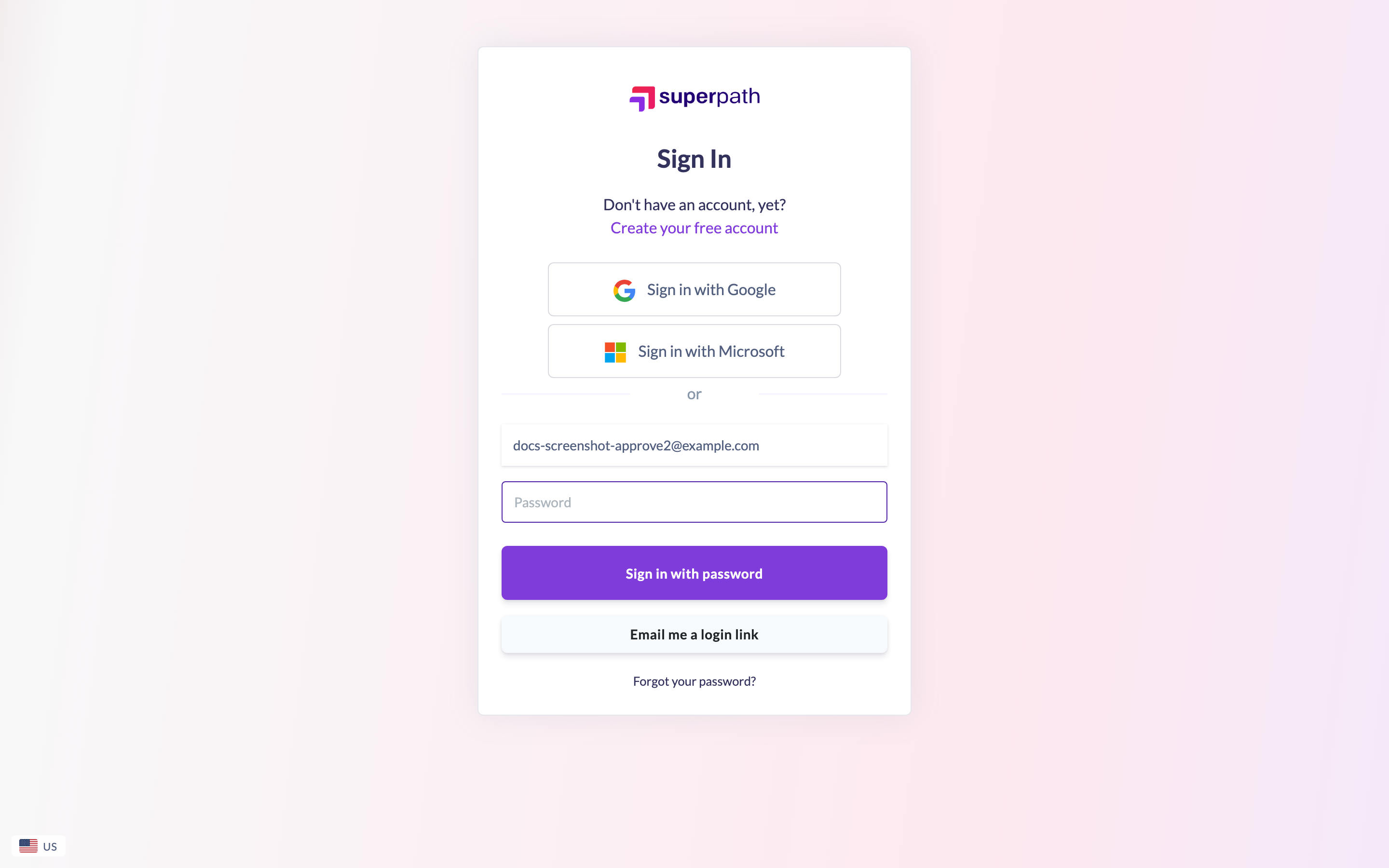
- Once SuperPath shows the Password field for your account, click the Forgot your password? link beneath it.
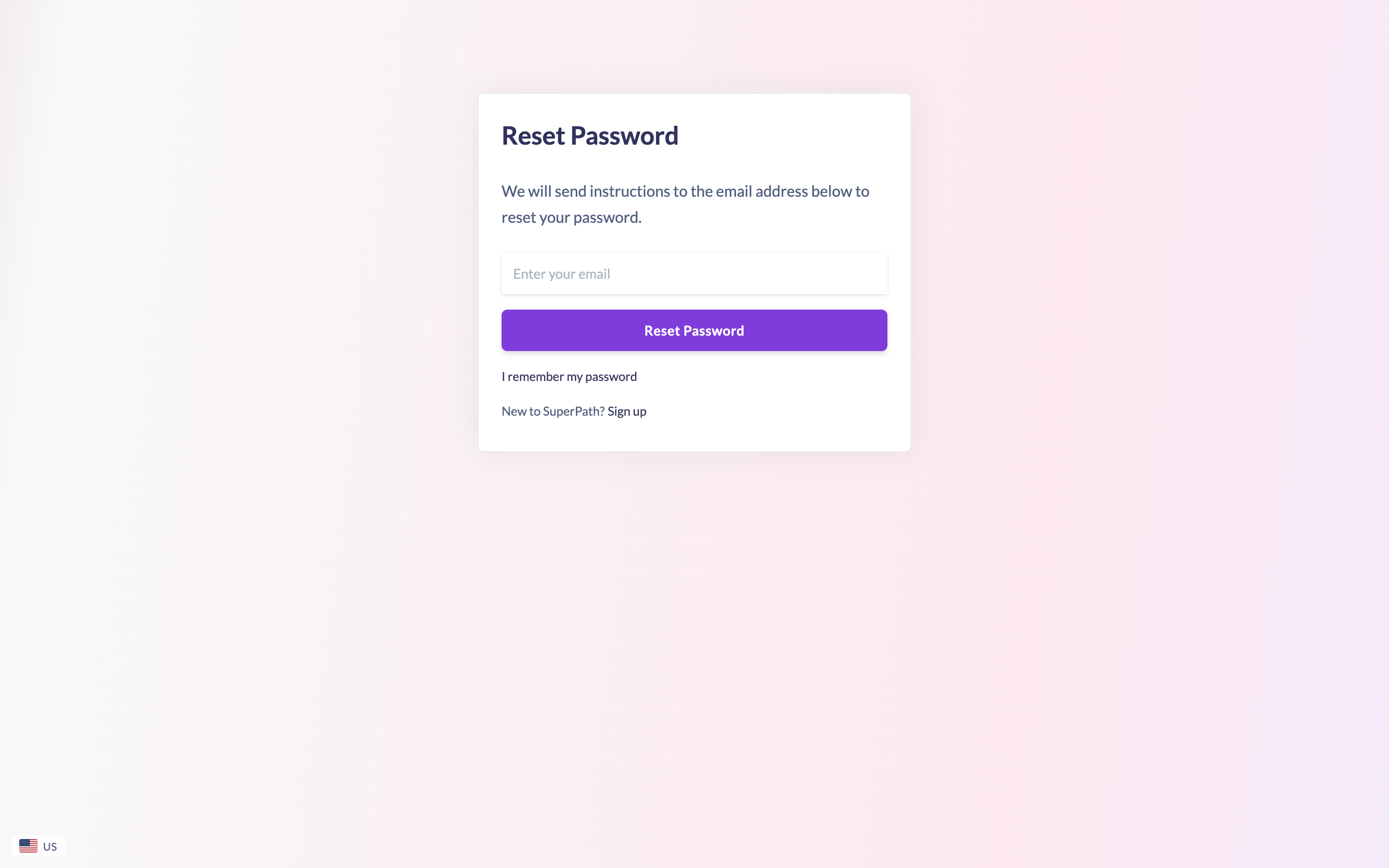
- On the Reset Password page, enter your email address and click Reset Password.
- You will see the confirmation message "We have sent you an email with instructions on how to reset your password". Open the email and follow the instructions to set a new password.
Note: If you remember your password after all, use the I remember my password link on the Reset Password page (or Back to login once the email has been sent) to return to the sign-in page.
Things to keep in mind
- Password reset only applies to accounts that sign in with a password. If your account signs in with Google, Microsoft or your organisation's single sign-on, you will not have a SuperPath password to reset — sign in with that method instead.
- If you would rather sign in without a password at all, SuperPath also offers a one-time login link. See How to Login Using Magic Link.
- The reset email is sent to the address on your account. If it does not arrive, check your spam or junk folder, and confirm you entered the correct email.
FAQs
What is the difference between resetting and changing my password?
Resetting is the signed-out flow described here — you receive an email link because you cannot get in. Changing your password is done while you are signed in and requires your current password.
I never set a password. Can I still reset it?
Your first password is included in your welcome email. If you cannot find it, you can use this reset flow to set a new one, or sign in with a magic link instead.
The reset email hasn't arrived — what should I do?
Check your spam or junk folder first. If it still hasn't arrived, contact your platform administrator or support.
Who can do this
Anyone with a SuperPath account that signs in with a password can reset their own password from the sign-in page. Accounts that sign in with Google, Microsoft or company single sign-on do not have a SuperPath password and should sign in with that method instead.
Updated on: 20/07/2026
Thank you!