
How to Choose a Workflow Trigger
How to Choose a Workflow Trigger
In this article:
- Overview
- The available triggers
- Narrowing a trigger with criteria
- Why use "is any of" and "any"
- Things to keep in mind
- FAQs
- Who can do this
Overview
A trigger is the event that starts a Workflow — the "When this happens" half of the automation. When you build a Workflow, you pick the trigger under the When heading. Choosing the right trigger is the most important decision in a Workflow, because it decides exactly when the action runs and for whom. This article explains each trigger and the options it offers.
The available triggers
SuperPath offers eight triggers, grouped by the kind of event they respond to.
People and Team events
- Person joins — runs when a new person is added to your account. Use it for onboarding automations. You can narrow it with criteria such as Role, Position, Manager, country or state.
- Profile is updated — runs when a person's profile changes. This trigger requires at least one criterion (for example, Role changes to a particular value), so it only fires on the changes you care about.
- Person is added to team — runs when someone is added to a specific Team. You pick the Team, and can narrow it further with criteria such as Position, Role, Manager, country or state.
Learning completion events
- Pathway is completed — runs when a person completes a Pathway you choose. You can narrow it with criteria such as level, tag or Instructor.
- Event is attended — runs when a person attends an Event you choose. No additional criteria.
- Form is submitted — runs when a person submits a Form you choose. No additional criteria.
- Content is completed — runs when a person completes a single piece of Library content that you search for and select. You can narrow it with criteria such as level, type or tag.
- Roadmap is completed: runs when a person completes a level of a Roadmap you choose. You pick the Roadmap and then the level whose completion should start the Workflow.
Narrowing a trigger with criteria
Several triggers let you add criteria, also called conditions, so the Workflow only runs for the people or items that match. The trigger itself is always one event, such as being added to one particular Team. Criteria narrow who or what that event counts for.
- For person-based triggers (Person joins, Profile is updated) and the Team trigger, you can match on Position, Role, Manager, Country and State.
- For Pathway triggers, you can match on Level, Tag and Instructor.
- For Content triggers, you can match on Level, Type and Tag.
- Event is attended, Form is submitted and Roadmap is completed don't take criteria. The Roadmap trigger is narrowed by the level you choose instead.
To add a condition, pick the field, then the operator, then the value, and click the + button.
List several values with "is any of"
Every field offers Equals and Is any of as its operator. Choose Is any of to list up to 10 values for one field, so a single condition covers them all.
- For Position, State and Tag, type a value into the box and press Enter. Repeat for each value.
- For Role, Manager, Country, Level, Type and Instructor, pick each value from the list.
Each value appears as a chip under the box, with a count such as 3 of 10. The saved condition carries an ANY OF badge and reads as a sentence, for example Position is Nurse, Carer or Enrolled Nurse.
Choose whether all or any conditions must match
As soon as a Workflow has two or more conditions, a sentence appears above them: A person must match [all] of these conditions:.
- all: every condition has to be true. This is the default, and every Workflow built before this option existed still works this way.
- any: one condition is enough.
The word between the conditions changes from and to or to match, and the Workflows list reads the rule back the same way.
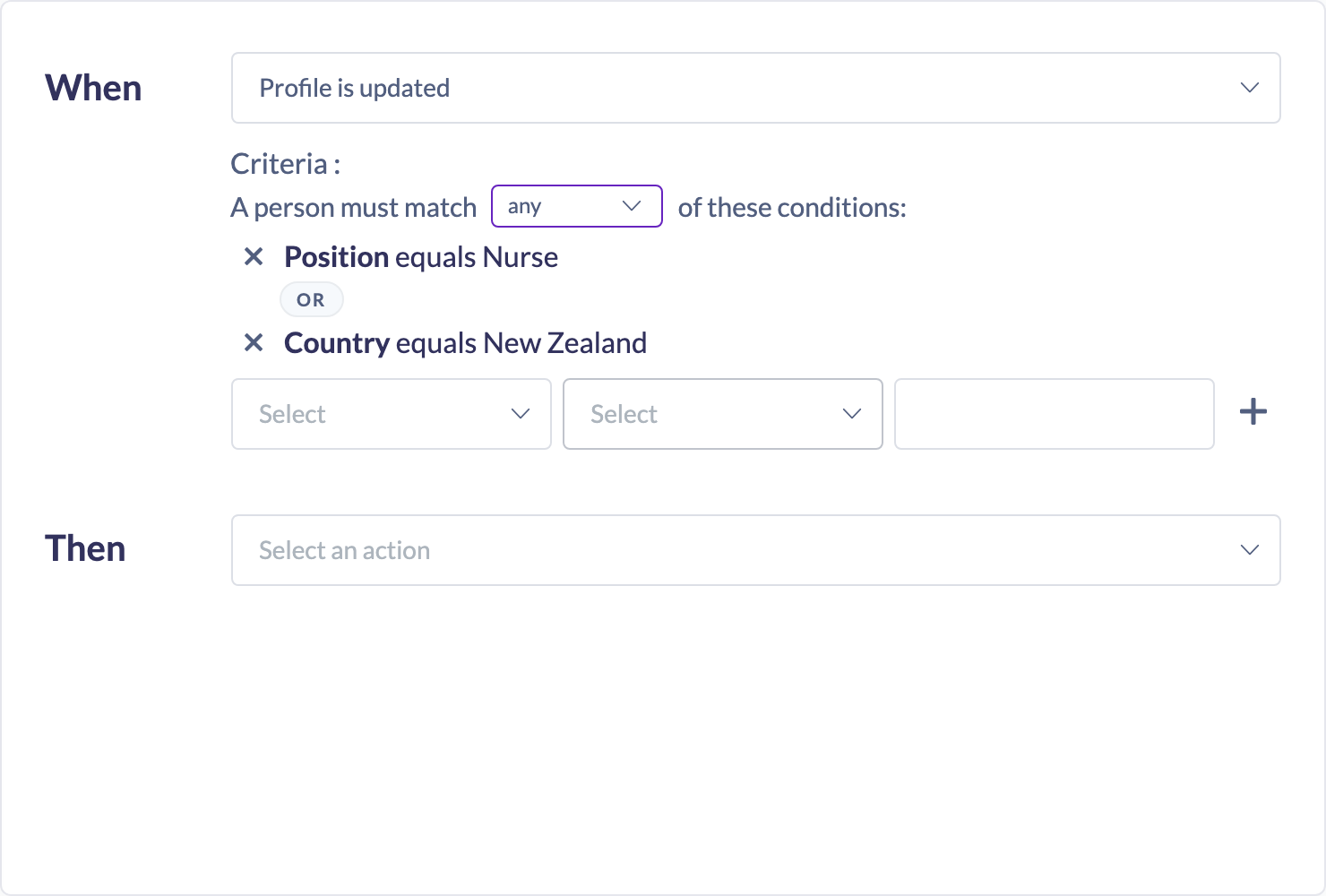
Tip: You can combine both. For example, Person is added to team Clinical Staff, with Position is any of Nurse, Carer or Enrolled Nurse and Country equals Australia, matching all.
Why use "is any of" and "any"
Before these options, every condition had to match, so a Workflow for "either of two job titles" meant building two identical Workflows.
- One Workflow instead of several. One Workflow can now cover several job titles, locations or roles.
- Less to keep in step. Dates, notifications and assignment rules live in one place, so a change is made once rather than in every copy.
- Easier to check. The Workflows list reads each rule as a sentence joined by "and" or "or", so you can see who it applies to at a glance.
Things to keep in mind
- The Profile is updated trigger must have at least one criterion, or the Workflow can't be saved.
- If a Workflow's trigger is based on a change to a person's Role, it cannot use the Change user role action — that combination is blocked.
- Changing the trigger while editing a Workflow clears the trigger's selected item and criteria, so you'll set those again.
- The all or any choice applies to every condition in the Workflow. You can't mix "and" and "or" in one Workflow. To say "(this and this) or that", build two Workflows.
- A Tag condition matches content or Pathways that carry the tag, even when they carry other tags as well.
- Each Workflow has exactly one trigger. To respond to more than one kind of event, build more than one Workflow.
FAQs
Which triggers let me pick a specific item?
"Person is added to team", "Pathway is completed", "Event is attended", "Form is submitted", "Content is completed" and "Roadmap is completed" all let you pick the specific Team, Pathway, Event, Form, content item or Roadmap. Leave the Team, Event, Form or Pathway empty, or clear it, to have the Workflow run for any of them. "Person joins" and "Profile is updated" apply to people generally and are scoped with criteria instead.
Can I trigger a Workflow when a Knowledge article is completed?
Completing a single content item is covered by the Content is completed trigger. A dedicated Knowledge-article trigger is not currently offered as a separate option in the builder.
Do criteria have to all match, or just one?
You choose. With two or more conditions, pick all so every condition has to be true, or any so one is enough. The default is all.
Can one Workflow run for several job titles?
Yes. Add a Position condition, choose Is any of, and list each job title. One condition can hold up to 10 values.
Can one Workflow run for two different Teams or Pathways?
No. The trigger is always a single event. Leave the item empty to run for any Team (or Pathway, Event or Form), then narrow it with criteria, or build one Workflow per item.
Who can do this
Only Owners and Admins can create and edit Workflows (and therefore choose triggers). Managers, Content Managers, People Managers, Instructors, Employees and Restricted users cannot. Workflows are a paid-plan feature, so the option only appears for accounts where it has been enabled.
Updated on: 26/09/2026
Thank you!