
How to Choose Auto-Approve or Require Approval for Sign-Ups
How to Choose Auto-Approve or Require Approval for Sign-Ups
In this article:
- Overview
- Choosing an approval mode
- Auto-approve (instant access)
- Require admin approval
- Things to keep in mind
- FAQs
- Who can do this
Overview
Your Self-Registration page can handle sign-ups in one of two ways: create accounts instantly, or hold each one as a request for an admin to review first. This is the approval mode, and you set it when you configure the page.
Choosing an approval mode
- Go to Settings → Security and find the Self-Registration card.
- Click Configure page to open the settings panel.
- Under Approval mode, choose either Auto-approve (instant access) or Require admin approval.
- Click Save.
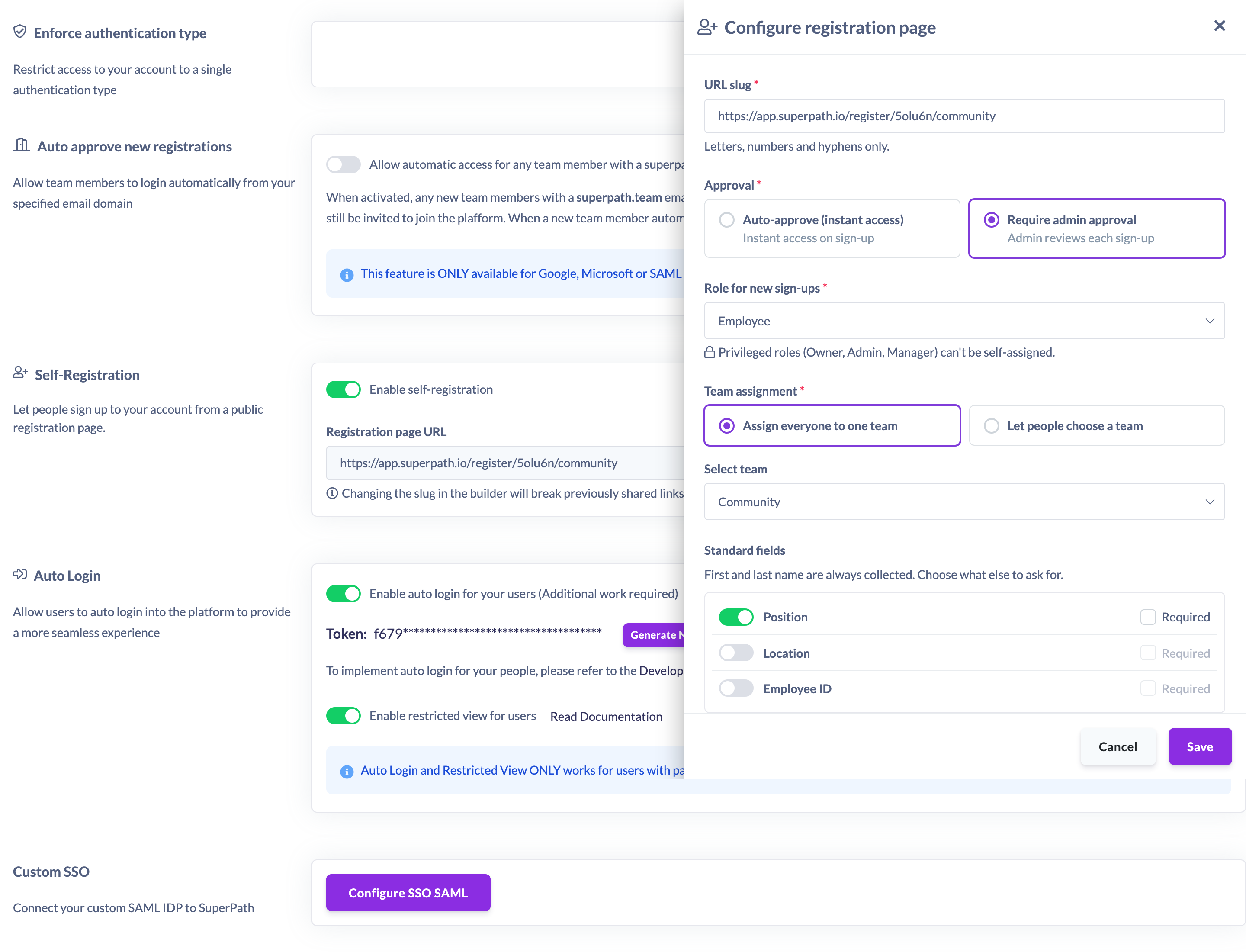
Auto-approve (instant access)
With auto-approve, a person's account is created the moment they submit the registration form, and they go straight into your platform. There's no review step for you to complete. If they sign up with an email and password, they're sent a verification email as part of signing in.
Use auto-approve when you're happy for anyone with the link (and who meets any email-domain restriction) to get access right away — for example open course sign-up.
Require admin approval
With require admin approval, submitting the form doesn't create an account. Instead it creates a pending request. The registrant gets a "submission received" email, and admins are notified that there's a sign-up to review.
You review pending requests under People → Pending, where you can approve or reject each one. Approving creates the person's account and emails them to let them know; rejecting emails them and creates no account. See "How to Approve a Pending Registration" and "How to Reject a Pending Registration" for the review steps.
Use require admin approval when you want to check who's signing up before they get access.
Things to keep in mind
- You can switch modes at any time by reconfiguring the page; it applies to sign-ups from that point on.
- With require admin approval, pending requests wait until an admin acts on them — no account exists until you approve.
- If your account is on a plan with a fixed number of seats and you've reached the limit, sign-ups and approvals can be blocked with a licensing error. Make sure you have seats available, or contact Support to upgrade.
FAQs
Which mode should I use?
Use auto-approve when you're comfortable giving instant access to anyone with the link, and require admin approval when you want to vet each sign-up first.
Where do pending sign-ups appear?
Under People → Pending. Admins are also notified when a new request comes in.
Do registrants know they've been approved or rejected?
Yes. When you approve a pending request the person is emailed and their account is created; when you reject one they're emailed and no account is created.
Who can do this
Only the Owner can choose the approval mode, under Settings → Security. Reviewing pending sign-ups under People → Pending can be done by both Owners and Admins. Managers, People Managers, Content Managers, Instructors, Employees and Restricted users cannot.
Updated on: 19/07/2026
Thank you!