
How to Choose Sign-In Methods for Your Registration Page
How to Choose Sign-In Methods for Your Registration Page
In this article:
- Overview
- Choosing your sign-in methods
- How sign-in methods appear to registrants
- The verify-email step for Email & password
- Things to keep in mind
- FAQs
- Who can do this
Overview
Self-Registration lets people join your platform through a public registration page, rather than waiting for an invite. Before anyone can fill in the registration form they must sign in with one of the methods you allow, so their identity is confirmed up front. This article covers how to choose which sign-in methods appear on your page.
You can offer any combination of three methods: Google, Microsoft, and Email & password. You control the mix from the page builder, and only the methods you enable are shown to registrants.
Choosing your sign-in methods
- Go to Settings → Security.
- Find the Self-Registration section and click Configure page to open the Configure registration page drawer.
- Scroll to Sign-in methods.
- Tick the methods you want to offer — Google, Microsoft, and/or Email & password. You can select any combination.
- Click Save.
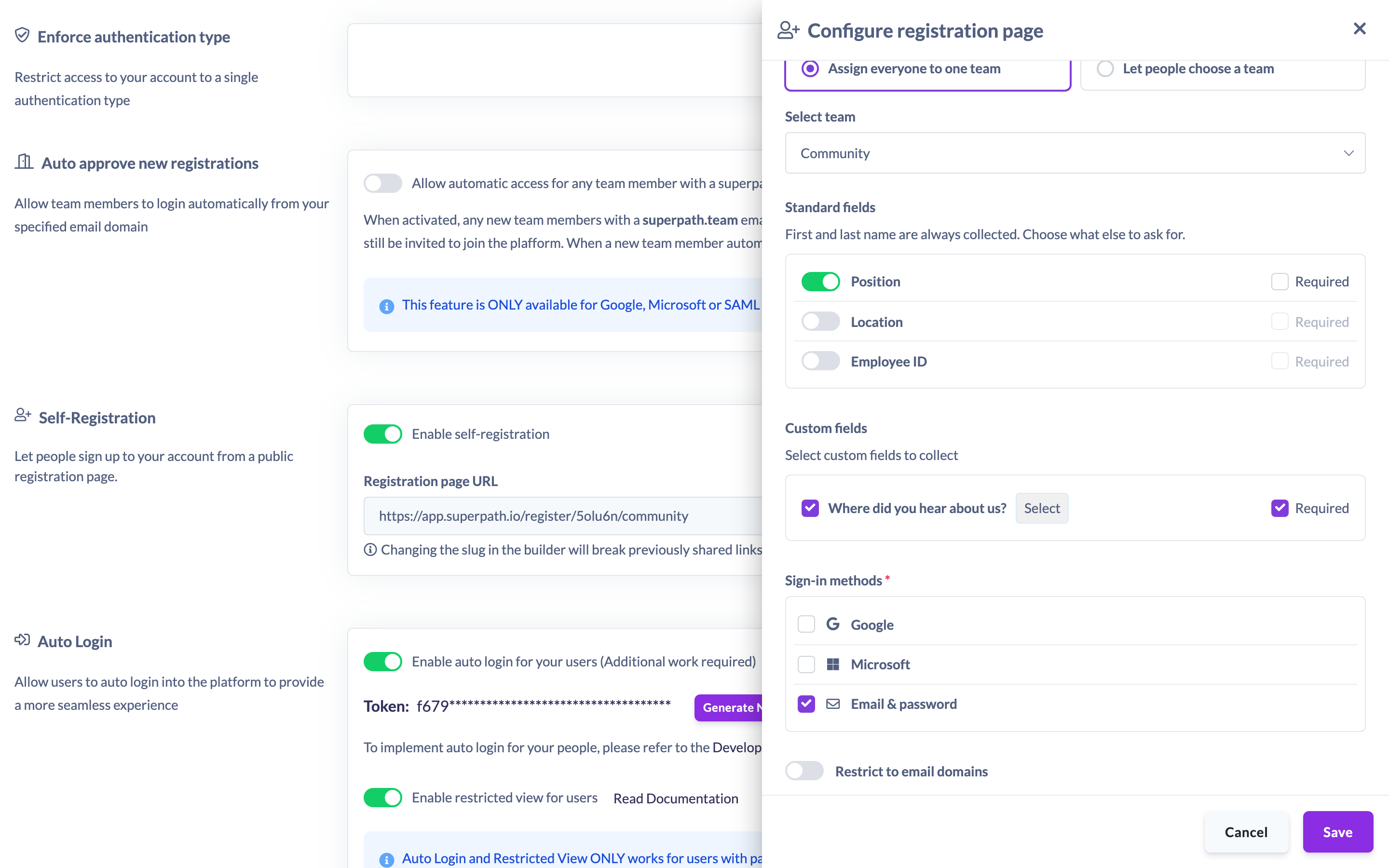
Note: You must select at least one sign-in method before you can turn the registration page on. If none is selected, saving an enabled page shows "Select at least one sign-in method."
How sign-in methods appear to registrants
Your registration page only shows the methods you enabled. If you tick just Google, registrants see only the Google button; if you tick all three, they see Google, Microsoft, and an email-and-password form. A registrant must sign in with one of these before they reach the form that collects their name and any other details you ask for.

The verify-email step for Email & password
The two paths handle identity verification differently:
- Google and Microsoft identities are already verified by the provider, so those registrants go straight through to the registration form.
- Email & password registrants are sent a standard verification email after they sign up. This step happens after sign-up and does not hold up their registration — they can complete the form and join right away. On the page they see the note: "We'll email you a verification link after sign-up — it won't hold up your registration."
Things to keep in mind
- Only the sign-in methods you tick are shown on the public page — everything else is hidden.
- At least one sign-in method is required before the page can be enabled.
- Sign-in confirms the registrant's identity before they can complete the form; the email they sign in with is also what your email-domain restriction (if any) is checked against.
- Someone who already has an account is asked to log in rather than register again.
FAQs
Can I offer more than one sign-in method?
Yes. You can enable any combination of Google, Microsoft, and Email & password, and registrants choose whichever they prefer.
Does the verification email block Email & password registrants from joining?
No. The verification link is emailed after sign-up and does not hold up registration — they can finish the form and enter the platform immediately.
Do Google and Microsoft registrants get a verification email?
No. Those identities are already verified by the provider, so no separate verification email is sent.
Who can do this
Only the Owner can configure the registration page, including its sign-in methods. Admins, Managers, Content Managers, People Managers, Instructors, Employees and Restricted users cannot.
Updated on: 19/07/2026
Thank you!