
How to Collect Custom Fields on Your Registration Page
How to Collect Custom Fields on Your Registration Page
In this article:
- Overview
- How to collect custom fields
- Things to keep in mind
- FAQs
- Who can do this
Overview
As well as the standard details, your registration page can collect your own Custom Fields — the extra information you already store against people's profiles, such as a start date, a cost centre, or a role band. That way the details you rely on are captured the moment someone signs up, rather than being chased later.
Only Custom Fields set to the Everyone access level appear here. Fields restricted to managers or admins are never offered on a public registration page, because it's filled in by the person signing up themselves.
How to collect custom fields
- Go to Settings → Security.
- In the Self-Registration section, click Configure page.
- Scroll to Custom fields.
- Tick each Custom Field you want to collect. Its field type is shown next to the name.
- For any field you're collecting, tick Required if the person must fill it in before they can finish signing up.
- Click Save.
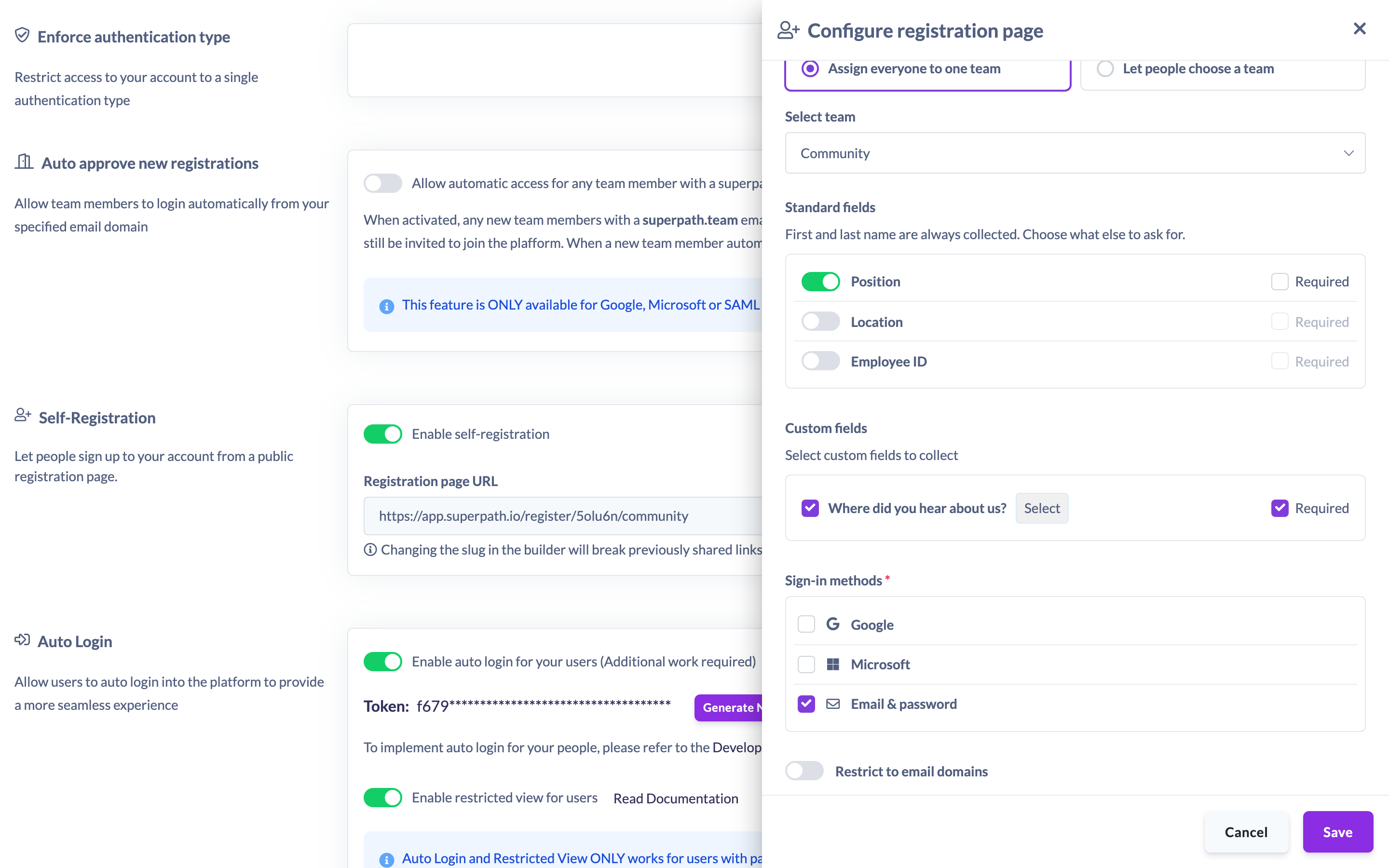
If you haven't created any eligible Custom Fields yet, this section shows No user custom fields defined yet. Create a field first, then come back to add it to your page. See How to Create a Custom Field and How to Control Who Can See a Custom Field for details.
Note: A Custom Field can only be marked Required while it's ticked for collection. Un-ticking a field also clears its required status.
Things to keep in mind
- Only Custom Fields with the Everyone access level can be collected on the registration page. Fields limited to Managers & admins or Admins only are hidden here on purpose, and the platform blocks them even if selected.
- Only user Custom Fields are offered — the same ones that appear on people's profiles.
- Each field's type (for example Text, Number, or Date) is shown next to its name so you can tell fields apart.
- A field must be ticked for collection before it can be marked Required.
- Changing which Custom Fields you collect only affects people who sign up afterwards. It doesn't change data already stored against existing profiles.
FAQs
Why don't all my custom fields show up in the list?
Only Custom Fields with the Everyone access level can be collected on a public registration page. Fields restricted to managers or admins are deliberately left out.
Can I make a custom field mandatory at sign-up?
Yes. Tick the field to collect it, then tick Required. The person must fill it in before they can finish registering.
I haven't set up any custom fields yet — what do I do?
The section will say No user custom fields defined yet. Create a Custom Field first, then return to add it. See How to Create a Custom Field.
Who can do this
Only the Owner can configure Self-Registration, including which Custom Fields are collected. The Self-Registration settings live under Settings → Security, which is restricted to the Owner. Admins, Managers, People Managers, Content Managers, Instructors, Employees, and Restricted users cannot access these settings. Note that creating and editing the Custom Fields themselves is a separate, Owner-only task.
Updated on: 19/07/2026
Thank you!