
How to Control Who Can Access SuperPath Chat Support
How to Control Who Can Access SuperPath Chat Support
In this article:
- Overview
- How to set who can access chat support
- Things to keep in mind
- FAQs
- Who can do this
Overview
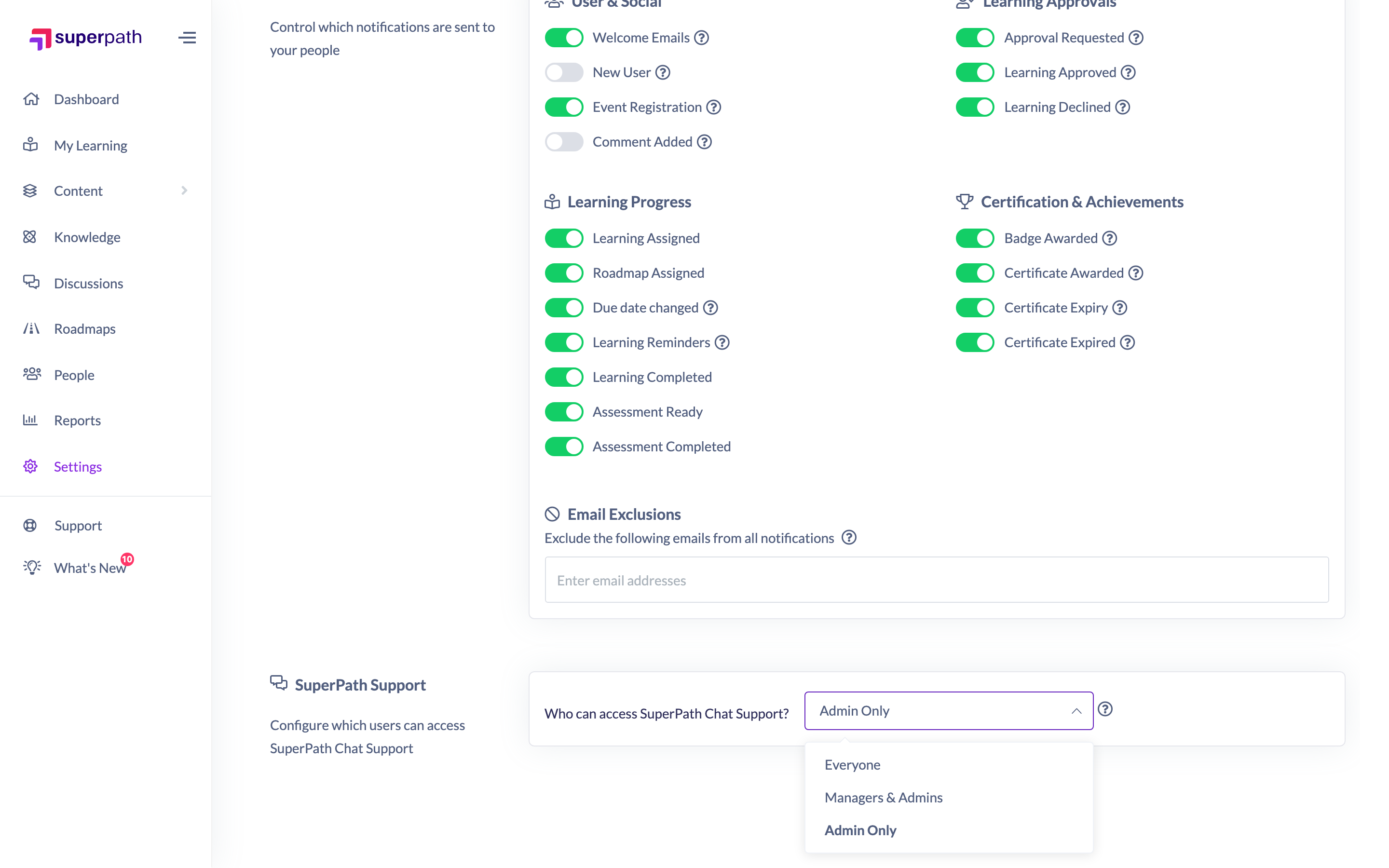
SuperPath Chat Support is the in-app chat that connects your users to SuperPath's support team. From the SuperPath Support section of your feature settings you can choose which roles are able to open it. By default it is set to Admin Only, so administrators can reach chat support while it stays hidden from everyone else — but you can widen access if you want other roles to use it too.
How to set who can access chat support
- Go to Settings → Features.
- Find the SuperPath Support section.
- Use the Who can access SuperPath Chat Support? dropdown to choose an access level:
- Everyone — all users can open chat support.
- Managers & Admins — only Managers and Admins can open chat support.
- Admin Only — only Admins (and Owners) can open chat support. This is the default.
- An Unsaved changes bar appears at the top of the screen. Click Save to apply your change.
Things to keep in mind
- The default is Admin Only, which keeps chat support available to administrators and hidden from other roles.
- Change the setting if you want to offer chat support to other roles.
- After choosing an access level, click Save in the Unsaved changes bar for the change to take effect.
FAQs
Who can use SuperPath Chat Support by default?
By default it is set to Admin Only, so only Admins (and Owners) can open it.
Can I let everyone contact chat support?
Yes. Set the Who can access SuperPath Chat Support? dropdown to Everyone, then Save.
Who can do this
Only Owners and Admins can change feature settings, including who can access chat support. The Settings area is restricted to these two roles, and saving a change to Features requires the tenant-settings update permission, which only Owners and Admins hold. Managers, Content Managers, People Managers, Instructors, Employees and Restricted users cannot open Settings or change this setting.
Updated on: 17/07/2026
Thank you!