
How to Control Who Can See a Custom Field
How to Control Who Can See a Custom Field
In this article:
- Overview
- Access levels explained
- How to set who can see a field
- Things to keep in mind
- FAQs
- Who can do this
Overview
Each custom field has an Access level that controls who can view and edit the data stored in it. This lets you keep sensitive details — a contract document or a salary band, say — visible only to the right people, while more general information can be seen by everyone. You set the access level when you create a field, and you can change it at any time afterwards.

Access levels explained
There are three access levels:
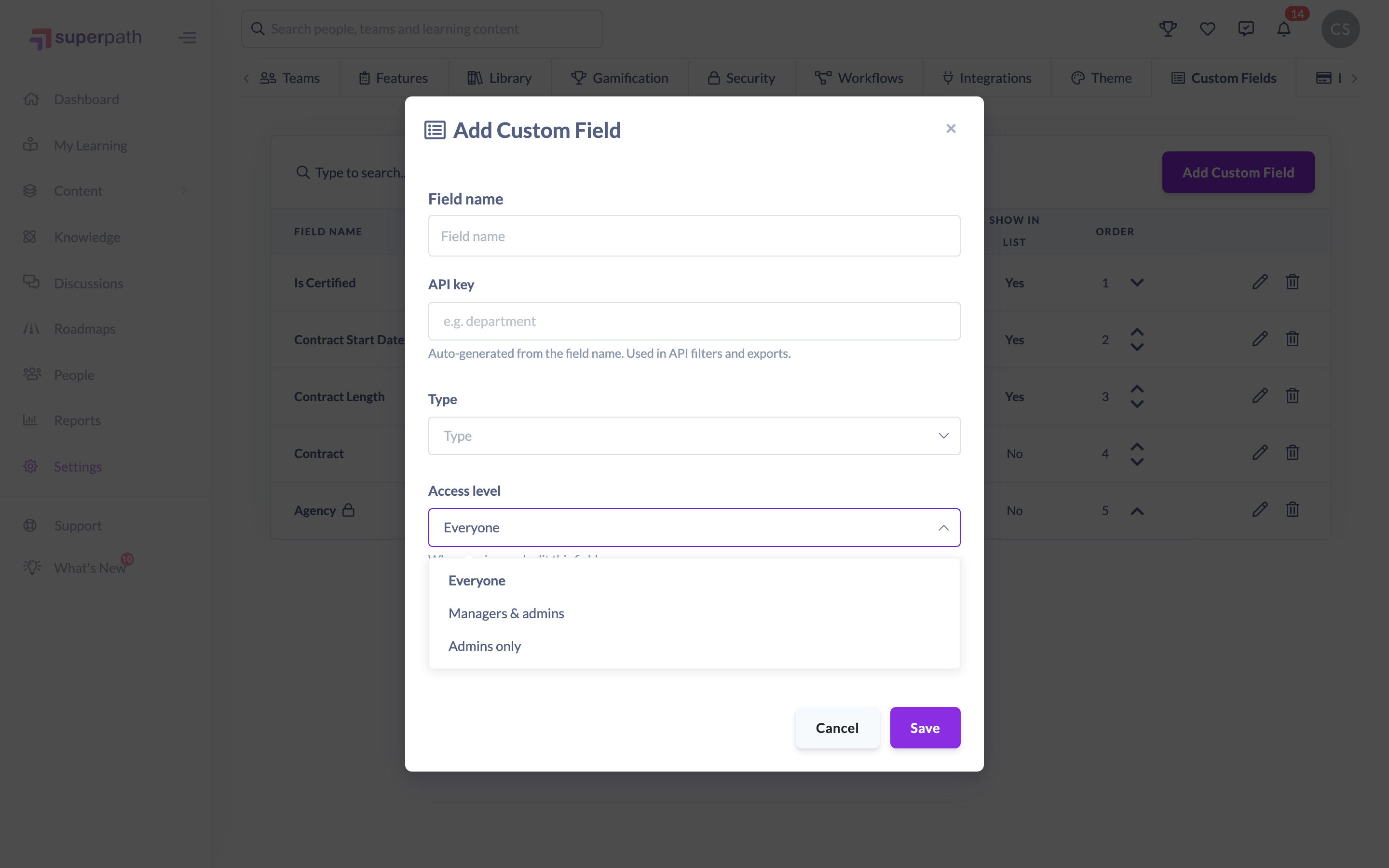
- Everyone — visible to managers, admins and the person the field belongs to.
- Managers & admins — visible to managers and admins, but hidden from the person it belongs to.
- Admins only — visible to admins only.
The access level controls both who can view the field and who can edit its value.
How to set who can see a field
- Go to Settings → Custom Fields.
- Click Add Custom Field to create a new field, or the pencil (Edit) icon to change an existing one.
- Open the Access level dropdown and choose Everyone, Managers & admins, or Admins only.
- Click Save.
Things to keep in mind
- The access level applies to the field's stored data everywhere it appears: on the profile's Additional Details tab, in the People list and in reports.
- Set the access level before storing anything sensitive: if a field is set to Everyone, the person it belongs to can see their own value.
- Changing the access level takes effect immediately, so lowering visibility hides the data from people straight away.
- On reports, Owners and Admins see every field with Include in reports turned on, while Managers and People Managers only see fields set to Everyone or Managers & admins. A field someone isn't allowed to see is removed before the report reaches their browser, so it isn't in their export either.
- A Scheduled Report follows the access of the person who created the schedule, not each recipient. If that person is later disabled or removed, the report still sends but only includes fields set to Everyone.
- Access level is separate from Show on list view and Include in reports. Those toggles only decide where a field appears as a column. They don't override who's allowed to see the data.
FAQs
Can the person a field belongs to see their own data?
It depends on the access level. With Everyone, they can see it on their own profile. With Managers & admins or Admins only, it stays hidden from them.
Can I change the access level after creating a field?
Yes. Edit the field, choose a different Access level, and save. The change applies immediately.
Does the access level apply to reports?
Yes. A Manager running a report doesn't get columns for fields set to Admins only, and a Scheduled Report follows the access of the person who created it.
Is the access level the same as showing the field in the People list?
No. The access level controls who can view and edit the data. Show on list view only controls whether the field appears as a column in the People list.
Who can do this
Only Owners can set or change a field's access level. The Custom Fields tab in Settings is shown to Owners only, and saving a field requires the manage permission that only the Owner role holds. Admins, Managers, People Managers, Content Managers, Instructors, Employees and Restricted users cannot manage custom fields — though they may still see a field's stored data on profiles, depending on the access level you set.
Updated on: 29/09/2026
Thank you!