
How to Create a Custom Field
How to Create a Custom Field
In this article:
- Overview
- How to create a custom field
- Field types
- Things to keep in mind
- FAQs
- Who can do this
Overview
Custom Fields let you store extra information against a person's profile, beyond SuperPath's core details, such as an employee ID, department, contract dates or a signed document. Once you've created a field it becomes available on every person's Additional Details tab, and you can choose who's allowed to see it, whether it shows as a column in the People list, and whether it appears on your reports.
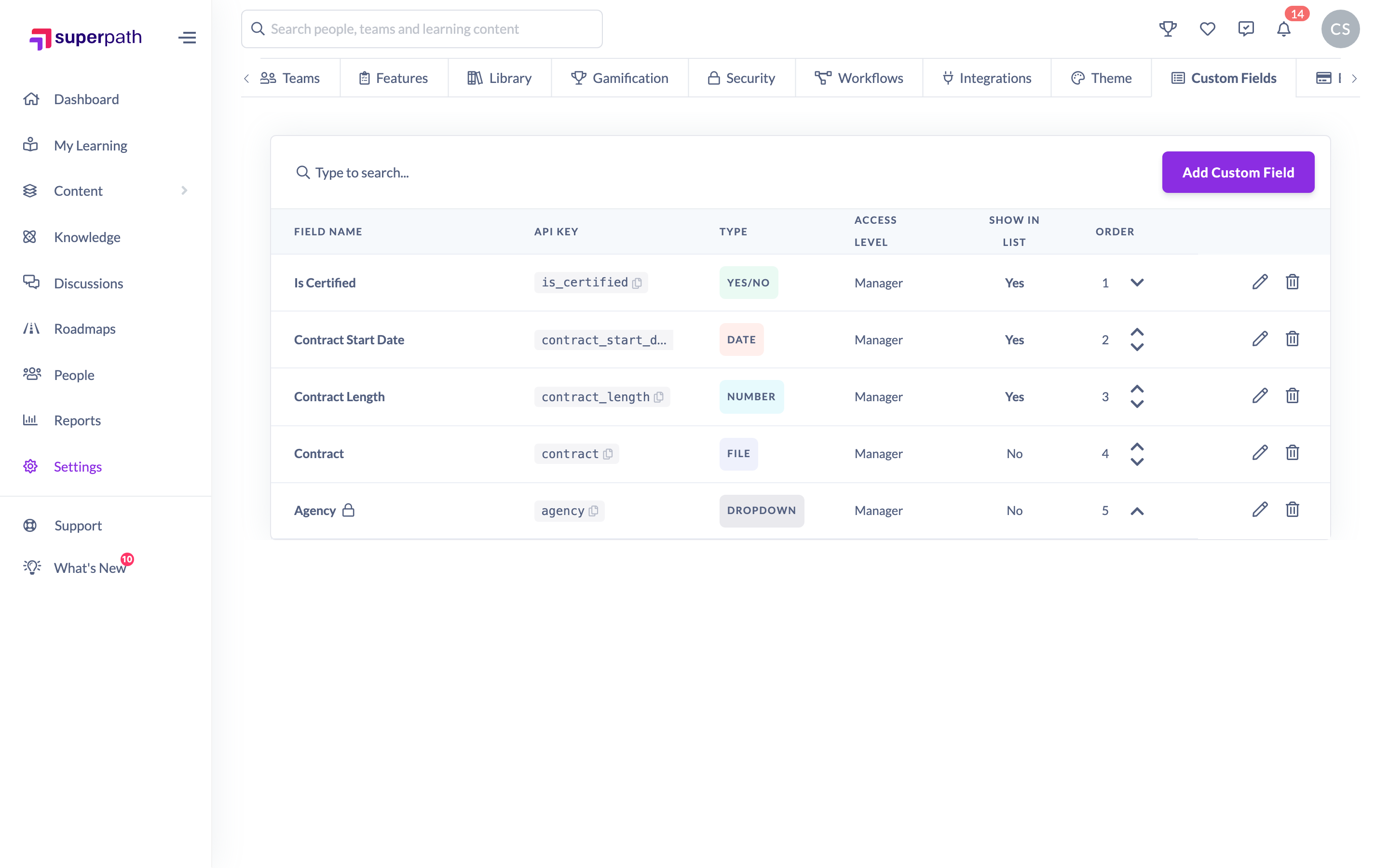
How to create a custom field
- Go to Settings → Custom Fields.
- Click Add Custom Field.
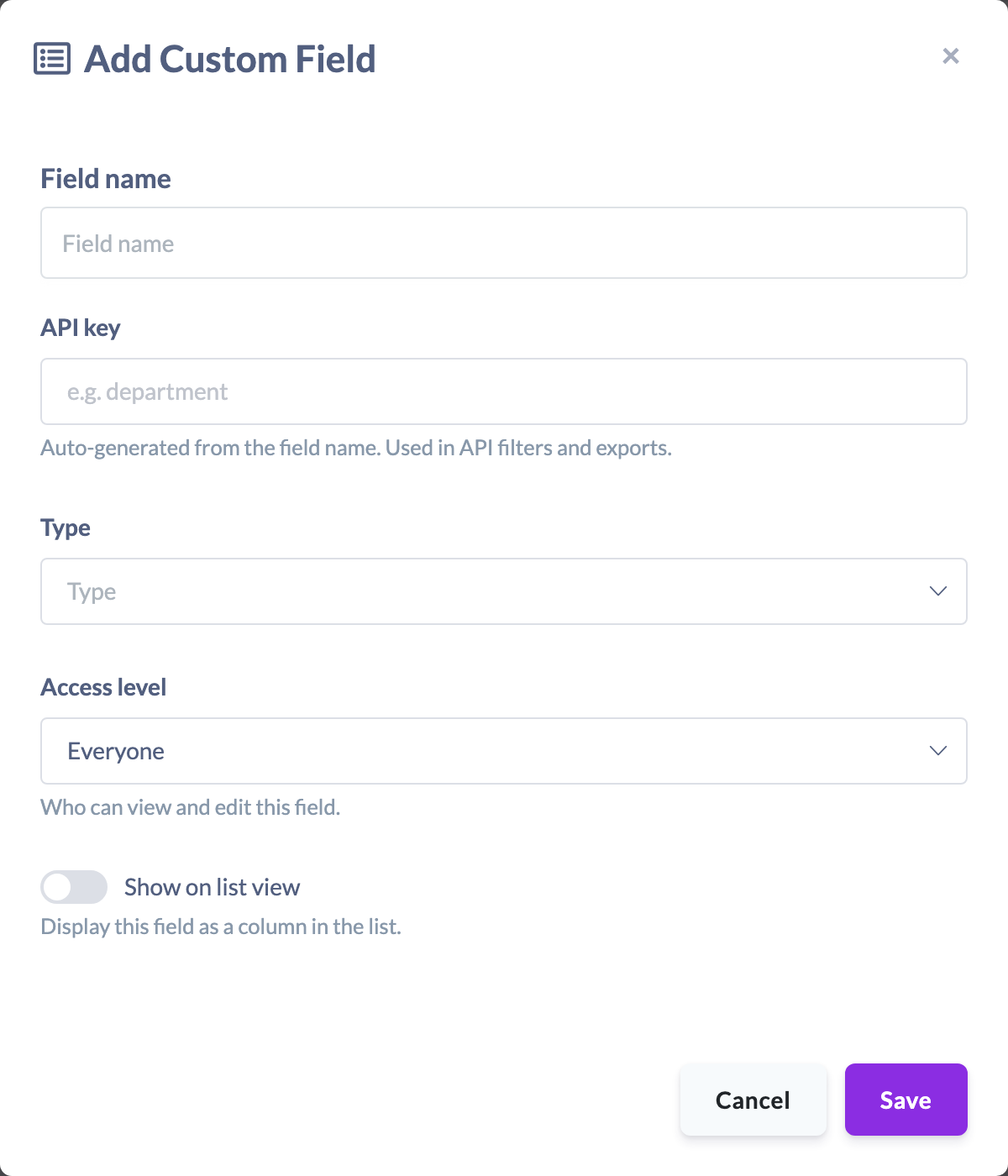
- Enter a Field name — this is the label people will see on the profile.
- Check the API key. SuperPath auto-generates it from the field name and uses it in API filters and exports. You can adjust it while creating the field, but it can't be changed afterwards.
- Choose a Type (see the field types below). The type is also fixed once the field is created, so pick it carefully.
- Set the Access level to control who can view and edit the field — Everyone, Managers & admins, or Admins only.
- Toggle Show on list view if you'd like the field to appear as a column in the People list.
- Toggle Include in reports if you'd like the field to appear as a column on reports that list people, and in their exports. This toggle isn't shown for File fields.
- If you chose Dropdown, add the list of options people can select from. If you chose File, set the maximum file size and the allowed file types.
- Click Save.
Field types
You can choose from six field types:
- Text — free-form text.
- Number — numeric values, e.g. contract length.
- Date — a single date, e.g. a contract start date.
- Yes/No — a simple toggle, e.g. "Is certified".
- Dropdown — a defined list of options you specify when creating the field.
- File — attach a document to the person's profile, e.g. a signed contract. You set the maximum size and the allowed file types.
Things to keep in mind
- The Type and API key are locked once the field is created — only the name, access level, options (for Dropdown) and display settings can be changed later.
- Dropdown fields need at least one option, and File fields need at least one allowed file type, before they'll save.
- Each field's API key must be unique. If the key is already in use, SuperPath will ask you to choose a different one.
- Include in reports is off for a new field until you turn it on. See Managing Custom Fields for which reports carry the column and who can see it.
- New fields are added to the end of the list. You can change the order later — see How to Reorder Custom Fields.
- If you reach 20 or more custom fields, SuperPath shows a warning: a large number of fields can slow the profile page down, so it's worth reviewing whether each is still needed.
FAQs
Where do custom fields appear once created?
On each person's Additional Details tab. If you turned on Show on list view, the field also appears as a column in the People list. If you turned on Include in reports, it appears as a column on reports that list people, in their CSV exports and in Scheduled Reports.
Can I change the field type after creating it?
No. The type is fixed once the field is created. If you need a different type, create a new field with the type you want.
What's the API key for?
It's a stable identifier used in API filters and in exports — and, when adding people in bulk, it matches each spreadsheet column to the right field. It's generated from the field name and can't be changed after the field is created.
How many custom fields can I create?
There's no hard limit, but SuperPath warns you once you have 20 or more, because too many fields can slow the profile page.
Who can do this
Only Owners can create custom fields. The Custom Fields tab in Settings is shown to Owners only, and creating a field requires the manage permission that only the Owner role holds. Admins, Managers, People Managers, Content Managers, Instructors, Employees and Restricted users cannot create custom fields.
Updated on: 29/09/2026
Thank you!