
How to Create a Sub-Team
How to Create a Sub-Team
In this article:
- Overview
- How to create a sub-team
- Things to keep in mind
- FAQs
- Who can do this
Overview
A sub-team is simply a team that sits under another team. There's no separate "sub-team" object — you create a normal team and choose a Parent Team for it. This is useful for mirroring a nested structure, such as regions containing stores, or a department containing squads. Parent teams apply to static Teams.
How to create a sub-team
- Go to Settings → Teams.
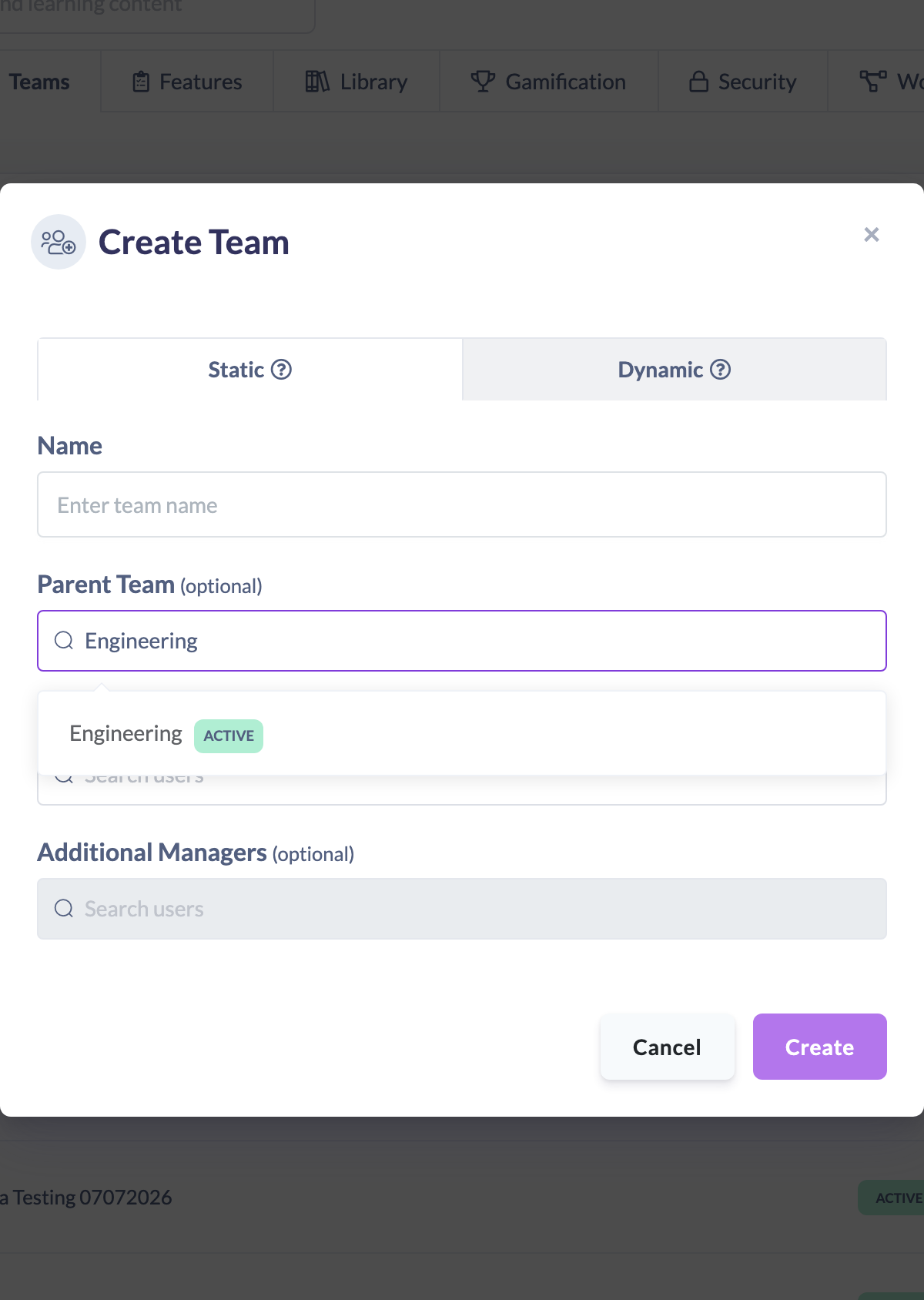
- Click Create Team.
- On the Static tab, enter a Name.
- Under Parent Team (optional), search for and select the team this one should sit under.
- Optionally set a Primary manager and Additional Managers.
- Click Create.
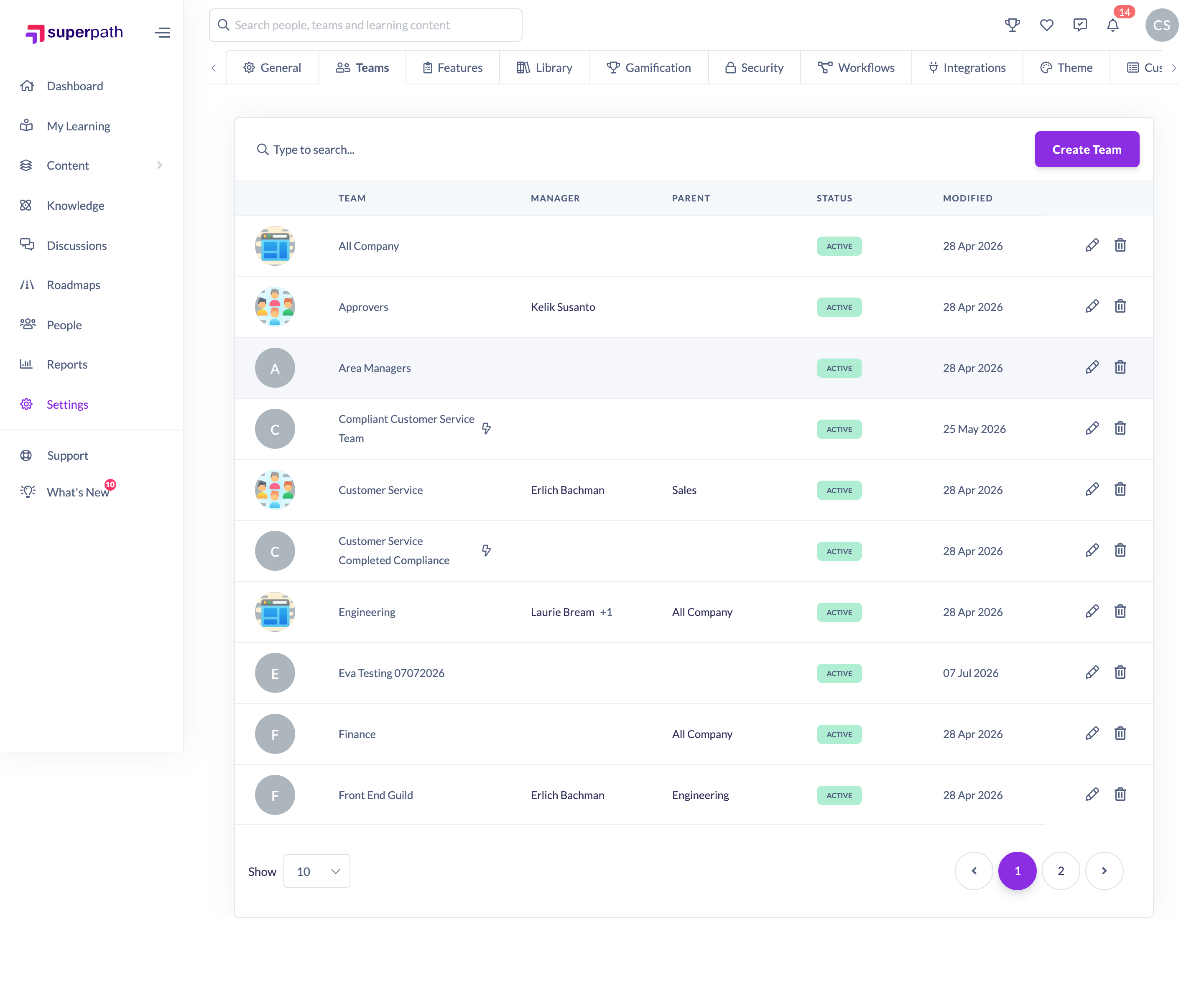
The new team appears in the Teams list with its parent shown in the Parent column.
Things to keep in mind
- A sub-team is just a team with a Parent Team set — there's no distinct sub-team type.
- The Parent Team field is available for static Teams. Dynamic Teams don't have a parent team.
- You can nest teams several levels deep.
- You can set or change a team's parent at any time from Edit Team — see the How to Edit a Team article.
- Renaming a parent team updates the parent-team label shown on its sub-teams.
FAQs
What's the difference between a parent team and a sub-team?
They describe the relationship: the sub-team has its Parent Team set to another team, which becomes the parent. A team can be both — a sub-team of one team and the parent of others.
Can a Dynamic Team be a sub-team?
No. The parent team field applies to static Teams.
Can I change a team's parent later?
Yes. Open the team, choose Actions → Edit Team, update the Parent Team field, and save.
Who can do this
Owners and Admins can create teams, including sub-teams. Managers, People Managers, Content Managers, Instructors, Employees and Restricted users cannot create teams.
Updated on: 17/07/2026
Thank you!