
How to Create a Workflow
How to Create a Workflow
In this article:
- Overview
- How to create a workflow
- Things to keep in mind
- FAQs
- Who can do this
Overview
Workflows automate the repetitive parts of running your learning programmes. Each Workflow pairs a trigger (the event that starts it — such as a new person joining or a Pathway being completed) with an action (what SuperPath does in response — such as assigning a Pathway or adding the person to a Team). Once a Workflow is active it runs automatically in the background, so your onboarding, compliance and upskilling programmes keep running without you having to lift a finger.
This article walks through creating a Workflow end to end. For a deeper look at the individual options, see How to choose a workflow trigger and How to choose a workflow action.
How to create a workflow
- Go to Settings → Workflows.
- Click Create workflow. This opens the Workflow builder at a blank Create new workflow screen.
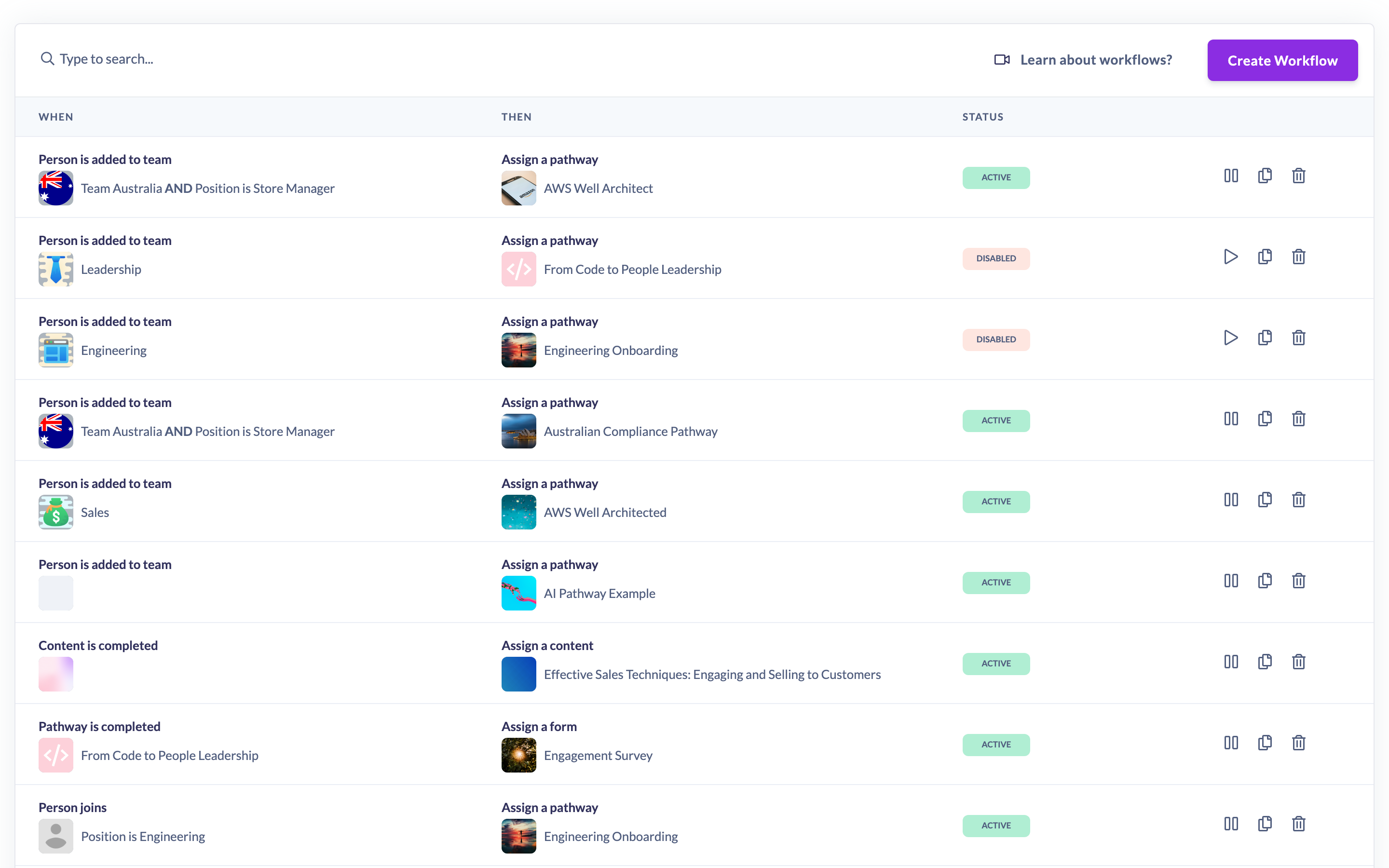
- Under When, choose a trigger from the dropdown (for example, Person joins or Pathway is completed).
- If the trigger relates to a specific item, pick it next, for example the specific Pathway, Form, Event, Roadmap or Team. Some triggers also let you narrow the trigger with criteria (such as a person's Role, Manager or country), so the Workflow only runs for the people who match. A condition can list several values with Is any of, and with two or more conditions you choose whether a person must match all or any of them. See How to choose a workflow trigger.
- Under Then, choose an action from the dropdown (for example, Assign a pathway or Add to team).
- Select the specific item the action applies to — for example the Pathway to assign or the Team to add the person to.
- For assignment actions, set any optional rules: Notify people on assignment, a Start date, a Due date, a Recurring schedule, and your choice under For people who already have this learning (Assign only if completed (default), Always assign or Never assign).
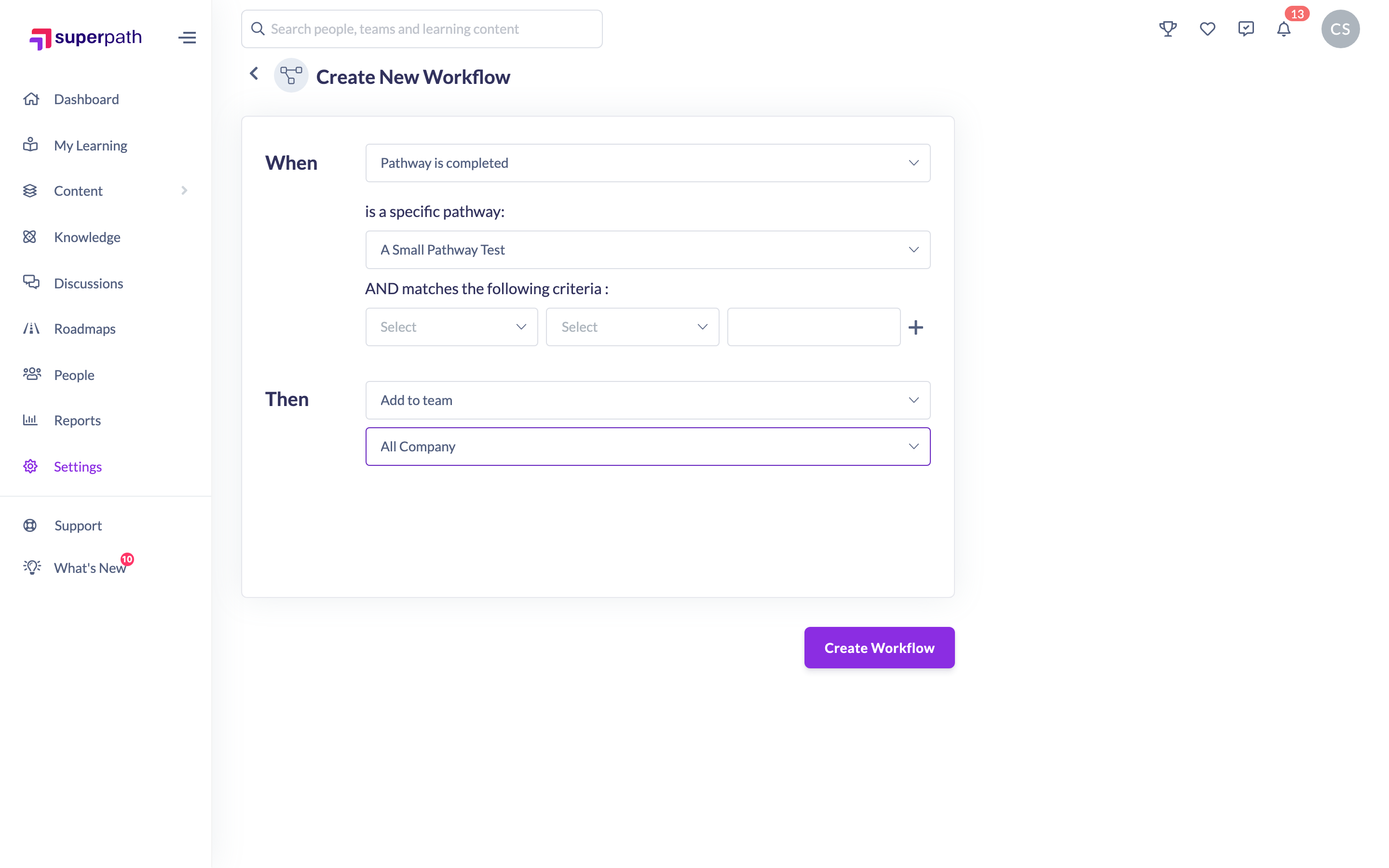
- Click Create workflow to save.
Your new Workflow is created as Active straight away, so it begins responding to matching events immediately.
Tip: If you want to build and review a Workflow before it starts running, create it and then pause it from the Workflows list — see How to pause or activate a workflow.
Things to keep in mind
- Workflows are only available on a paid (business) plan. If you don't see the feature, the Workflows screen shows an upgrade message with a link to contact SuperPath Support.
- You must choose both a trigger and an action, and select the specific item the action applies to, before the Workflow can be saved.
- If your trigger is Profile is updated, you must add at least one criterion — otherwise the Workflow can't be saved.
- A Workflow triggered by a change to a person's Role cannot use the Change user role action. That combination is blocked to prevent loops.
- New Workflows start out Active. If you're not ready for it to run, pause it after creating it.
- With Recurring schedule? on, an assignment action assigns as soon as the Workflow runs, then again every number of years you set in Every (1 to 10), up to the total in Repeat for (20 at most). The first assignment counts towards that total. The sentence under the fields spells out the cycle, for example Assigned when the workflow runs, then every 3 years, 4 times in total.
FAQs
Does my Workflow start running as soon as I create it?
Yes. A newly created Workflow is set to Active and starts responding to matching events immediately. Pause it if you want to hold it back.
Can one Workflow cover several job titles or locations?
Yes. Use Is any of to list up to 10 values in one condition, or set the conditions to match any so that meeting one is enough. You no longer need a separate Workflow for each value.
Can a Workflow repeat an assignment every few years?
Yes. Turn on Recurring schedule? on an assignment action, leave Repeat on Yearly and set Every to the number of years between assignments. The first one is assigned when the Workflow runs.
How many triggers or actions can one Workflow have?
Each Workflow has a single trigger and a single action. To automate more than one thing off the same event, create additional Workflows.
Will a Workflow apply to people who already met the trigger in the past?
No. Workflows respond to events as they happen after the Workflow is active — they don't retroactively process historic events.
Who can do this
Only Owners and Admins can create Workflows. Managers, Content Managers, People Managers, Instructors, Employees and Restricted users cannot. Workflows are also a paid-plan feature, so the option only appears for accounts where it has been enabled.
Updated on: 14/10/2026
Thank you!