
How to Customise Your Registration Page
How to Customise Your Registration Page
In this article:
- Overview
- Setting the page title and intro text
- Adding a background image
- Logo and colours
- Things to keep in mind
- FAQs
- Who can do this
Overview
Your public Self-Registration page is often the first thing a new starter sees, so it's worth making it feel like yours. You can set the heading and the welcome copy that greet registrants, and add a background image behind the form. Your organisation's logo and brand colour are applied automatically, so the page stays on-brand with the rest of your platform.
All of this is set in the page builder, alongside your sign-in methods and other registration settings.
Setting the page title and intro text
- Go to Settings → Security.
- Find the Self-Registration section and click Configure page to open the Configure registration page drawer.
- In Page title, enter the heading you'd like registrants to see.
- In Intro text, enter the welcome copy that appears beneath the heading.
- Click Save.
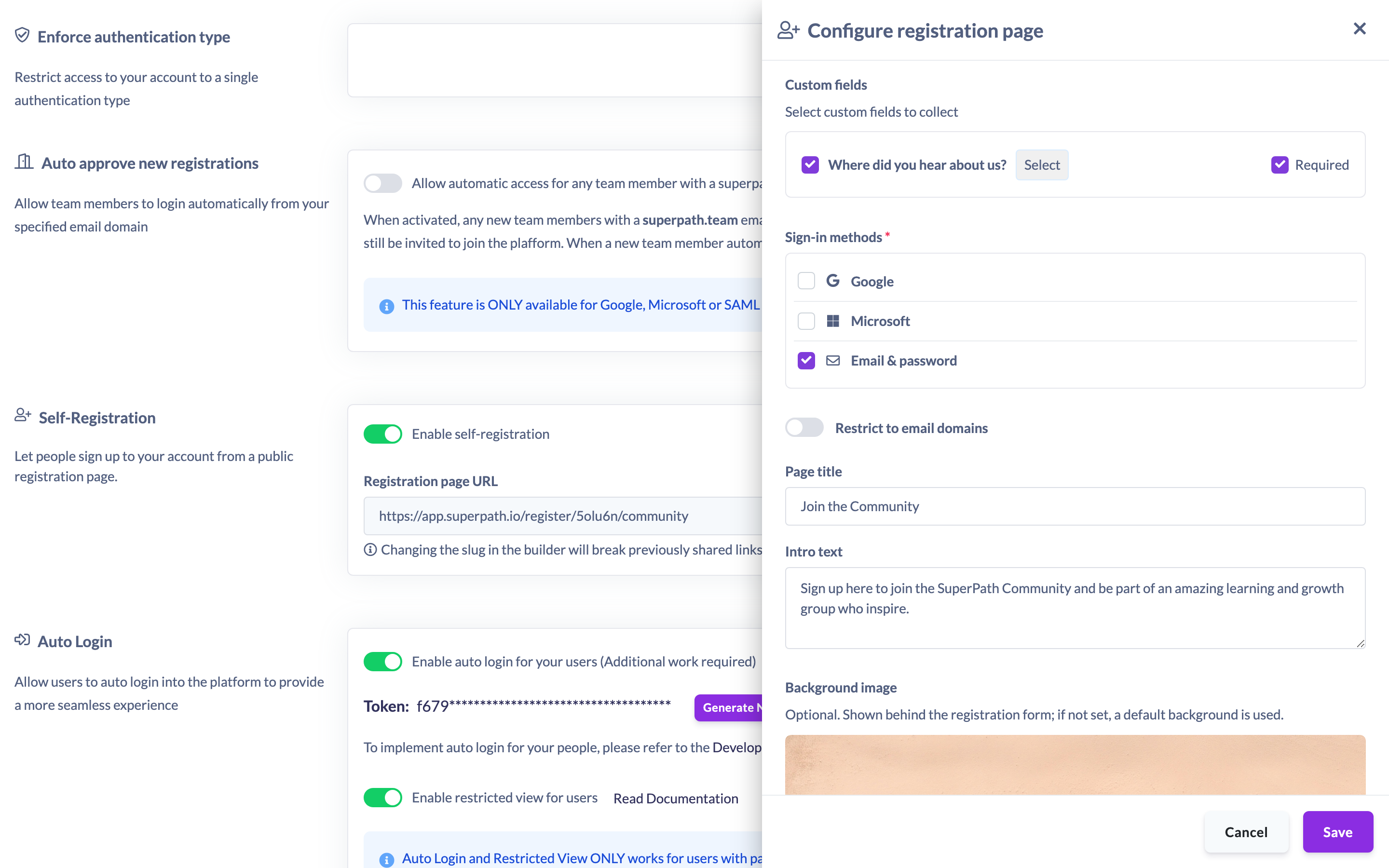
Note: If you leave the Page title blank, the page shows a default heading that welcomes people to your platform.
Adding a background image
- In the same drawer, scroll to Background image.
- Use the image picker to choose an image. It's shown behind the registration form.
- Click Save.
The background image is optional. As the builder notes, "Optional. Shown behind the registration form; if not set, a default background is used." When no image is set, the page falls back to a default background (a gradient) rather than your normal platform login image.
Logo and colours
You don't need to set these separately — your organisation's logo and primary brand colour are pulled through from your platform branding automatically and applied to the registration page. This keeps the page consistent with the rest of your SuperPath platform.
Things to keep in mind
- Page title and Intro text are free text; leaving the title blank falls back to a default welcome heading.
- The Background image is optional — without one, the page uses a default gradient background, not your platform's login image.
- Your logo and primary colour come from your platform branding, so you don't set them on the registration page itself.
FAQs
What shows if I don't set a page title?
The page falls back to a default heading welcoming people to your platform.
What happens if I don't add a background image?
The page uses a default gradient background. It does not fall back to your platform's login image.
Do I need to add my logo and brand colour to the page?
No. Your logo and primary colour are applied automatically from your platform branding.
Who can do this
Only the Owner can configure and customise the registration page. Admins, Managers, Content Managers, People Managers, Instructors, Employees and Restricted users cannot.
Updated on: 19/07/2026
Thank you!