
How to Delete a Team
How to Delete a Team
In this article:
- Overview
- How to delete a team
- Things to keep in mind
- FAQs
- Who can do this
Overview
Deleting a team removes it from your Teams list and from the places teams appear, such as assignment and search. It applies to both static and Dynamic Teams. Deleting a team removes the grouping only — it does not deactivate or remove the people who were in it, and it can't be reversed from within the app.
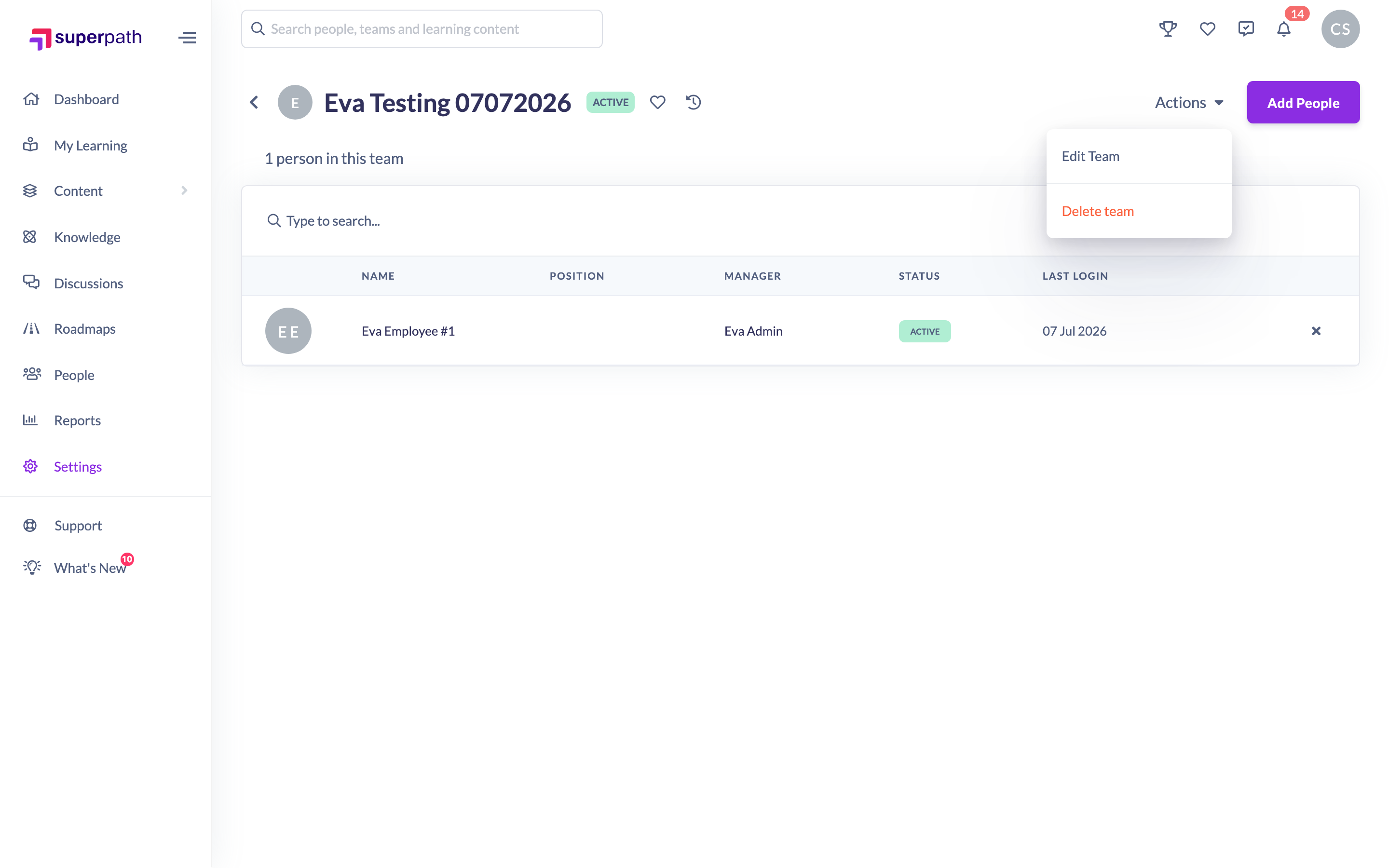
How to delete a team
- Go to Settings → Teams.
- Open the team you want to remove.
- Click Actions → Delete team.
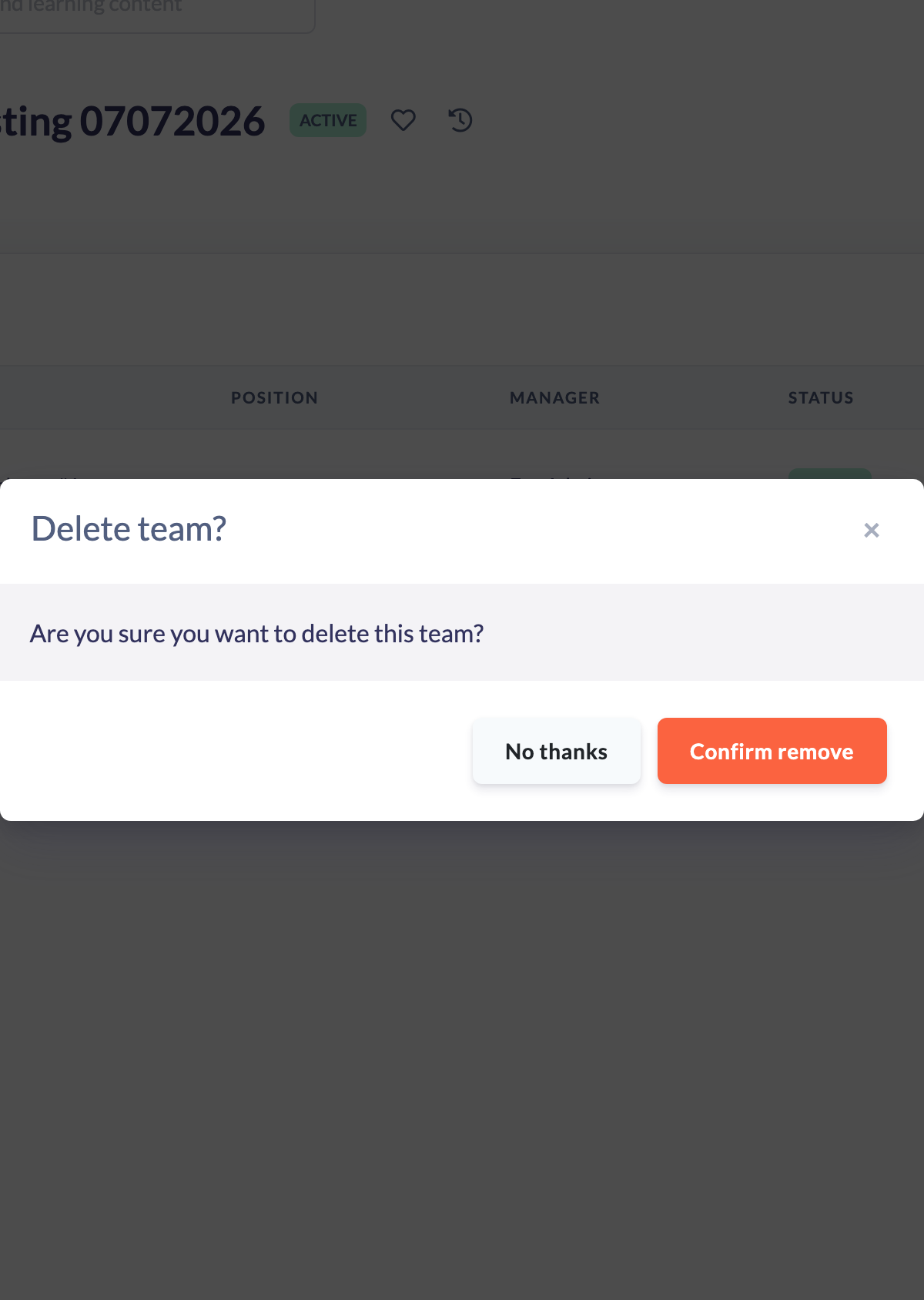
- In the confirmation window, click Confirm remove.
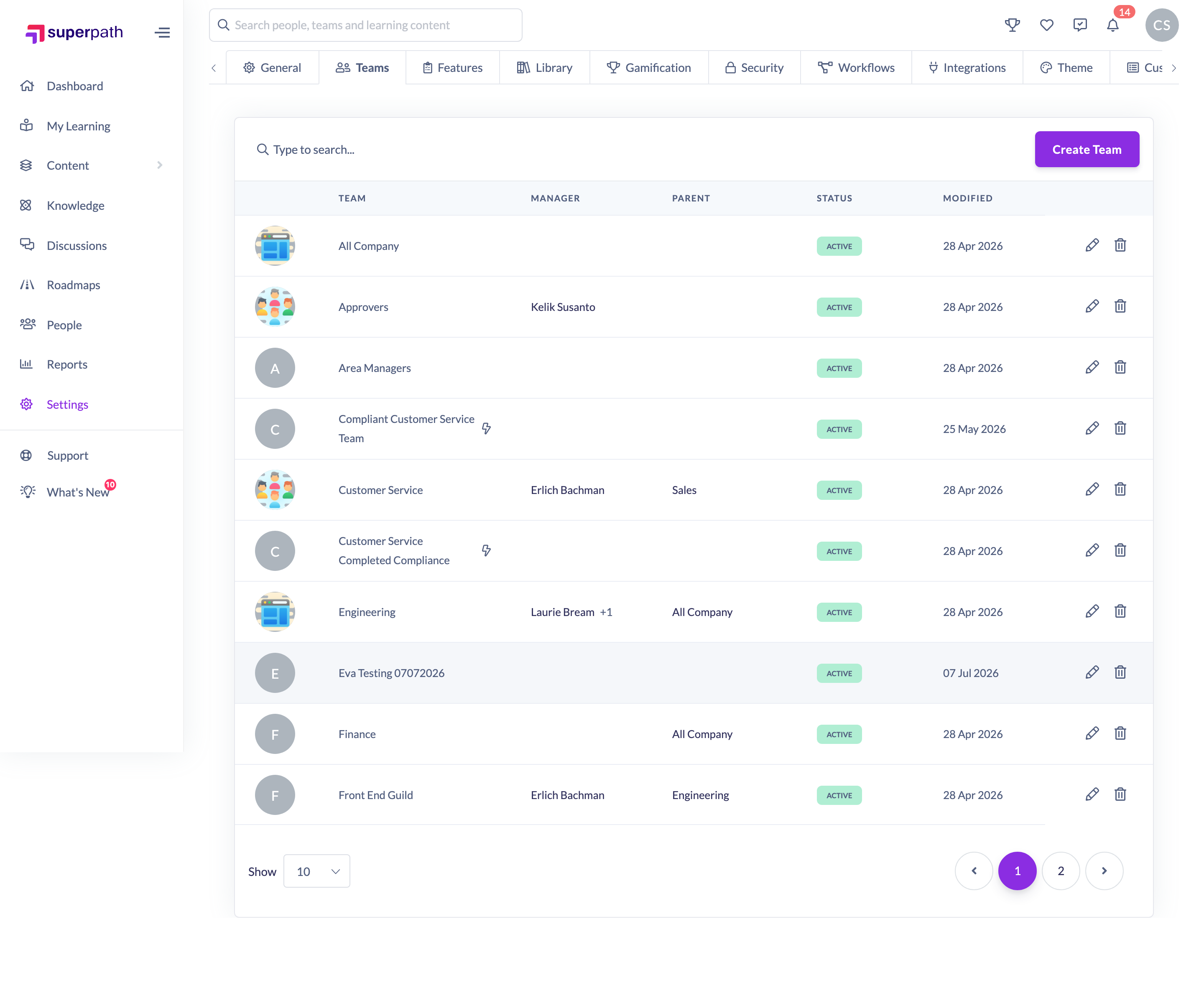
You can also delete a team straight from the list: hover over the team's row, click the trash icon, then click Confirm delete.
Things to keep in mind
- Deletion can't be undone from the app, so check you have the right team before you confirm.
- Deleting a team doesn't delete the people in it — they remain in your People list.
- Deleting a parent team doesn't delete its sub-teams; the sub-teams are not removed.
- Both static and Dynamic Teams can be deleted the same way.
FAQs
Does deleting a team remove the people in it?
No. The people stay in your account; only the team grouping is removed.
What happens to a team's sub-teams when I delete it?
The sub-teams are not deleted along with the parent team.
Can I undo a deletion?
There's no undo in the app. If you delete a team by mistake, contact support.
Who can do this
Owners and Admins can delete teams. Managers — even a team's Primary Manager, who can edit that team — cannot delete it. People Managers, Content Managers, Instructors, Employees and Restricted users cannot delete teams.
Updated on: 17/07/2026
Thank you!