
How to Delete a Workflow
How to Delete a Workflow
In this article:
- Overview
- How to delete a workflow
- Things to keep in mind
- FAQs
- Who can do this
Overview
When a Workflow is no longer needed, you can remove it from your account. Deleting a Workflow stops it running and takes it off your Workflows list for good. If you only want to stop a Workflow temporarily, pause it instead — see How to pause or activate a workflow.
How to delete a workflow
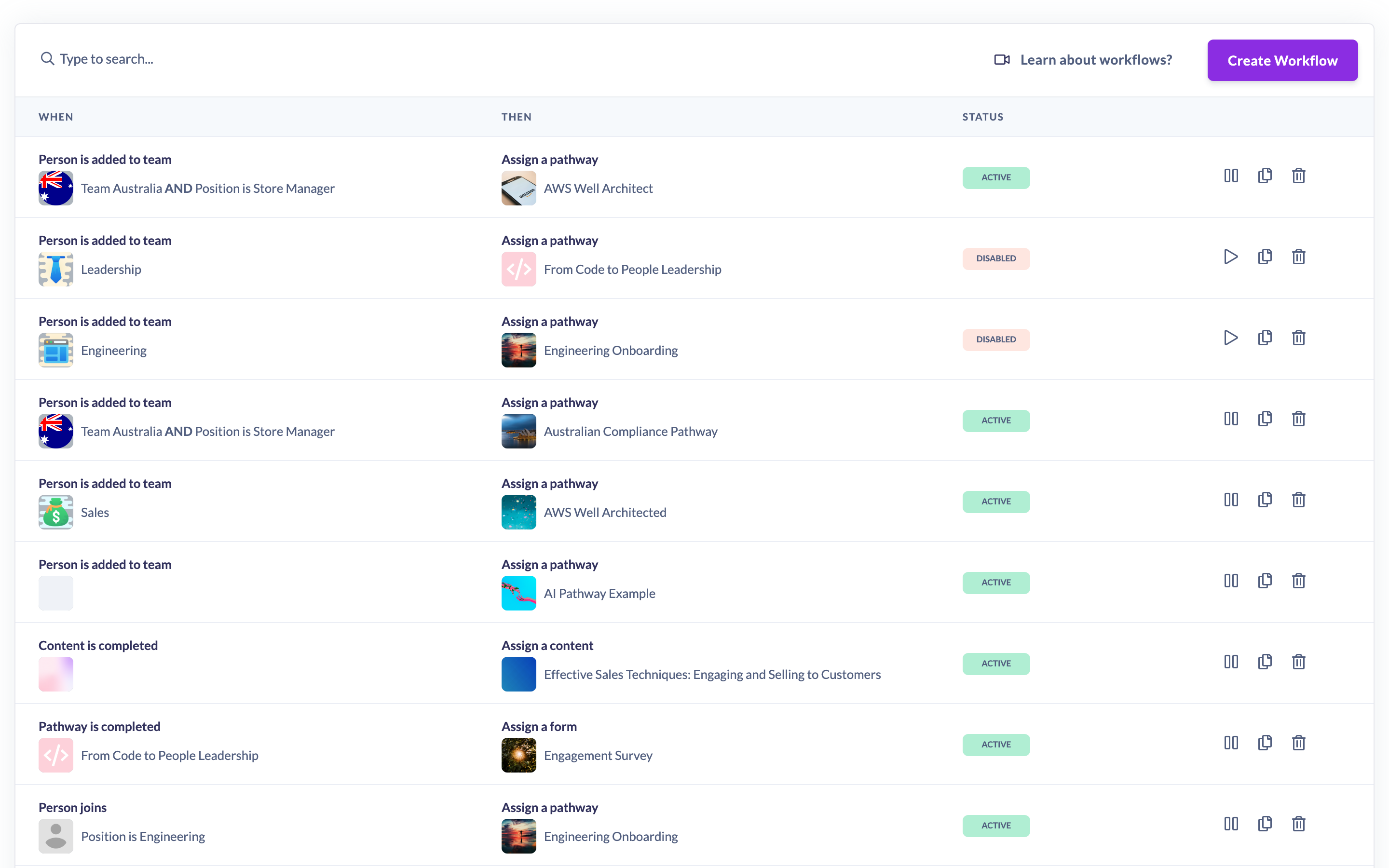
- Go to Settings → Workflows.
- Find the Workflow you want to remove in the list.
- Click the trash icon in that row's actions.
- In the Delete workflow dialog — "Are you sure you want to delete this workflow?" — click Confirm delete.
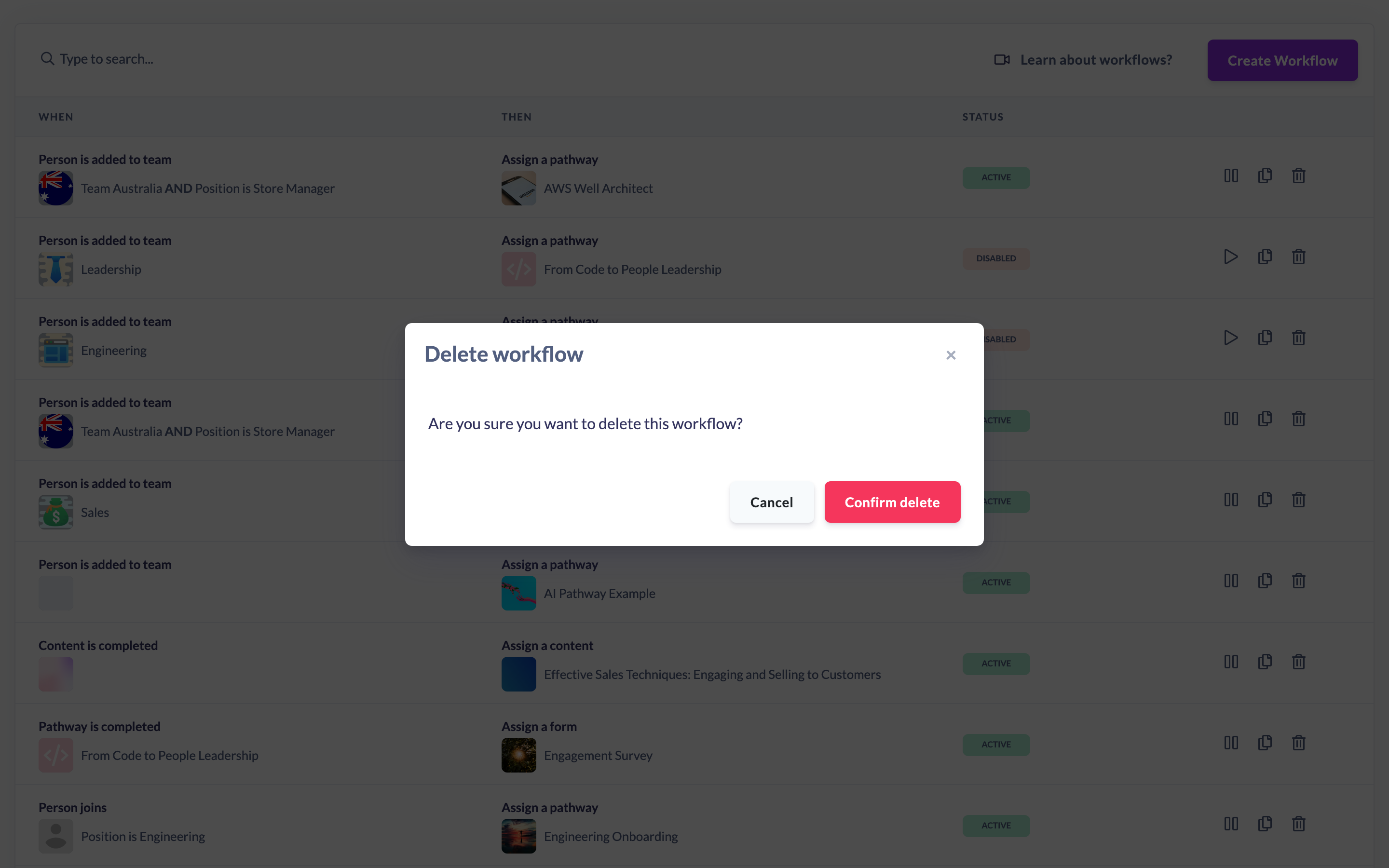
The Workflow is removed from your list and stops responding to any future events.
Things to keep in mind
- Deleting a Workflow is permanent — there's no undo. If you might want it again, consider pausing it or duplicating it first.
- Deleting a Workflow does not undo or reverse any actions it has already carried out (for example, assignments it previously made stay in place).
- If you only want to stop the Workflow for now, use the pause control instead of deleting.
FAQs
Does deleting a Workflow remove the Pathways, Forms or Teams it assigned?
No. Deleting a Workflow only removes the automation itself. Anything it already assigned or actioned remains unchanged.
Can I get a deleted Workflow back?
No. Deletion is permanent, so recreate it from scratch (or duplicate a similar Workflow) if you need it again.
Who can do this
Only Owners and Admins can delete Workflows. Managers, Content Managers, People Managers, Instructors, Employees and Restricted users cannot. Workflows are a paid-plan feature, so the option only appears for accounts where it has been enabled.
Updated on: 16/07/2026
Thank you!