
How to Edit a Competency-Level Cell
How to Edit a Competency-Level Cell
In this article:
- Overview
- How to open a cell's settings
- What the cell editor contains
- Things to keep in mind
- FAQs
- Who can do this
Overview
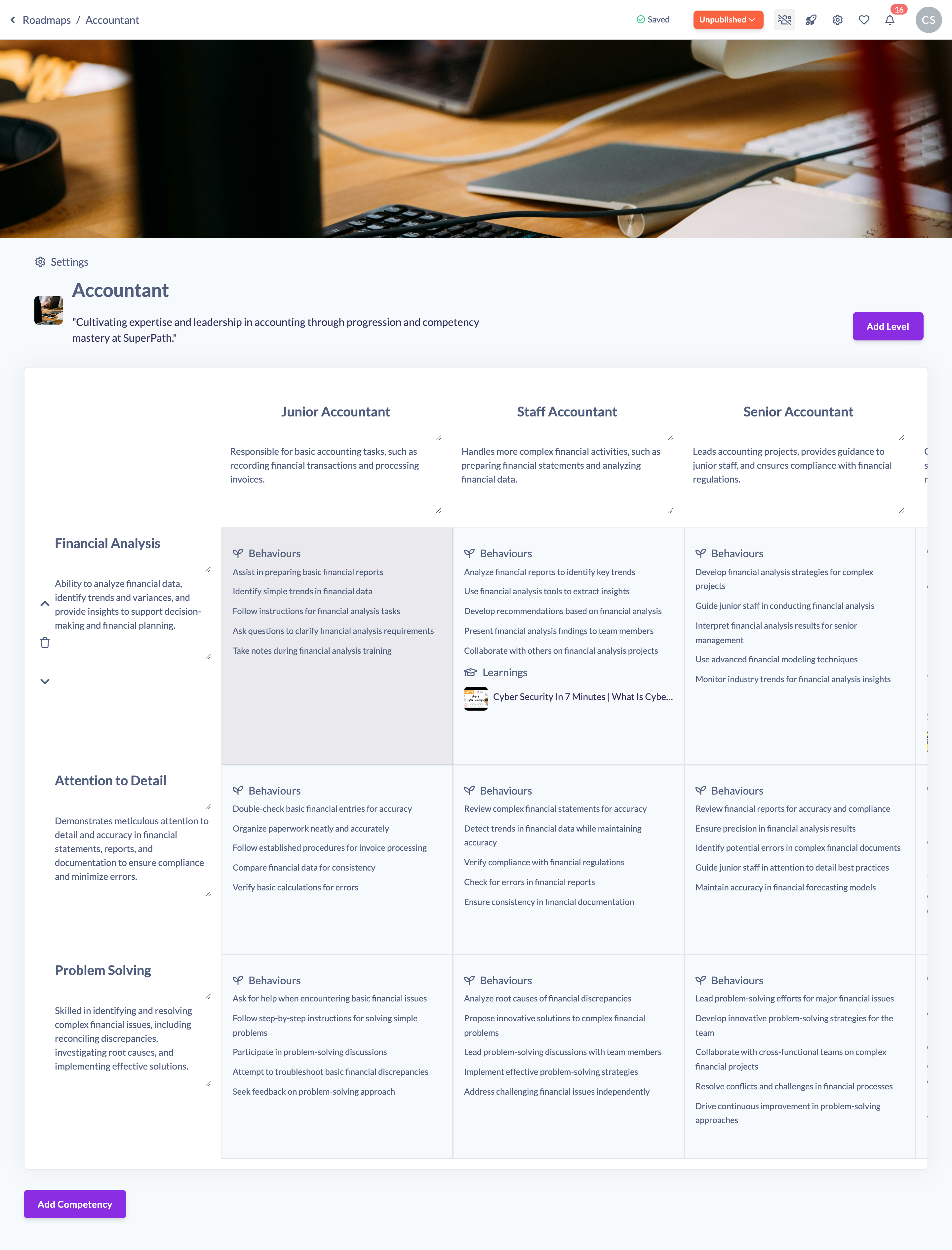
A Roadmap is a grid: each competency is a row, and each level is a column. The point where one competency meets one level is a cell — and every cell can hold its own detail: a description, the key and technical skills expected at that level, the behaviours you want to see, any learning you want auto-assigned, and internal notes. Editing a cell is how you flesh out what "good" looks like for that competency at that level.
This article covers how to open a cell's settings panel and what it contains. The four things you can set inside a cell each have their own how-to: skills, behaviours, auto-assigned learning, and notes.
How to open a cell's settings
- Navigate to https://app.superpath.io/roadmaps and click the Roadmap you want to edit.
- In the grid, click the cell where the competency (row) meets the level (column) you want to edit.
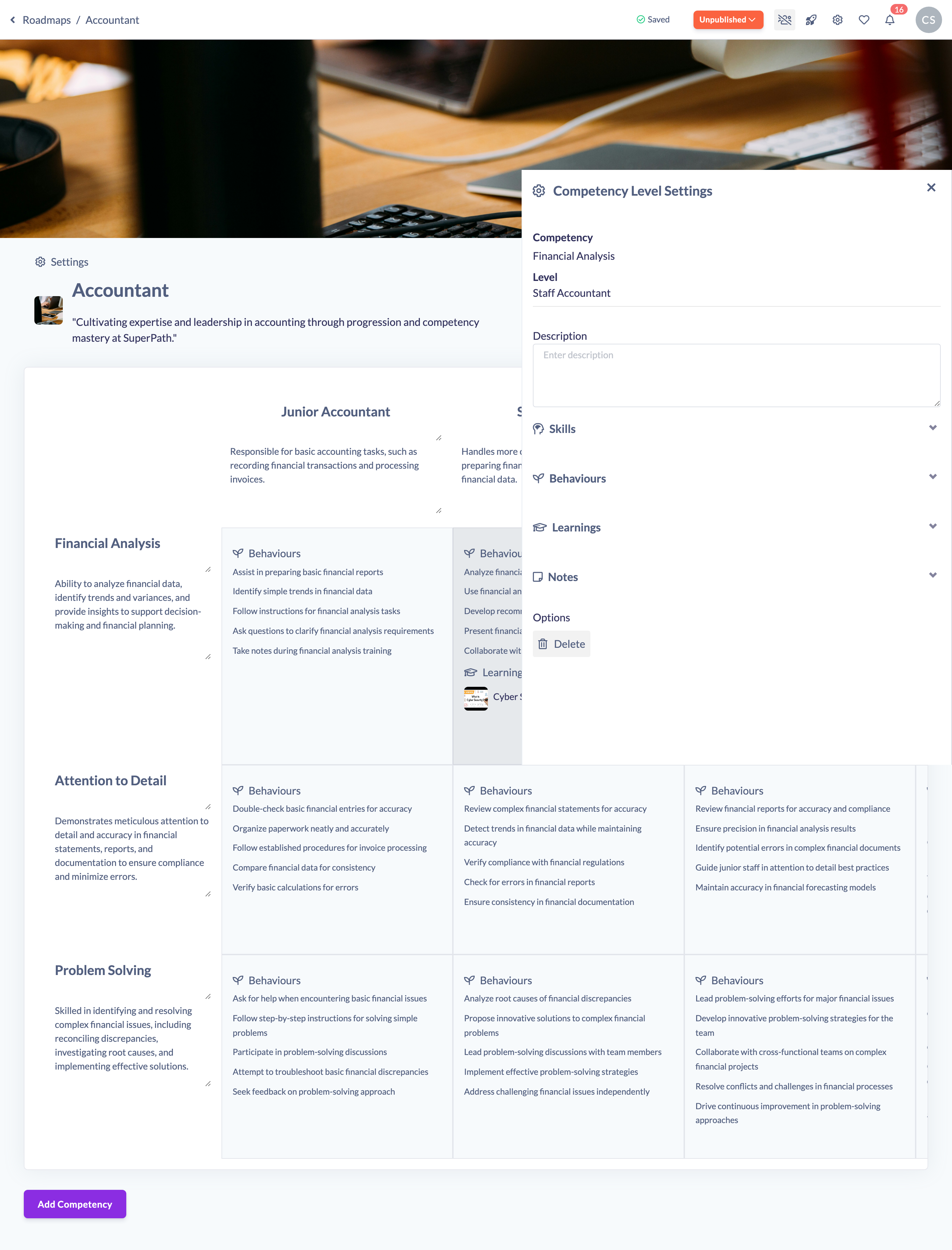
- The Competency Level Settings panel opens on the right. If the cell was empty, clicking it creates the cell first, then opens the panel.
What the cell editor contains
The panel shows the Competency and Level it belongs to at the top (for reference — these are edited on the grid itself, not here), followed by the fields you can set for this cell:
- Description — a free-text summary of what this competency looks like at this level. Shown in the top of the panel, above the collapsible sections.
- Skills — the Key skills and Technical skills expected at this level.
- Behaviours — the behaviours you want to see demonstrated.
- Learnings — content, Pathways, Events, Knowledge and Forms attached to the cell, plus an Auto Assign toggle.
- Notes — internal notes for this cell.
Skills, Behaviours, Learnings and Notes are grouped into collapsible sections — click a section heading to expand it.
Your changes save automatically. The Description and Notes boxes save a moment after you stop typing; skills, behaviours, learnings and the auto-assign toggle save as soon as you change them. There is no separate Save button in the panel.
Note: To remove the whole cell, scroll to the bottom of the panel and click Delete under Options. This deletes the cell's contents and cannot be undone.
Things to keep in mind
- Editing a cell on a Roadmap that is already Published flips the Roadmap back to Unpublished. Re-publish the Roadmap for the changes to reach your learners.
- The Competency and Level headings at the top of the panel are read-only labels — edit the competency or level title on the grid itself.
- Deleting a cell removes everything stored against it (description, skills, behaviours, learnings and notes) and is not reversible.
FAQs
What's the difference between a competency and a level?
A competency is a row in the grid (a capability, e.g. "Communication"). A level is a column (a stage or seniority, e.g. "Beginner"). A cell is one competency at one level.
Do I need to save my changes?
No. The panel saves automatically — text fields a moment after you stop typing, and everything else the moment you change it.
Why did my Roadmap become unpublished after I edited a cell?
Any change to a published Roadmap marks it Unpublished so you can review before your learners see it. Publish it again when you're ready.
Who can do this
Owners, Admins, Managers and Content Managers can open and edit competency-level cells. People Managers, Instructors, Employees and Restricted users cannot edit Roadmaps.
Updated on: 19/07/2026
Thank you!