
How to Edit a Custom Field
How to Edit a Custom Field
In this article:
- Overview
- How to edit a custom field
- What you can and can't change
- Things to keep in mind
- FAQs
- Who can do this
Overview
Once a custom field exists you can update how it's labelled, who can see it, whether it appears in the People list and on your reports, and the options people can choose from on a Dropdown field. A couple of things are fixed once a field is created, so this article covers what you can change and what you can't.
How to edit a custom field
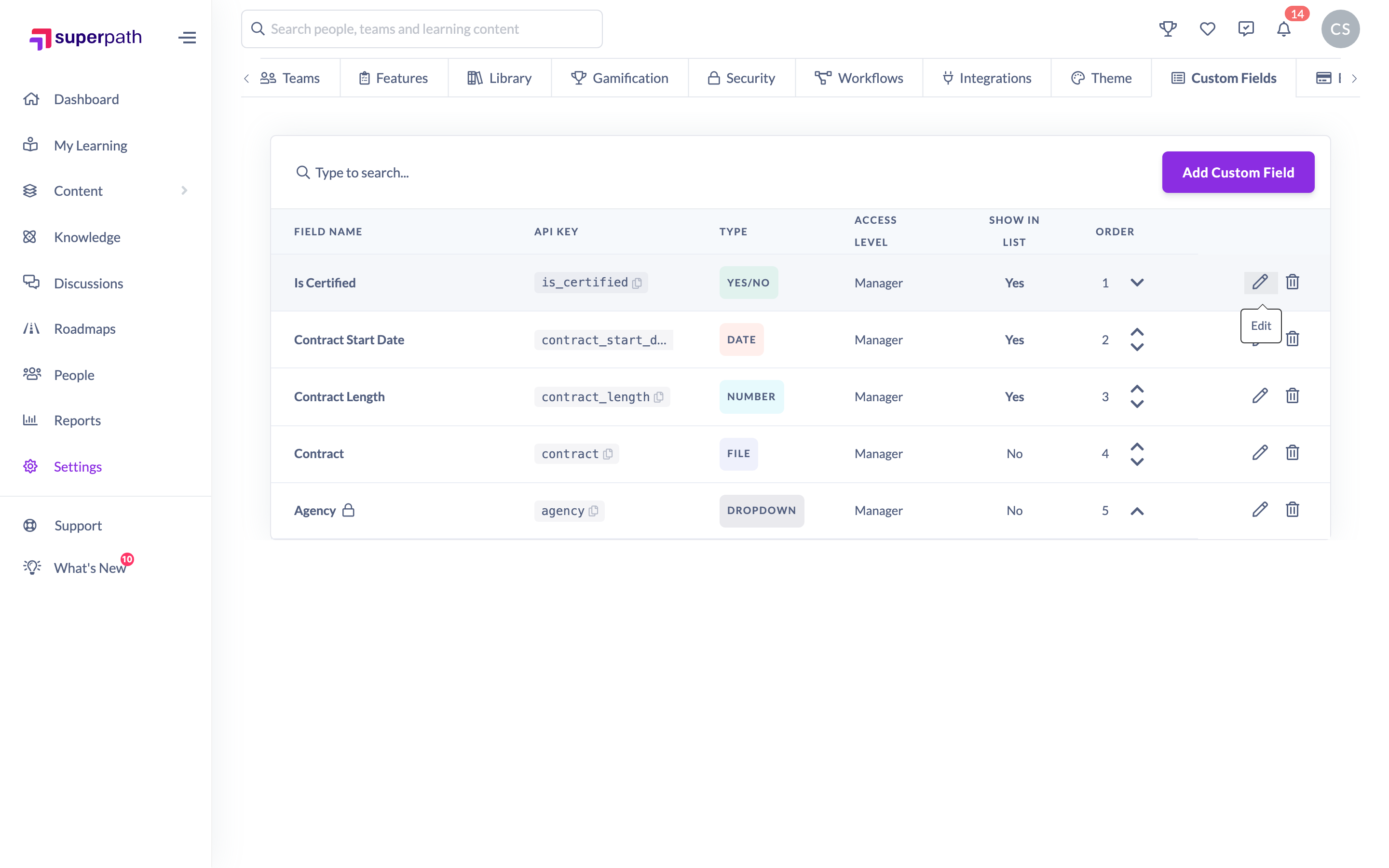
- Go to Settings → Custom Fields.
- Find the field you want to change and click the pencil (Edit) icon in its row.
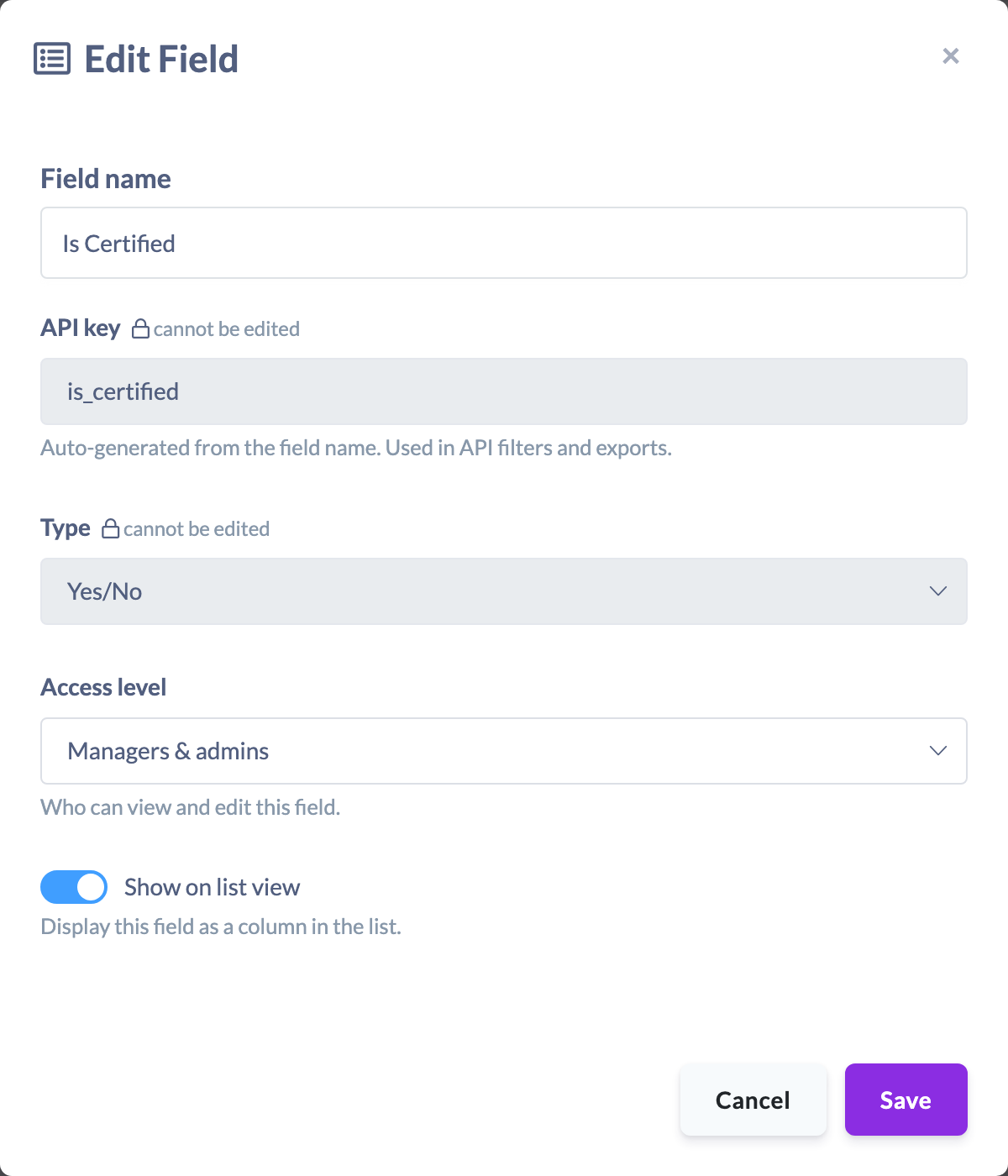
- Update the details you want to change, for example the Field name, the Access level, the Show on list view toggle or the Include in reports toggle.
- For a Dropdown field, add any new options you need. For a File field, adjust the maximum size or the allowed file types.
- Click Save.
What you can and can't change
You can change:
- The Field name.
- The Access level (Everyone, Managers & admins, or Admins only).
- The Show on list view setting.
- The Include in reports setting, for every type except File.
- For Dropdown fields, you can add new options.
- For File fields, the maximum size and allowed file types.
You can't change:
- The Type — it's locked after creation and shown with a "cannot be edited" note.
- The API key — also locked, so filters and exports that rely on it keep working.
Things to keep in mind
- If people already have values saved against a Dropdown field, its existing options are locked — you can add new options, but you can't rename or remove the ones already in use.
- Changing the Access level takes effect immediately and can hide a field's data from the people it belongs to, so review it before storing anything sensitive.
- Turning Show on list view off only removes the column from the People list. The stored values are kept.
- Turning Include in reports off removes the field's column from reports, exports and Scheduled Reports the next time they run. The stored values are kept.
- Renaming a field also renames its column on reports and in exports.
- If you need a different Type or API key, create a new field instead — those two values can't be edited.
FAQs
Why are the Type and API key greyed out?
Both are fixed when the field is created. This keeps API filters, exports and stored data consistent, so they can't be edited afterwards.
Why can't I rename or remove a dropdown option?
Once people have values saved against the field, its existing options are locked to protect that data. You can still add new options — you just can't change or delete the ones already in use.
Does editing a field change data already stored against profiles?
Editing the name, access level or display settings doesn't remove stored values. The exception is a field's access level, which controls who can see the data going forward.
When do my reports pick up a change to Include in reports?
The next time a report is generated or a Scheduled Report sends. You don't need to edit your saved reports.
Who can do this
Only Owners can edit custom fields. The Custom Fields tab in Settings is shown to Owners only, and saving changes requires the manage permission that only the Owner role holds. Admins, Managers, People Managers, Content Managers, Instructors, Employees and Restricted users cannot edit custom fields.
Updated on: 29/09/2026
Thank you!