
How to Edit a Dynamic Team
How to Edit a Dynamic Team
In this article:
- Overview
- How to edit a Dynamic Team
- Things to keep in mind
- FAQs
- Who can do this
Overview
Editing a Dynamic Team lets you rename it or change the rules that decide who belongs to it. A Dynamic Team opens its own editor — focused on the team Name and its Criteria — rather than the manager and parent-team fields you'd see when editing a static Team. Because membership is rule-driven, changing the criteria immediately changes who is in the team.
How to edit a Dynamic Team
- Go to Settings → Teams.
- Open the Dynamic Team you want to change (Dynamic Teams are marked with a lightning bolt icon).
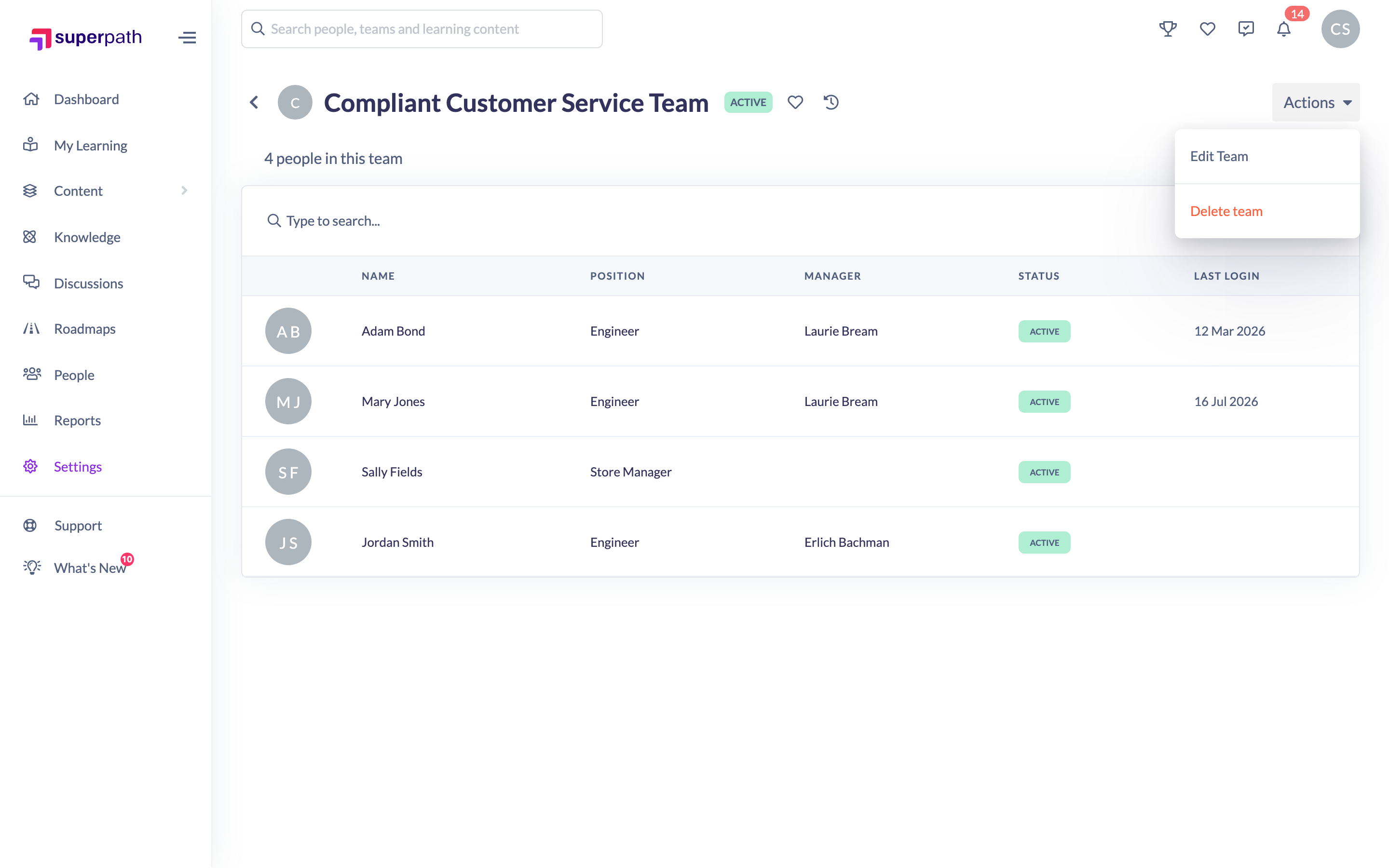
- Click Actions → Edit Team.
- In the Edit Team window, update the Name and/or the Criteria. Use the pencil icon to change a rule, the trash icon to remove one, or Add criteria to add another. With two or more rules you can also change how they combine, in the sentence People who match [all] of these rules:. Choose all or any.
- Click Save changes.
Things to keep in mind
- The Dynamic Team editor covers the Name and Criteria only. Primary manager, additional managers and parent team are fields for static Teams.
- Save changes stays disabled until you actually change something, and the team must still have a name and at least one criterion.
- Changes take effect as soon as you save, and the team's membership re-resolves against the new rules straight away.
- Switching between all and any, on the team's rules or inside a people fields rule, counts as a change and can change who is in the team. Matching any usually brings more people in, and matching all usually leaves fewer.
- Teams built before the all and any options existed open set to all, which is exactly how they have always behaved.
- For step by step instructions on building and combining rules, including Is any of, see the How to Set Up Dynamic Team Rules article.
FAQs
Why is Save changes greyed out?
Either you haven't changed anything since opening the window, or the team is missing a name or has no criteria. Make a change and ensure at least one criterion is present.
Can I add a manager or a parent team to a Dynamic Team?
Those fields aren't part of the Dynamic Team editor — they apply to static Teams.
Do my changes affect people already assigned content through this team?
Changing the rules changes who is currently in the team. Existing assignments people already received aren't removed just because they leave the team.
Who can do this
Owners and Admins can edit any team. A Manager who is set as a team's Primary Manager can edit that team. Employees and Restricted users cannot edit teams.
Updated on: 26/09/2026
Thank you!