
How to Edit a Team
How to Edit a Team
In this article:
- Overview
- How to edit a team
- Things to keep in mind
- FAQs
- Who can do this
Overview
Editing a team lets you change its name, status, parent team and managers. This covers static Teams — the standard, manually managed kind. (Dynamic Teams open a different editor for their name and rules; see the How to Edit a Dynamic Team article.) The team's avatar is changed separately — see the Setting a Team Avatar article.
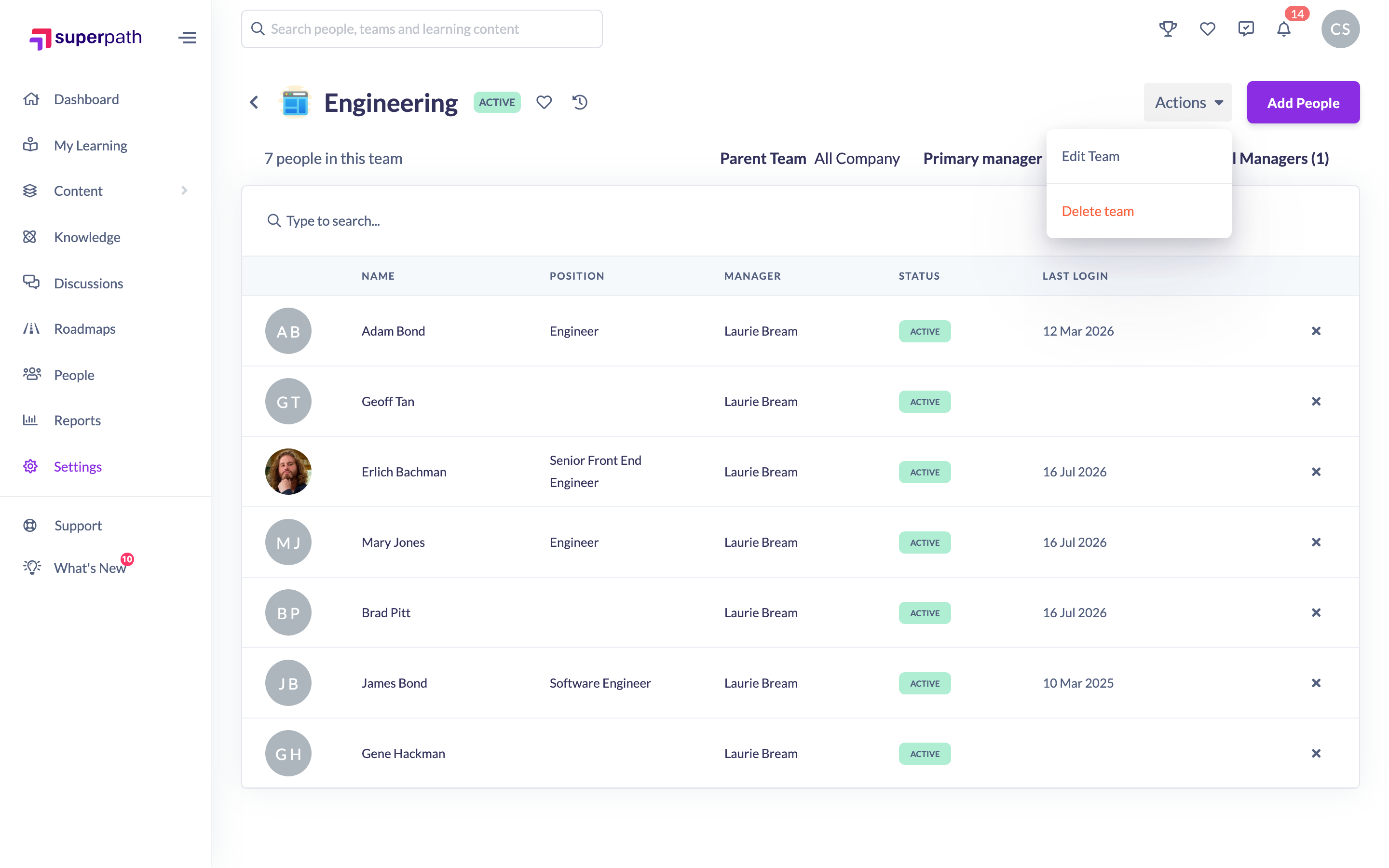
How to edit a team
- Go to Settings → Teams.
- Open the team you want to change.
- Click Actions → Edit Team.
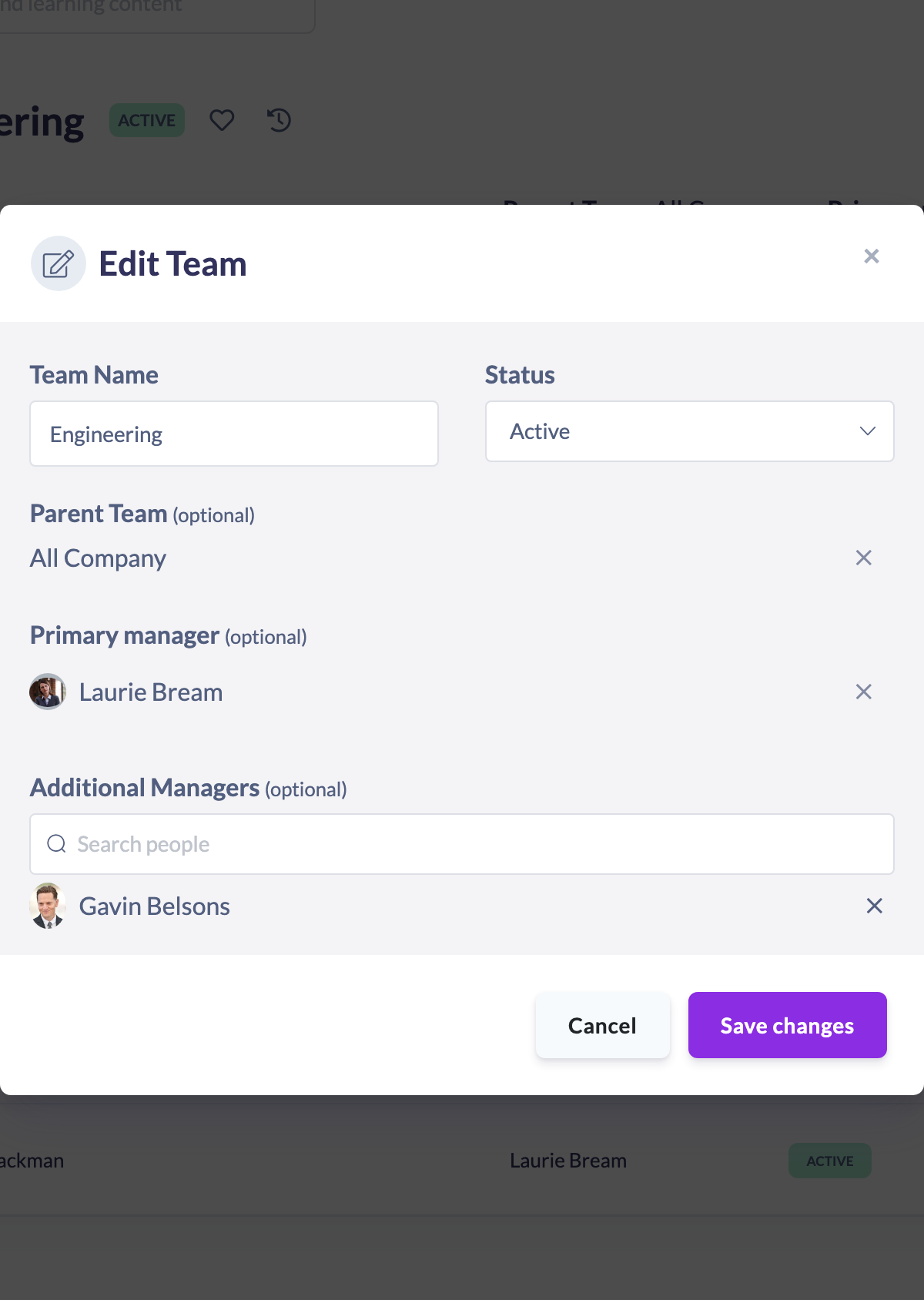
- Update any of the fields:
- Team Name
- Status — Active or Inactive
- Parent Team — the team this one sits under (optional)
- Primary manager (optional)
- Additional Managers (optional)
- Click Save changes.
Things to keep in mind
- This editor is for static Teams. A Dynamic Team opens an editor for its name and criteria instead.
- Renaming a team also updates the parent-team label shown on any of its sub-teams.
- Additional Managers can only be added once a Primary manager has been set.
- Only people who hold a Manager, People Manager, Admin or Owner role appear in the manager search.
- Teams synced from an external system show a plug icon and a warning; take care editing them, as a sync may overwrite your changes.
- Adding and removing people is done from the team's member list, not this window — see the Adding people to a team and How to Remove a Person From a Team articles.
FAQs
How do I move a team under another team?
Set the Parent Team field to the team it should sit under, then save.
Why can't I add an additional manager?
Set a Primary manager first — the additional managers field stays disabled until one is chosen.
How do I change the team's picture?
The avatar is set from the team page separately — see the Setting a Team Avatar article.
Who can do this
Owners and Admins can edit any team. A Manager who is set as a team's Primary Manager can edit that team. People Managers, Content Managers and Instructors can edit a team only where they are its Primary Manager. Employees and Restricted users cannot edit teams.
Updated on: 17/07/2026
Thank you!