
How to Edit a Workflow
How to Edit a Workflow
In this article:
- Overview
- How to edit a workflow
- Things to keep in mind
- FAQs
- Who can do this
Overview
You can change an existing Workflow at any time. Swap its trigger or action, adjust the criteria that decide who it runs for (including how they combine), or change the assignment rules such as the due date or notifications. Editing a Workflow opens the same builder you used to create it, pre-filled with the current settings.
How to edit a workflow
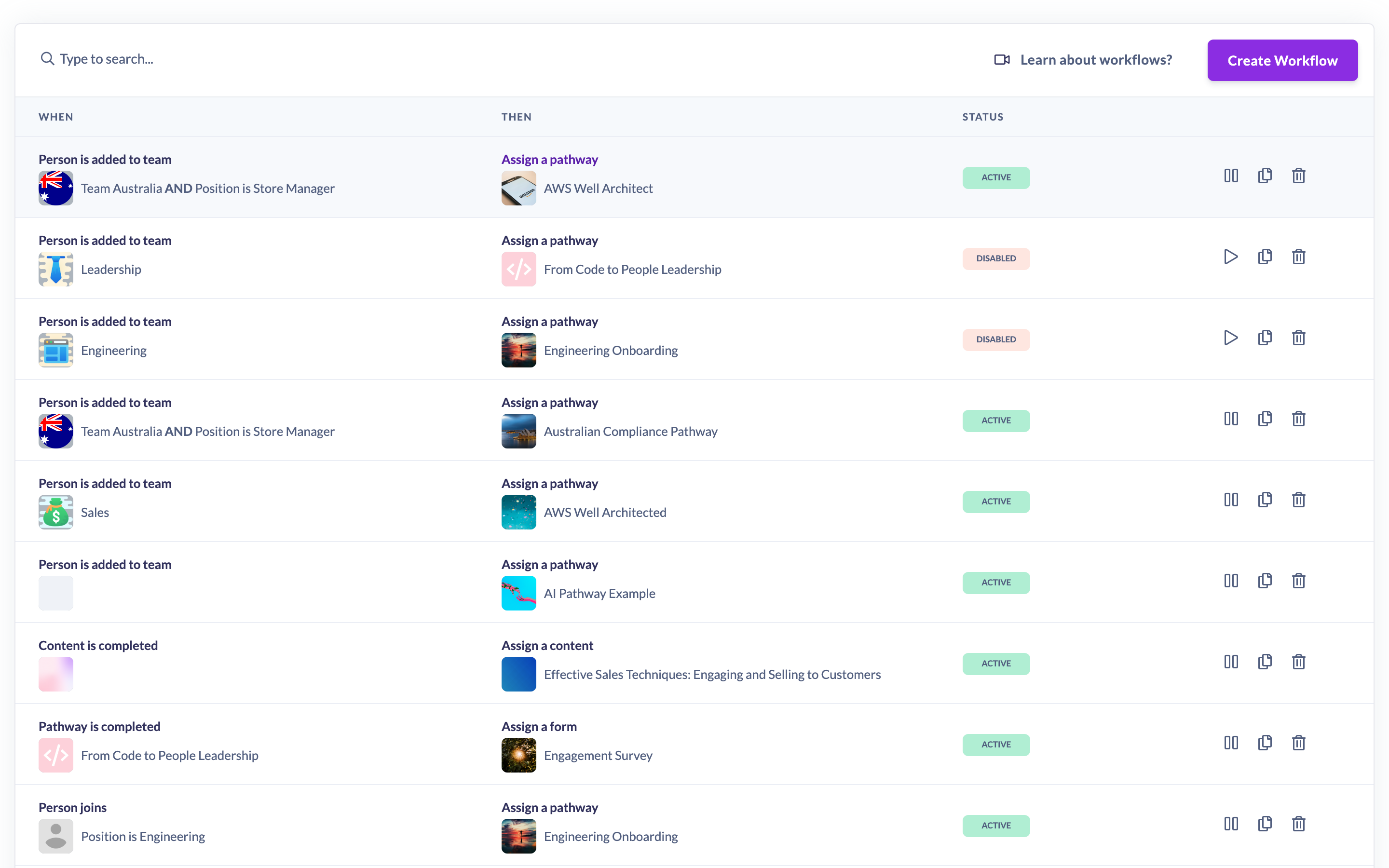
- Go to Settings → Workflows.
- Click the Workflow you want to change (click the When or Then text, or the status badge, in its row). This opens the Edit workflow screen.
- Change the When (trigger) or Then (action) from the dropdowns, and update the specific item or criteria as needed. Changing the trigger clears the trigger's entity and criteria so you can set them fresh. To have the Workflow run for any Team, Event, Form or Pathway rather than one in particular, clear the specific item with the x in its box.
- To cover several values in one condition, choose Is any of as its operator.
- With two or more conditions, choose all or any in the sentence A person must match [all] of these conditions:.
- For assignment actions, adjust any rules: Notify people on assignment, Start date, Due date, the yearly Recurring schedule, or your choice under For people who already have this learning.
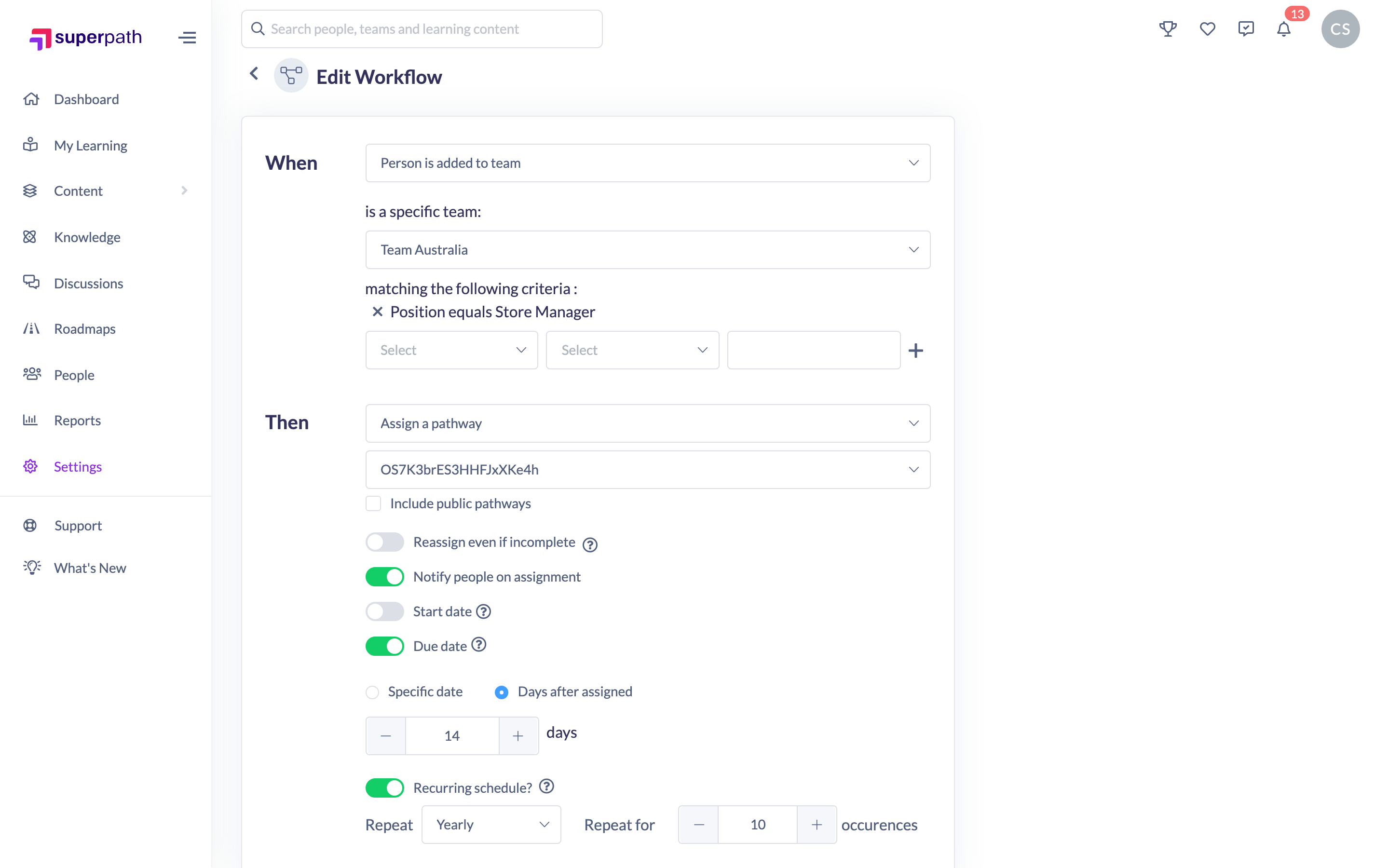
- Click Update workflow to save your changes. You'll see a confirmation that the Workflow has been updated. If you'd rather not keep your edits, click Discard instead to put the form back to how it was when you last saved.
Things to keep in mind
- Editing a Workflow changes how it behaves from that point on. It doesn't undo or reverse actions the Workflow has already taken.
- If you change the trigger to Profile is updated, you must add at least one criterion before the Workflow can be saved.
- A Workflow triggered by a change to a person's Role cannot use the Change user role action — this combination is blocked when you save.
- Pausing and editing are separate: to stop a Workflow running while you rework it, pause it from the Workflows list rather than deleting it. See How to pause or activate a workflow.
- Update workflow and Discard stay disabled until you change something. Discard only resets the form. It doesn't change anything that's already saved.
- Switching the conditions between all and any changes who the Workflow runs for from then on. Workflows built before this option existed are set to all, exactly as they have always behaved.
- The screen also shows who originally created the Workflow, for reference.
FAQs
Can I change a Workflow's status from the edit screen?
Status (active or paused) is managed from the Workflows list using the pause/play control, not from the edit builder. See How to pause or activate a workflow.
How do I undo edits I haven't saved yet?
Click Discard. The form goes back to the Workflow as it was last saved, without leaving the page.
Will editing re-run the Workflow on people it already actioned?
No. Edits apply to future matching events only; the Workflow doesn't reprocess events that already happened.
I changed the specific Pathway (or Form, Event, and so on) — does the Workflow update straight away?
Yes. Once you click Update workflow, the new selection takes effect for events from then on.
Who can do this
Only Owners and Admins can edit Workflows. Managers, Content Managers, People Managers, Instructors, Employees and Restricted users cannot. Workflows are a paid-plan feature, so the option only appears for accounts where it has been enabled.
Updated on: 26/09/2026
Thank you!