
How to Edit Roadmap Details and Settings
How to Edit Roadmap Details and Settings
In this article:
- Overview
- How to open Roadmap settings
- The settings you can edit
- Things to keep in mind
- FAQs
- Who can do this
Overview
Every Roadmap has a settings panel where you manage its high-level details — the title, sub title, description, department, rating scale and tags. These describe the Roadmap and help you find it later in your Roadmaps list.
How to open Roadmap settings
- Go to Roadmaps and open the Roadmap you want to edit.
- In the top nav of the Roadmap editor, click the Settings (cog) icon. The Roadmap Settings panel slides in from the right.
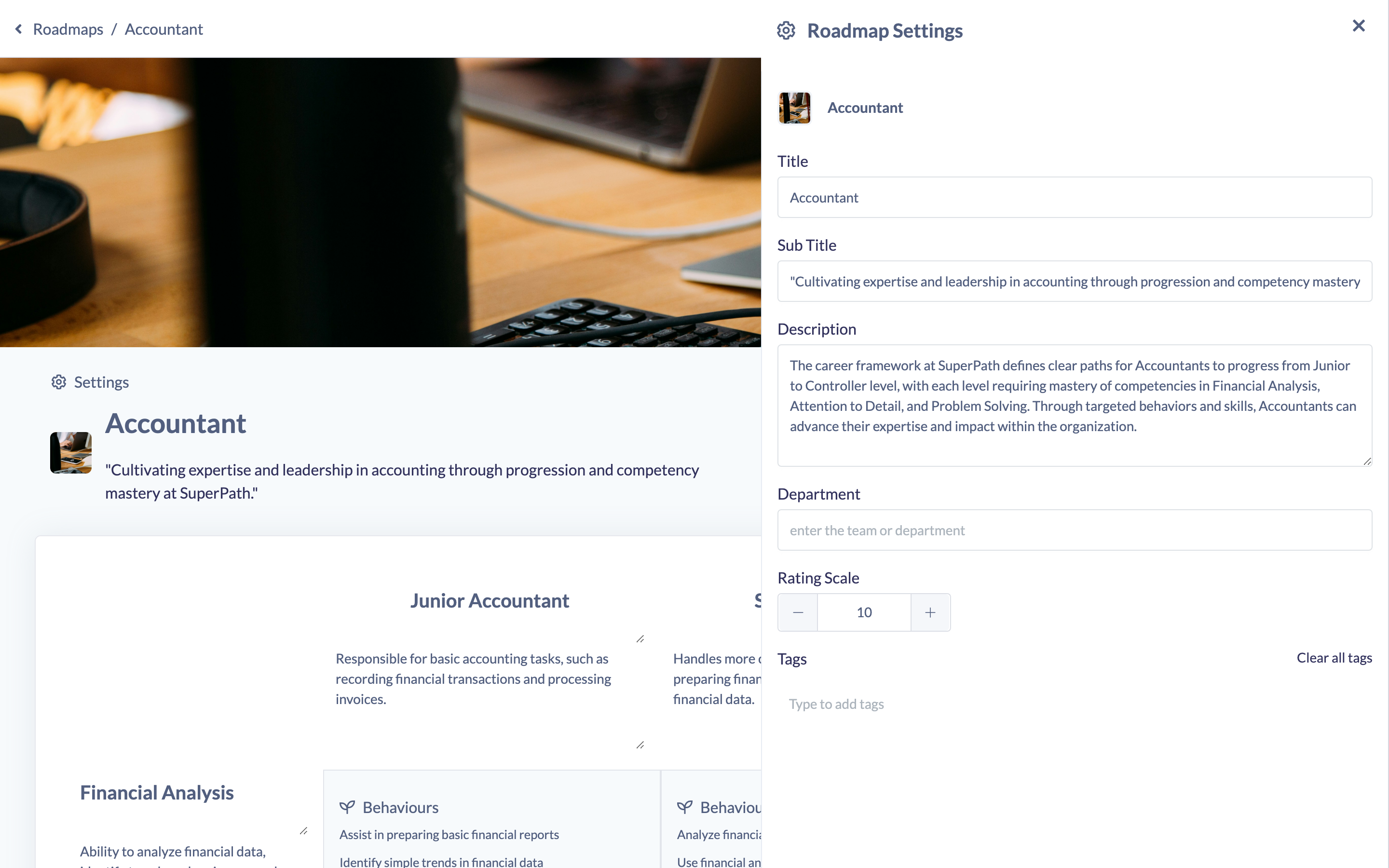
- Edit any of the fields below. Changes save automatically as you type — there is no separate save button.
- Click the Close icon at the top of the panel when you are done.
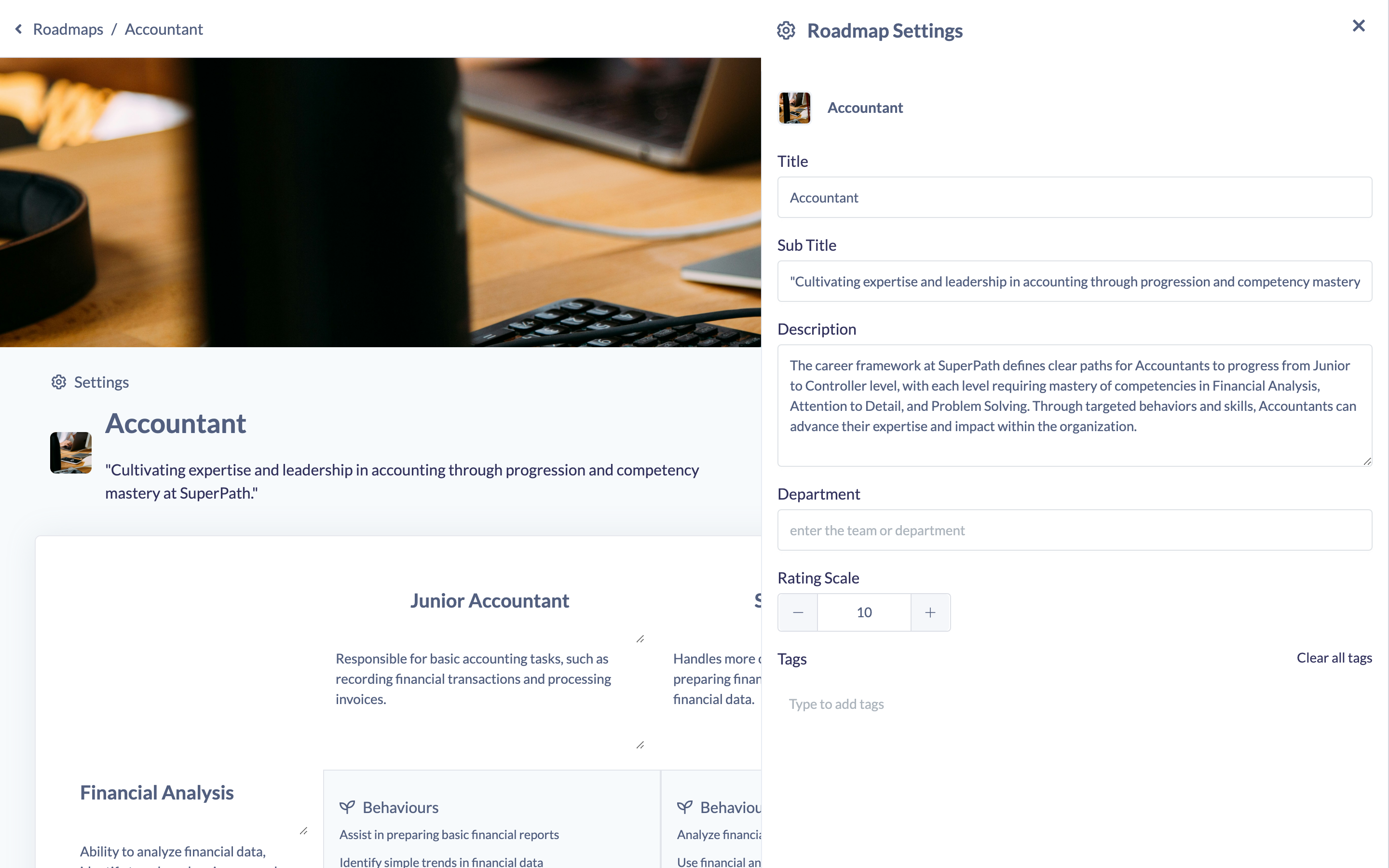
The settings you can edit
- Title — the name of the Roadmap, shown throughout SuperPath and in your Roadmaps list.
- Sub Title — an optional short line beneath the title.
- Description — a longer summary of what the Roadmap covers.
- Department — the Team or department the Roadmap relates to, useful for filtering your Roadmaps list.
- Rating Scale — the number of points on the assessment scale for this Roadmap (see "How to Set the Rating Scale for a Roadmap").
- Tags — labels to categorise and filter the Roadmap (see "How to Add Tags to a Roadmap").
Good to know: The Roadmap's cover image is set from the cover banner at the top of the editor rather than from this panel — see "How to Set a Roadmap Cover Image".
Things to keep in mind
- Changes save automatically as you edit — there is no Save button in the settings panel.
- Editing a Roadmap's competencies or levels unpublishes a live Roadmap, but editing these details fields (title, description, tags, and so on) does not.
- The Roadmap editor is available on desktop or tablet, not on mobile.
FAQs
Do I need to save my changes?
No. Each field saves automatically a moment after you stop typing.
Where do I change the Roadmap's cover image?
The cover is set from the banner at the very top of the Roadmap editor, not the settings panel. See "How to Set a Roadmap Cover Image".
Who can do this
Owners, Admins, Managers and Content Managers can edit Roadmap details and settings (governed by the "update" permission on the Roadmap subject). People Managers, Instructors, Employees and Restricted users cannot.
Updated on: 19/07/2026
Thank you!