
How to Edit Your Profile Details
How to Edit Your Profile Details
In this article:
- Overview
- How to edit your profile details
- Things to keep in mind
- FAQs
- Who can do this
Overview
Your profile holds the personal details SuperPath shows across the platform — your name, position, location, preferred language and timezone. Keeping these up to date makes sure your learning experience is shown in the right language and time, and that your teammates and Managers see the correct information about you. You update all of these details from a single Edit your account window on your profile page.
How to edit your profile details
- Click your profile icon in the top-right corner of the page and select My Profile.
- On your user card, open the Actions dropdown and click Edit account. This opens the Edit your account window.
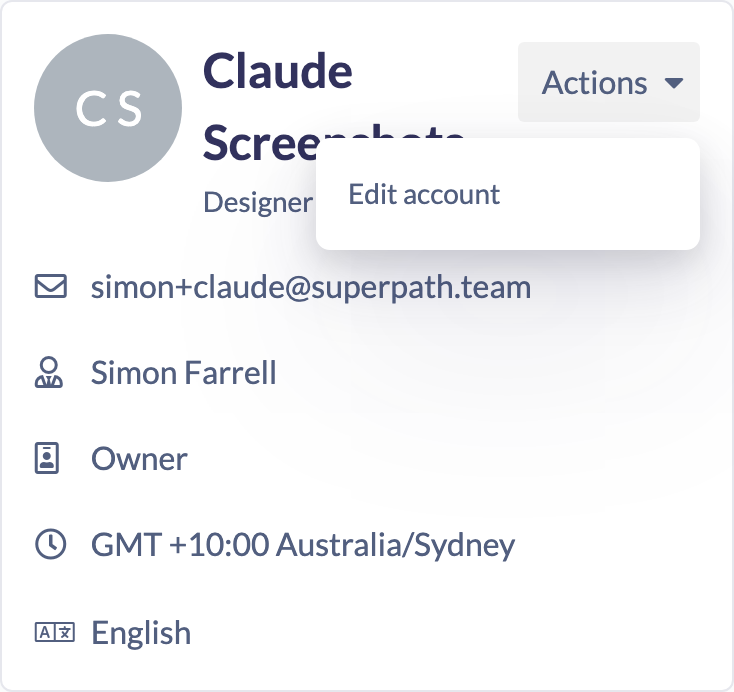
- On the Core details tab, update any of the following fields: First name, Last name, Position, State, Country, Language and Timezone.
- Click Save changes.

Note: Your Email address is shown here but is read-only — you cannot change your own email from this window. If your email needs to be updated, ask your Admin or Owner.
Good to know: If your role has Custom Fields available to you, an Additional details tab appears alongside Core details, where you can fill in those extra fields.
Things to keep in mind
- First name and Last name are required and must each be at least two characters.
- Country and Timezone are searchable dropdowns — start typing to filter the list.
- Choosing a Country automatically suggests a matching Timezone, which you can override before saving.
- Your Email is always read-only in this window.
- If your account is managed by a partner or reseller who has disabled member modifications, the Actions menu (and therefore Edit account) is hidden.
FAQs
Why can't I change my email address?
The Email field is read-only for your own account. An Admin or Owner can update it for you if needed.
I don't see an Actions menu on my profile — why?
If your organisation is managed by a partner or reseller that has disabled member modifications, the Actions menu is hidden and you won't be able to edit your own details. Contact your administrator for help.
Where do I change my password?
Password changes are handled separately — see the "How to Change Password" article. If you sign in with Google, Microsoft or SSO, you won't see a change-password option.
Who can do this
Any signed-in user can edit their own profile details — this is self-service and not restricted by role. The only exception is when your account is managed by a partner or reseller that has disabled member modifications, in which case the Edit account option is hidden for everyone in that account. Your Email address is always read-only here regardless of role.
Updated on: 20/07/2026
Thank you!