
How to Enable Auto-Login and Generate a Login Token
How to Enable Auto-Login and Generate a Login Token
In this article:
- Overview
- How to enable auto-login and generate a token
- How to regenerate the token
- Things to keep in mind
- FAQs
- Who can do this
Overview
Auto Login lets you sign your people straight into SuperPath from your own system, for a more seamless experience. When you enable it, SuperPath generates an Auto Login Secret (a login token) that your developers use to build the sign-in link. This article covers switching the feature on and getting the token from the Security settings tab. For the technical implementation, follow the developer documentation linked from the same screen.
How to enable auto-login and generate a token
- Go to Settings → Security.
- In the Auto Login section, switch on Enable auto login for your users (Additional work required).
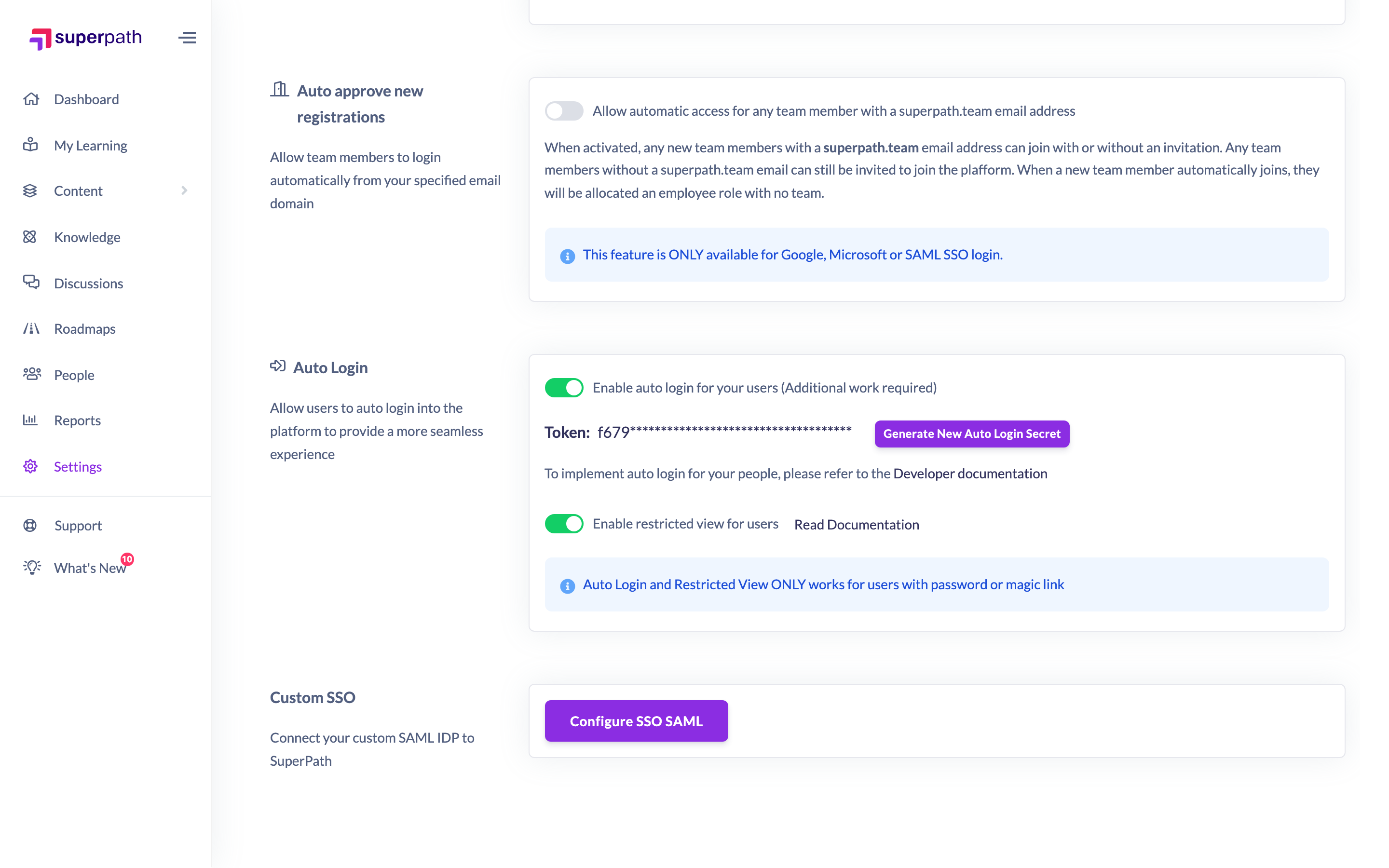
- Turning the toggle on immediately generates a token and opens the Generate New Auto Login Secret dialog. Copy the key now — it will not be visible again in full.

- Close the dialog. The token is shown masked (only the last few characters) back on the Security tab.
- Click Save changes on the save bar at the top of the screen to store your changes.
Once saved, auto-login is enabled and your developers can use the token to build the sign-in link — see the Developer documentation link in the Auto Login section.
How to regenerate the token
- In the Auto Login section, click Generate New Auto Login Secret.
- Copy the new key from the dialog straight away — as before, it won't be shown in full again.
- Click Save changes to store the new token.
Generating a new secret replaces the old one, so any sign-in link built with the previous token will stop working until you update it with the new value.
Things to keep in mind
- Auto Login is only available on paid accounts. If your account isn't on a paid plan, you'll see an upgrade message instead of the toggle.
- Auto Login (and Restricted View) only works for users who sign in with a password or magic link.
- The token is only shown in full once, at the moment it's generated. Copy and store it securely — never commit it to a public code repository or share it in plain files.
- Generating or enabling only takes effect once you click Save changes. If you close without saving, the change isn't stored.
- This token grants access to your company information in SuperPath. If you suspect it has been compromised, regenerate it to revoke the old one.
FAQs
Where do I use the token?
Your developers use it to build the auto-login sign-in link. The Developer documentation link in the Auto Login section walks through the implementation.
I didn't copy the token in time — can I see it again?
Not in full. The key is only displayed once, when it's generated. If you've lost it, generate a new one and update your integration with the new value.
Does enabling auto-login work for everyone?
No. Auto Login only works for users who sign in with a password or magic link, as noted in the Auto Login section.
Who can do this
Only Owners (and Super Admins) can enable auto-login and generate a token — the Security settings tab is shown to Owners only. Admins, Managers, Content Managers, People Managers, Instructors, Employees and Restricted users don't see the Security tab. Auto Login is also a paid-account feature.
Updated on: 17/07/2026
Thank you!